
How to include Attachments For Incidents & Notes
When creating an incident or note, you have the option to add attachments. However, these attachments will not be sent to recipients unless specific settings are enabled.
Enabling sending of attachments for incidents
To enable attachments for incidents:
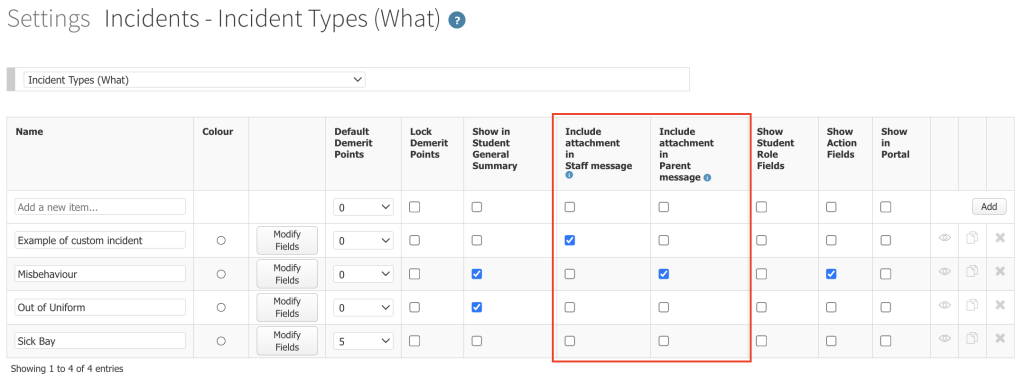
- Navigate to: Options > Software Settings > Lists & Options > Incidents > Incident Types.
- In the Incident Types section, you’ll find two columns: Include attachment in staff message and Include attachment in parent message. By checking the appropriate boxes for a specific incident type, attachments will be included when sending messages to staff or parents.
Enabling sending of attachments for Student Notes
To enable attachments for notes:
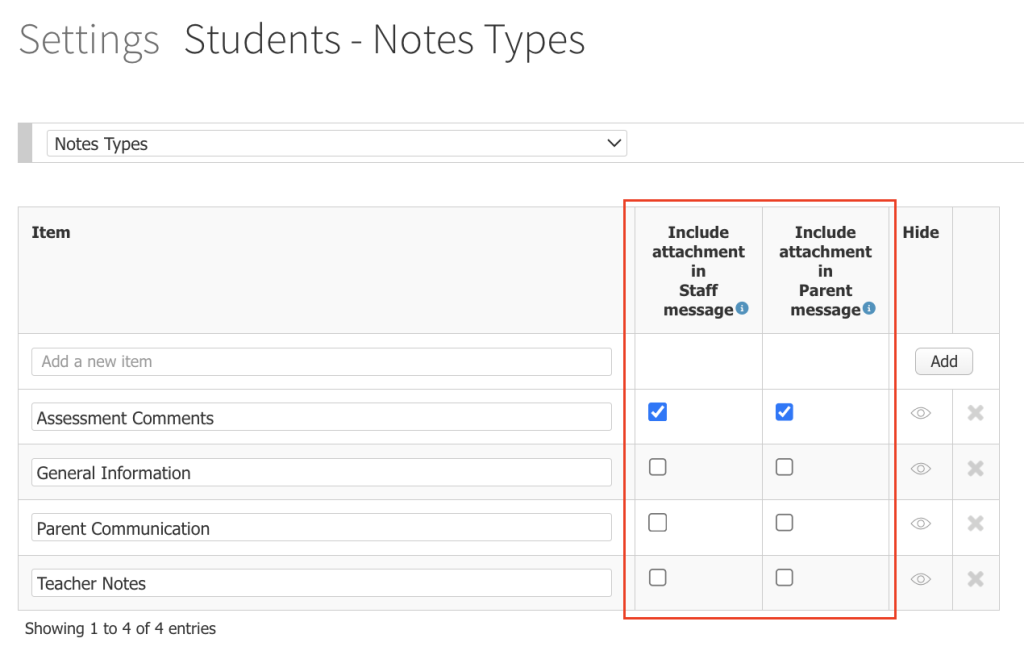
- Navigate to: Options > Software Settings > Lists & Options > Students > Note Types.
- In the Note Types section, you’ll find two columns: Include attachment in staff message and Include attachment in parent message. By checking the appropriate boxes for a specific note type, attachments will be included when sending messages to staff or parents.
Cara Menyertakan Lampiran pada Insiden dan Catatan
Artikel ini menjelaskan cara mengonfigurasi pengaturan agar lampiran yang ditambahkan pada insiden atau catatan dapat dikirim kepada staf dan orang tua.
Saat membuat sebuah insiden atau catatan, Anda memiliki opsi untuk menambahkan lampiran. Namun, lampiran tersebut tidak akan dikirim kepada penerima kecuali pengaturan tertentu telah diaktifkan.
Mengaktifkan Pengiriman Lampiran untuk Insiden
Untuk mengaktifkan pengiriman lampiran pada insiden:
1. Buka menu: Options > Software Settings > Lists & Options > Incidents > Incident Types.
2. Pada bagian Incident Types, tersedia dua kolom:
- Include attachment in staff message
- Include attachment in parent message
3. Centang kotak yang sesuai pada jenis insiden (incident type) yang diinginkan. Setelah diaktifkan, lampiran akan disertakan saat pesan dikirim kepada staf atau orang tua.
Mengaktifkan Pengiriman Lampiran untuk Student Notes
Untuk mengaktifkan pengiriman lampiran pada catatan siswa:
1. Buka menu: Options > Software Settings > Lists & Options > Students > Note Types.
2. Pada bagian Note Types, tersedia dua kolom:
- Include attachment in staff message
- Include attachment in parent message
3. Centang kotak yang sesuai pada jenis catatan (note type) yang diinginkan. Setelah diaktifkan, lampiran akan disertakan saat pesan dikirim kepada staf atau orang tua.