
How to book Parent Teacher Interviews using the Family App
Cara memesan sesi Parent-Teacher Interview anak-anak Anda
Opsi 1: Memesan waktu untuk guru atau koordinator setiap anak secara individual
1. Ketuk tiga garis horizontal di kiri atas layar Prestia Family App Anda, lalu gulir ke bawah dan pilih Wawancara Orang Tua-Guru dari menu.
1. Anda akan melihat guru atau koordinator yang dapat dipesan untuk Wawancara Orang Tua-Guru oleh anak Anda di bagian bawah layar. Jika Anda memiliki lebih dari satu anak di sekolah, salah satunya akan disorot saat Anda pertama kali masuk ke layar Wawancara Orang Tua-Guru. Anda dapat dengan mudah beralih antara setiap anak dengan mengetuk nama mereka.
2. Perhatikan bahwa sekolah Anda mungkin memiliki opsi yang sedikit berbeda, tergantung pada ketersediaan Penerjemah atau wawancara Online.
3. Ketuk Pilih waktu menu drop-down untuk memilih slot waktu yang sesuai untuk guru atau koordinator ini.
7. Ulangi langkah-langkah di atas untuk menyelesaikan semua pemesanan yang diperlukan untuk semua anak Anda. Prestia akan memperbarui waktu yang tersedia untuk setiap guru saat Anda menyimpan pemesanan Anda, sehingga Anda tidak dapat memesan ganda untuk diri sendiri dengan dua guru pada satu waktu.
Parents are able to start booking interviews as soon as the school has opened the booking process. Please contact your school if you find that you are unable to book your interviews.
Prestia allows you to book times for Parent Teacher Interviews with your children’s teachers and/or coordinators. You can easily see the available times for each teacher, and select the times to suit your schedule. Prestia’s Autobook feature will work out the best times for most of your bookings, which can make the process a breeze if you need to book with multiple teachers.
You can also book interview times using the Prestia Web Portal – see this article for instructions.
How to book your children’s Parent Teacher Interviews
Option 1: Book times for each child’s teacher or coordinator individually
-
- Tap the three horizontal lines at the top left of your Prestia Family App screen, then scroll down and select Parent Teacher Interviews from the menu.
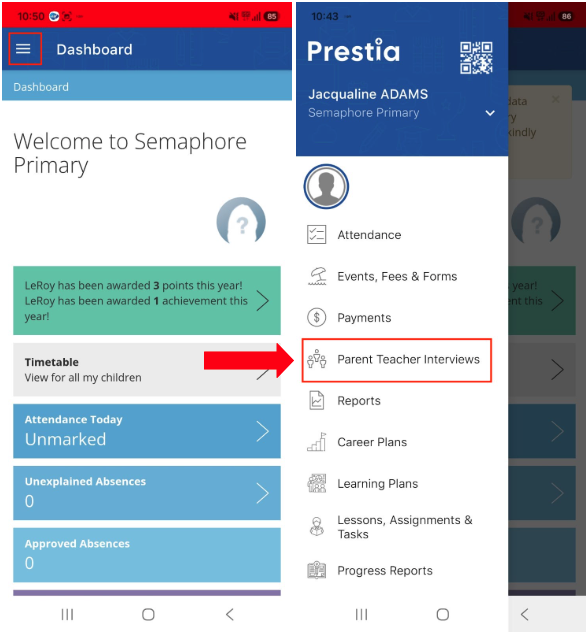
- Tap the three horizontal lines at the top left of your Prestia Family App screen, then scroll down and select Parent Teacher Interviews from the menu.
-
- You will see the teachers or coordinators your child can book a Parent Teacher Interview in the bottom half of the screen. If you have more than one child at the school, one will be highlighted when you first enter the Parent Teacher Interviews screen. You can easily switch between each child by tapping on their name.
- Note that your school may have slightly different options available, depending on whether or not Translators or Online interviews are available.
- Tap the Select a time dropdown menu to choose a time slot that suits you for this teacher or coordinator.
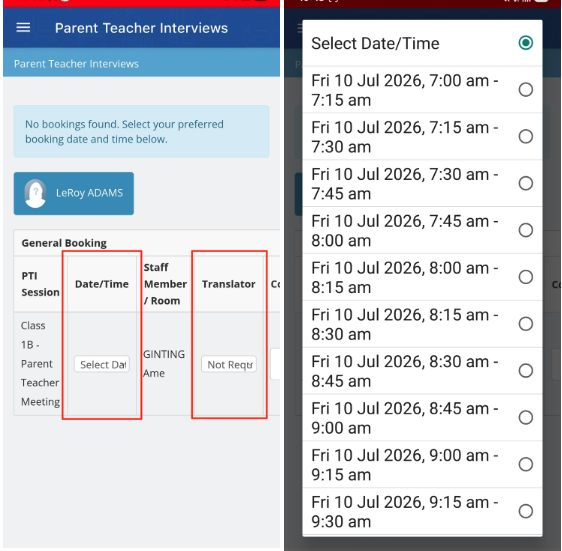
If your school has enabled the option to request a translator, you may request one by ticking the Translator checkbox and choosing your language from the Select language menu. If your language does not appear in the menu, please add it in the comments or contact the school directly.
- If your school has enabled the option to request that the interview be conducted online, tick the Online checkbox.
- If your school has enabled comments, tap in the Comments text box and enter your message to the teacher or coordinator.
- Tap the Book button as shown below to save this booking.
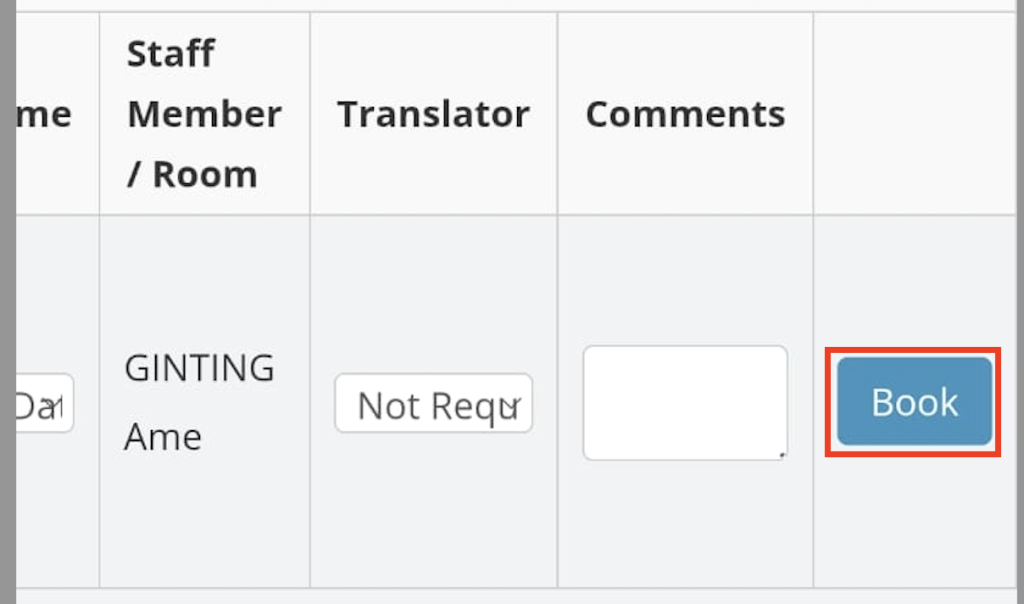
- Repeat the above steps to complete all required bookings for all your children. Prestia will update the available times for each teacher as you save your bookings, so that you cannot double-book yourself with two teachers at one time.
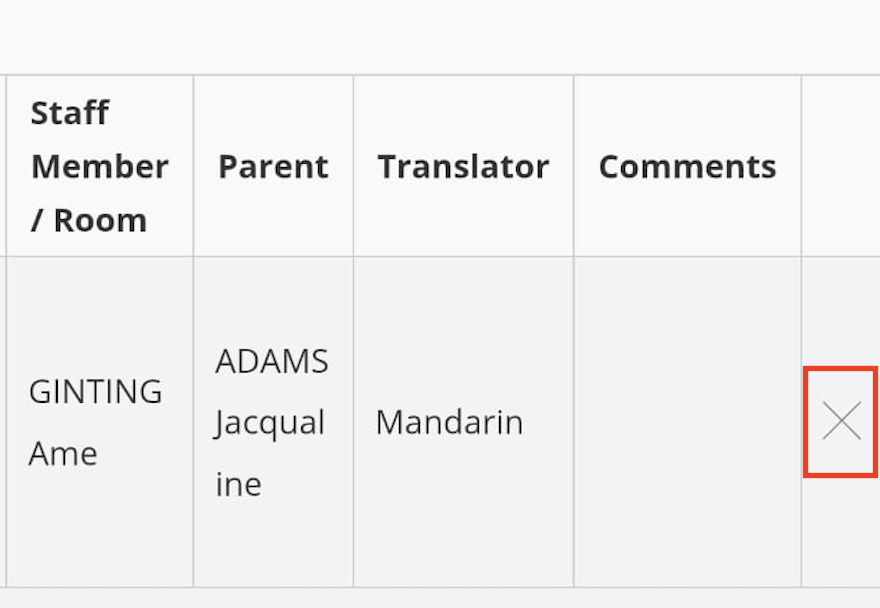
- You will see your confirmed appointments at the top of the screen after they are booked. If you need to cancel a booking, use the X icon to delete it.
Option 2: Using Prestia’s Autobook feature
- If your child has more than one teacher to book Parent Teacher Interviews for, you will see the option to Autobook appointments. This will be at the bottom of the list of available teacher and coordinator booking slots.
- To use Autobook, tap on the Select a time menu to choose a time that suits you for your first interview.
- If your school has enabled the option to request a translator, you may request one by ticking the Translator checkbox and choose your language from the Select language dropdown menu. If your language does not appear in the menu, please add it in the comments or contact the school directly.
- If your school has enabled the option to request that the interview be conducted online, tick the Online checkbox.
- If your school has enabled comments, tap in the Comments text box and enter your message to the teacher or coordinator.
- Tap the Book button to save all bookings. Prestia will take into account all other bookings you have made for any of your children, and will book your appointments in as close together as possible using each teacher’s availability. Note that Autobook only works for teacher interview bookings, not for coordinator bookings as it is not assumed that all parents will want to book to see the coordinators.