
Prestia Managing Timetable & Attendance Data Documentation
Prestia Managing Timetable & Attendance Data Documentation
Prestia allows administrators to manage historical or upcoming schedule data. This tool is typically used when you need to clear or reset school schedules due to pupil-free days, school holidays, public holidays, or curriculum days.
Critical Warning: Any actions performed using this tool are non-recoverable. Once committed, they cannot be undone. Always verify dates with your school administration staff before proceeding.
Accessing the Management Tool
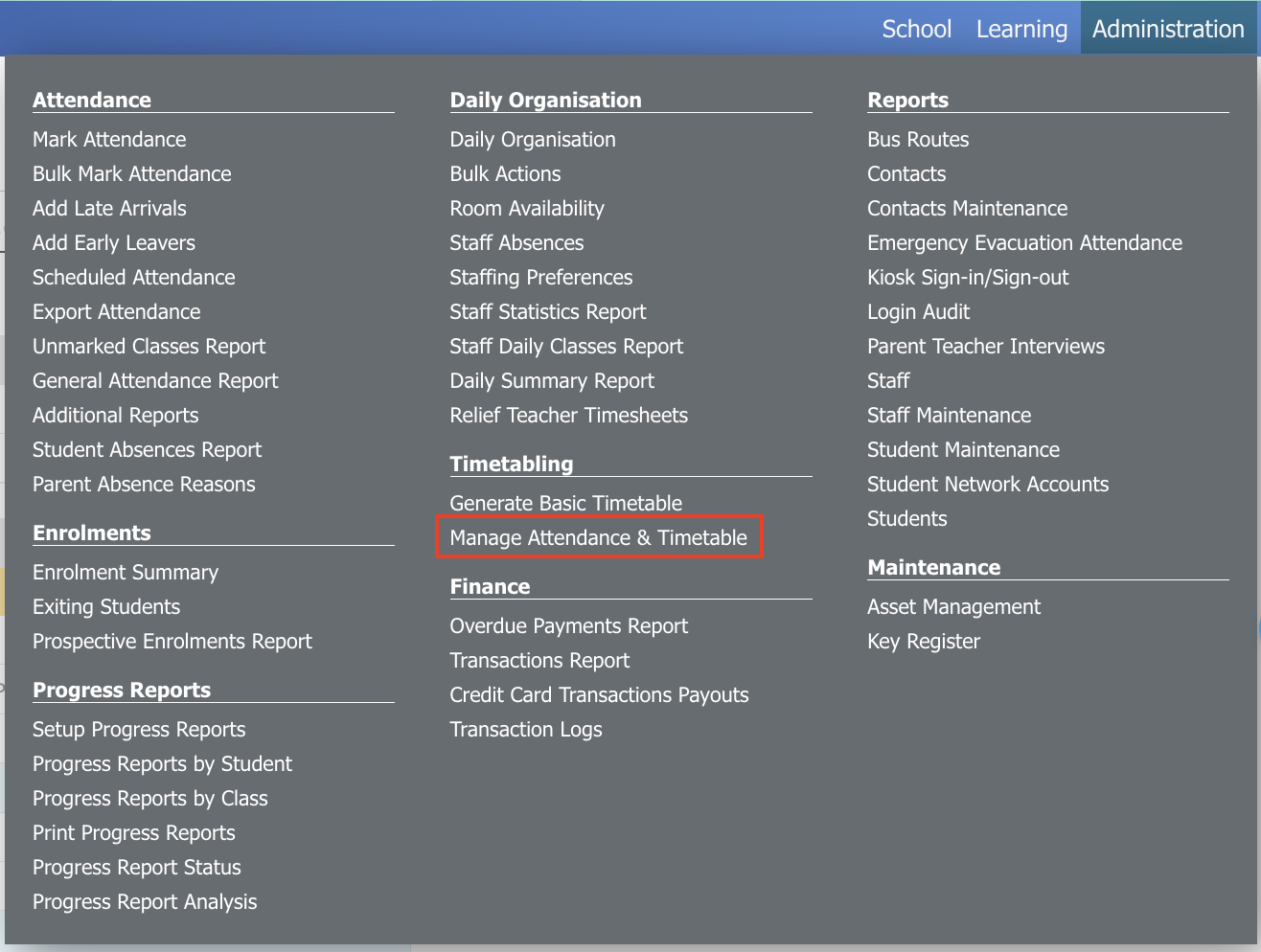
To begin, navigate to the system control area:
-
Click on the Administration menu from the top navigation bar.
-
Select Manage Attendance and Timetable.
Resetting Attendance to Unmarked
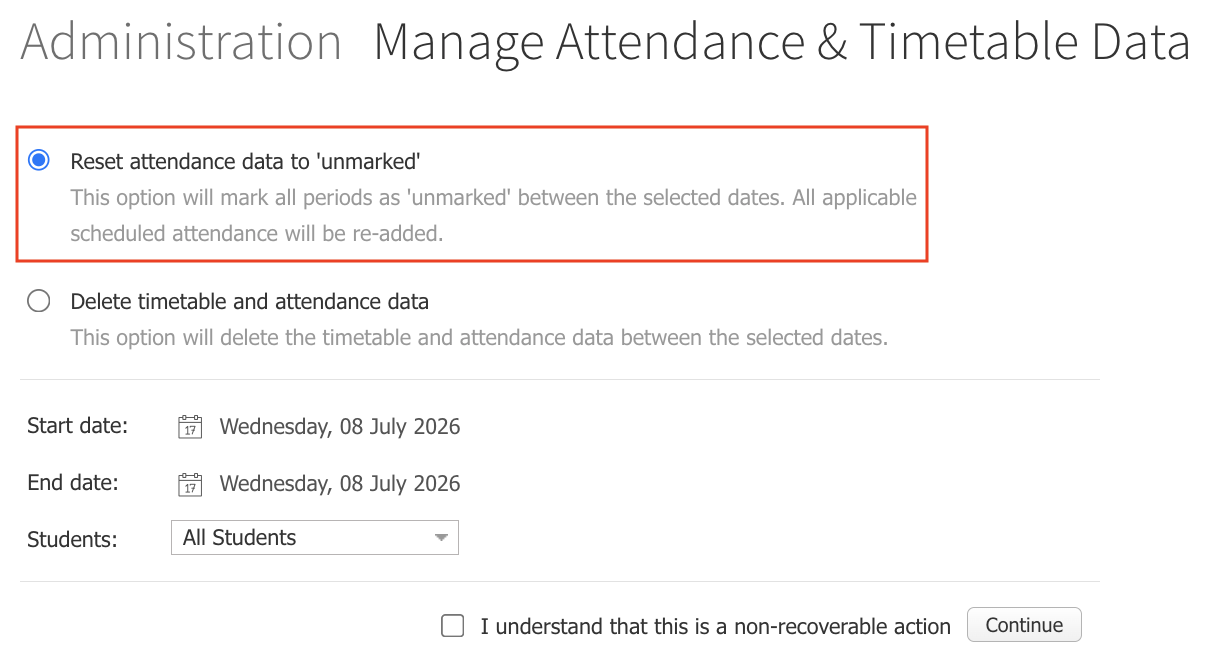
Use this method if you want to keep the timetable structure intact but revert all student attendance marks back to a blank, unmarked status for a specific time frame.
1.Select the Reset Option:Reset Flow.
Deleting Timetable and Attendance Data
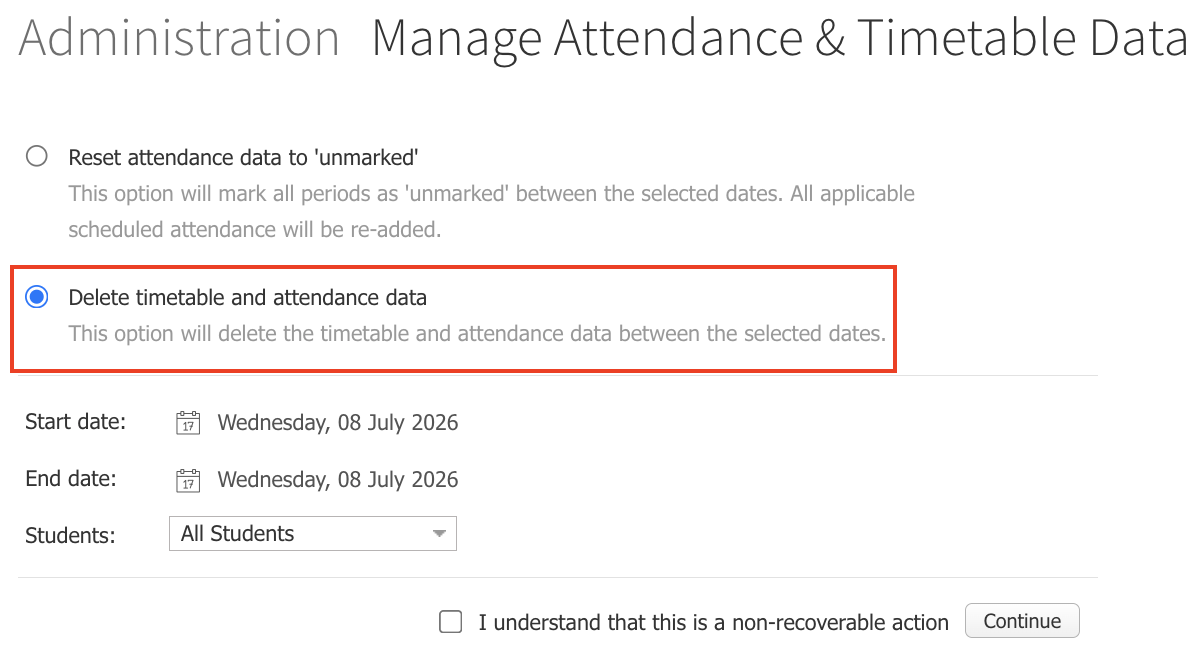
Use this method to completely wipe out both the scheduled timetable slots and any associated attendance marks from the system (ideal for setting up extended holiday periods).
Dokumentasi Pengelolaan Jadwal & Data Kehadiran Prestia
Prestia memungkinkan administrator untuk mengelola data jadwal riwayat maupun yang akan datang. Fitur ini biasanya digunakan ketika Anda perlu mengosongkan atau mengatur ulang (reset) jadwal sekolah karena adanya hari bebas siswa (pupil-free days), libur sekolah, hari libur nasional, atau hari kurikulum.
Peringatan Penting: Tindakan apa pun yang dilakukan menggunakan fitur ini bersifat permanen dan tidak dapat dipulihkan (non-recoverable). Begitu diproses, tindakan tersebut tidak bisa dibatalkan. Selalu verifikasi tanggal dengan staf administrasi sekolah sebelum melanjutkan.
Mengakses Fitur Pengelolaan
Untuk memulai, silakan buka area kontrol sistem:
-
Klik menu Administration pada bilah navigasi di bagian atas.
-
Pilih Manage Attendance and Timetable.
Mengatur Ulang Kehadiran Menjadi Belum Absen (Unmarked)
Gunakan metode ini jika Anda ingin tetap mempertahankan struktur jadwal pelajaran, tetapi ingin mengembalikan semua tanda kehadiran siswa menjadi kosong atau belum absen (unmarked) pada rentang waktu tertentu.
Menghapus Data Jadwal dan Kehadiran
Gunakan metode ini untuk menghapus seluruh slot jadwal pelajaran sekaligus data kehadiran yang terkait dari sistem (sangat cocok untuk mengatur periode libur panjang).