
Introduction to the Prestia Staff App
The Prestia Staff app is available for teachers to receive and reply to messages, view News and notifications as well as mark their rolls on a mobile device, with many more features to come. For staff members that are always on the move, or simply prefer to use mobile devices, the Prestia Staff app is the perfect sidekick to ensure you can complete your daily tasks with ease.
Note: Your school must be on the latest version of Prestia to ensure the app works well. You should also always update your device software to ensure compatibility with the Prestia Staff app. Allowing automatic updates on this app is also recommended.
Prerequisites
- The School has set up Prestia Attendance in the Prestia Website. The app cannot be used by an individual teacher where Attendance has not yet been set up.
- The school is running the latest version of Prestia.
- The mobile device is kept up to date with the latest operating system and updates for the Prestia Staff app.
Features of the app – what can it do?
The Prestia Staff app currently has the following menu items:
- Notifications – view notifications for Messages, News, Calendar and more.
- Roll Marking – easily and quickly mark your class roll.
- Messages – send, read and reply to messages.
- News – view, create and edit News items to be shared with staff, parents and/or students.
- Calendar – view, create and edit Calendar items to be shared with staff, parents and/or students.
- Timetable – view your timetable and request room changes.
- Links – see and access school-wide and your own customised external Web links.
We aren’t stopping there! We will be developing more and more features in the app, and will let schools know as new menu items and functionality become available.
Logging into the app
The app is available on both Android and iOS devices. To download the app, simply go to the store and search for Prestia Staff, then tap to download and install. Once installed, you will need to do the following to log in:
-
- Open the app.
- On the login screen, you will see three fields:
- School Name – begin typing your school’s name and select it from the dropdown list.
- Username – The same username you use when logging in to the Prestia website.
- Password – The same password you use when logging in to the Prestia website.
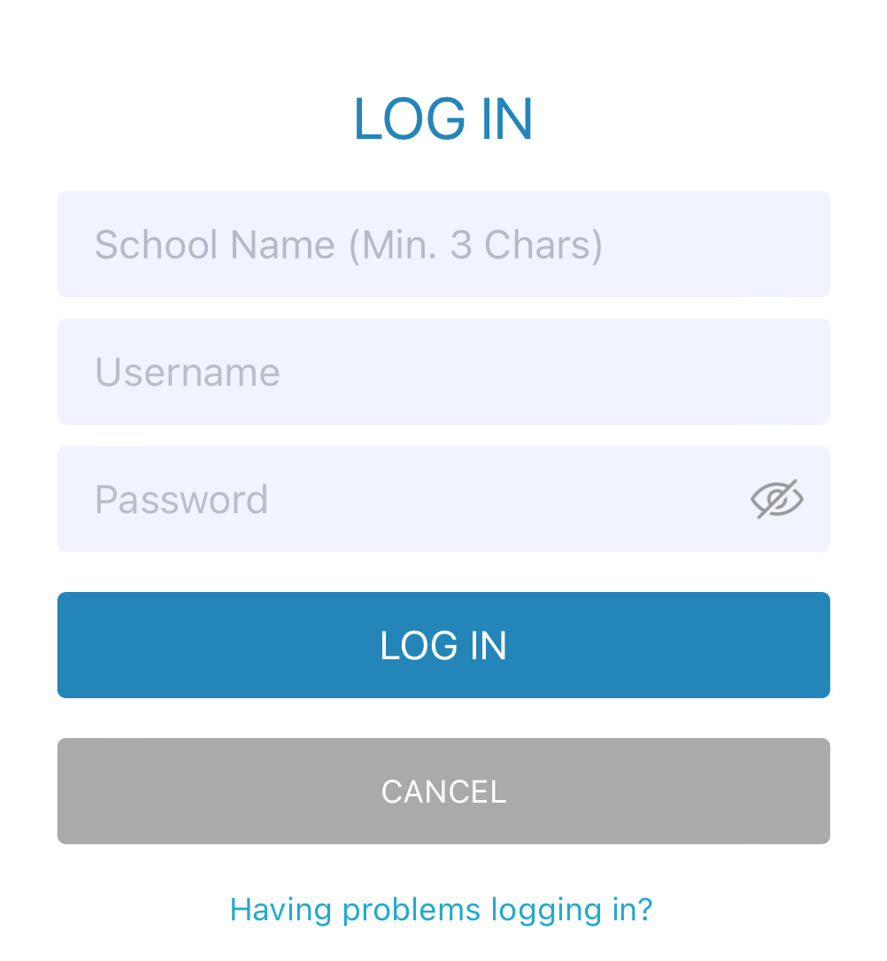
3. Once all information has been entered correctly, tap the LOG IN button to log in.
What to expect when you log in
When you first log in to the app, you will be taken to the Notifications screen. This will show you:
- Only notifications that you have received since installing the app.
- Notifications with details of:
- News items
- Calendar items
- Messages you’ve received via Prestia’s internal messaging system
- Prestia Daily org changes that affect your timetable
- If you don’t receive a particular type of notification listed above – for example, you receive notifications for new messages, but not new News items – your school may have disabled those. To find out more about which notifications you should receive specifically, please speak to your school’s Prestia administrative team.
- We may add other notification types to this list as time goes on, so if you start seeing other notifications other than what is listed and have concerns about them, please speak to your school’s Prestia administrative team.
How to use the features of the Prestia Staff App
Troubleshooting
If you’re having any issues with the Prestia Staff app, here are some steps you should follow.
- First, try forcing the app to close, then reopen the app and see if the problem persists.
- If using an iPad or iPhone, click here for instructions on the Apple support website on how to force an app to close.
- If using an Android, please refer to the support sites for your specific device on how to force an app to close – you can also find helpful articles via a Google Search.
- If the above doesn’t solve the problem, please uninstall and reinstall the app.
- If using an iPad or iPhone, click here for instructions on the Apple support website on how to remove an app.
- If using an Android, please refer to the support sites for your specific device on how to force an app to close – or follow the Google Play Store instructions found here.
- To reinstall, open the app store on your device, search for Prestia Staff App and install it again. You’ll need to register the device using the same details you used originally.
- If the above doesn’t help, please speak to your Prestia administrative team. These are specialised staff at your school who have been trained for Prestia. If they are unsure how to help, they may contact us on your behalf – it may be important for them to have your device with them when they call us in order to troubleshoot the issue, so please ensure you can stay with them while they phone us.
- Most importantly – the very first and second things we ask the Prestia admin when trouble shooting are whether steps 1 and 2 in this list have been completed prior to calling, so please ensure care has been taken to follow these before speaking to us. You may be able to solve the issue on your own without needing us!
Aplikasi Prestia Staff tersedia bagi para guru untuk menerima dan membalas pesan, melihat Berita dan notifikasi, serta mencatat daftar hadir mereka di perangkat seluler, dengan lebih banyak fitur yang akan datang. Bagi anggota staf yang selalu bepergian, atau sekadar lebih suka menggunakan perangkat seluler, aplikasi Prestia Staff adalah pendamping yang sempurna untuk memastikan Anda dapat menyelesaikan tugas harian Anda dengan mudah.
Catatan: Sekolah Anda harus menggunakan versi Prestia terbaru untuk memastikan aplikasi berfungsi dengan baik. Anda juga harus selalu memperbarui perangkat lunak perangkat Anda untuk memastikan kompatibilitas dengan aplikasi Prestia Staff. Mengizinkan pembaruan otomatis pada aplikasi ini juga disarankan.
Prasyarat
- Sekolah telah mengatur Prestia Attendance di Situs Web Prestia. Aplikasi ini tidak dapat digunakan oleh guru perorangan jika Attendance belum diatur.
- Sekolah menggunakan versi Prestia terbaru.
- Perangkat seluler selalu diperbarui dengan sistem operasi terbaru dan pembaruan untuk aplikasi Prestia Staff.
Untuk Sekolah On Premises: Aplikasi Prestia Staff tidak akan berfungsi jika persyaratan minimum belum terpenuhi. Silakan lihat artikel ini untuk informasi lebih lanjut.
Fitur aplikasi – apa saja yang bisa dilakukan?
Aplikasi Prestia Staff saat ini memiliki item menu berikut:
- Notifikasi – melihat notifikasi untuk Pesan, Berita, Kalender, dan lainnya.
- Pencatatan Daftar Hadir – dengan mudah dan cepat mencatat daftar hadir kelas Anda.
- Pesan – mengirim, membaca, dan membalas pesan.
- Berita – melihat, membuat, dan mengedit item Berita untuk dibagikan dengan staf, orang tua, dan/atau siswa.
- Kalender – melihat, membuat, dan mengedit item Kalender untuk dibagikan dengan staf, orang tua, dan/atau siswa.
- Jadwal – melihat jadwal Anda dan meminta perubahan ruangan.
- Tautan – melihat dan mengakses tautan Web eksternal di seluruh sekolah dan yang disesuaikan oleh Anda sendiri.
Kami tidak berhenti sampai di sini! Kami akan mengembangkan lebih banyak fitur di aplikasi, dan akan memberi tahu sekolah saat item menu dan fungsionalitas baru tersedia.
Masuk ke aplikasi
Aplikasi ini tersedia di perangkat Android dan iOS. Untuk mengunduh aplikasi, cukup buka toko aplikasi dan cari XUNO Staff, lalu ketuk untuk mengunduh dan menginstal. Setelah terinstal, Anda perlu melakukan hal berikut untuk masuk:
-
- Buka aplikasi.
- Di layar masuk, Anda akan melihat tiga bidang:
- Nama Sekolah – mulai ketik nama sekolah Anda dan pilih dari daftar dropdown.
- Nama Pengguna – Nama pengguna yang sama dengan yang Anda gunakan saat masuk ke situs web Prestia.
- Kata Sandi – Kata sandi yang sama dengan yang Anda gunakan saat masuk ke situs web Prestia.
- Setelah semua informasi dimasukkan dengan benar, ketuk tombol LOG IN untuk masuk.
Apa yang diharapkan saat Anda masuk
Saat Anda pertama kali masuk ke aplikasi, Anda akan dibawa ke layar Notifikasi. Ini akan menunjukkan kepada Anda:
- Hanya notifikasi yang Anda terima sejak menginstal aplikasi.
- Notifikasi dengan detail tentang:
- Item Berita
- Item Kalender
- Pesan yang Anda terima melalui sistem pesan internal Prestia
- Perubahan organisasi Harian Prestia yang memengaruhi jadwal Anda
- Jika Anda tidak menerima jenis notifikasi tertentu yang tercantum di atas – misalnya, Anda menerima notifikasi untuk pesan baru, tetapi bukan item Berita baru – sekolah Anda mungkin telah menonaktifkannya. Untuk mengetahui lebih lanjut tentang notifikasi mana yang seharusnya Anda terima secara spesifik, silakan berbicara dengan tim administrasi Prestia sekolah Anda.
- Kami mungkin menambahkan jenis notifikasi lain ke daftar ini seiring berjalannya waktu, jadi jika Anda mulai melihat notifikasi lain selain yang tercantum dan memiliki kekhawatiran tentangnya, silakan berbicara dengan tim administrasi Prestia sekolah Anda.
Cara menggunakan fitur Aplikasi Prestia Staff
Silakan lihat artikel yang tertaut di bawah ini untuk petunjuk mengenai fitur-fitur aplikasi.
Penyelesaian Masalah
Jika Anda mengalami masalah dengan aplikasi Prestia Staff, berikut adalah beberapa langkah yang harus Anda ikuti.
- Pertama, coba paksa aplikasi untuk ditutup, lalu buka kembali aplikasi dan lihat apakah masalahnya masih berlanjut.
- Jika menggunakan iPad atau iPhone, klik di sini untuk petunjuk di situs web dukungan Apple tentang cara memaksa aplikasi untuk ditutup.
- Jika menggunakan Android, silakan merujuk ke situs dukungan untuk perangkat spesifik Anda tentang cara memaksa aplikasi untuk ditutup – Anda juga dapat menemukan artikel bermanfaat melalui Pencarian Google .
- Jika langkah di atas tidak menyelesaikan masalah, silakan copot dan instal ulang aplikasi.
- Jika menggunakan iPad atau iPhone, klik di sini untuk petunjuk di situs web dukungan Apple tentang cara menghapus aplikasi.
- Jika menggunakan Android, silakan merujuk ke situs dukungan untuk perangkat spesifik Anda tentang cara memaksa aplikasi untuk ditutup – atau ikuti petunjuk Google Play Store yang ditemukan di sini .
- Untuk menginstal ulang, buka toko aplikasi di perangkat Anda, cari Prestia Staff App dan instal kembali. Anda perlu mendaftarkan perangkat menggunakan detail yang sama dengan yang Anda gunakan sebelumnya.
- Jika langkah di atas tidak membantu, silakan berbicara dengan tim administrasi Prestia sekolah Anda. Mereka adalah staf khusus di sekolah Anda yang telah dilatih untuk Prestia. Jika mereka tidak yakin bagaimana membantu, mereka dapat menghubungi kami atas nama Anda – mungkin penting bagi mereka untuk memiliki perangkat Anda saat mereka menghubungi kami untuk menyelesaikan masalah, jadi pastikan Anda dapat tetap bersama mereka saat mereka menghubungi kami.
- Yang terpenting – hal pertama dan kedua yang kami tanyakan kepada admin Prestia saat menyelesaikan masalah adalah apakah langkah 1 dan 2 dalam daftar ini telah diselesaikan sebelum menelepon, jadi pastikan telah berhati-hati untuk mengikuti langkah-langkah ini sebelum berbicara dengan kami. Anda mungkin dapat menyelesaikan masalah sendiri tanpa memerlukan bantuan kami!