
Attendance Reports: Viewing Attendance Statistics by Student and Subject
Laporan Kehadiran: Melihat Statistik Kehadiran berdasarkan Siswa dan Mata Pelajaran
Langkah-langkah
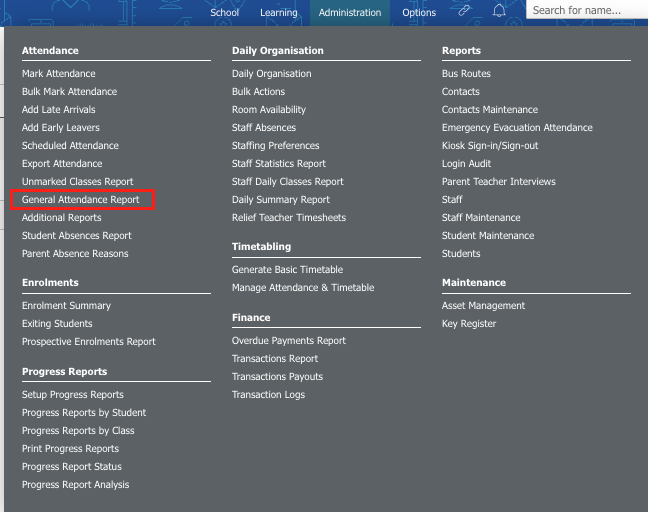
1. Buka Administration > Attendance > General Attendance Report
2. Klik ikon Filter di bagian atas halaman untuk menampilkan opsi penyaringan tambahan.
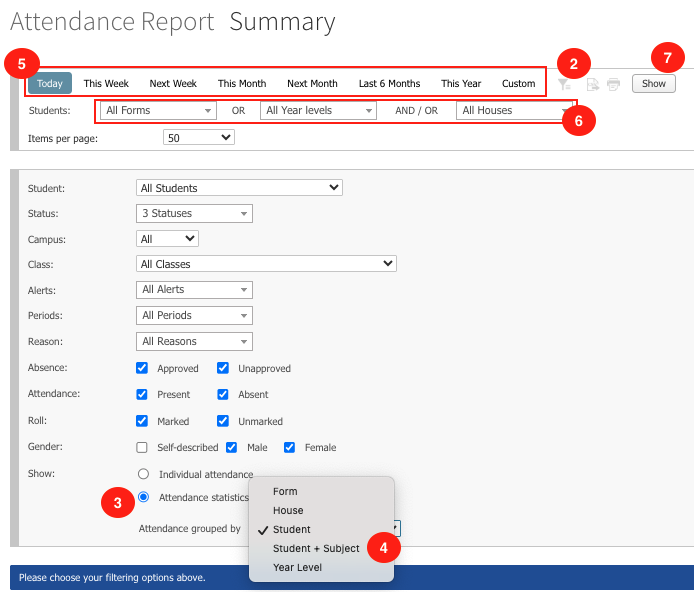
3. Pilih tombol radio Statistik Kehadiran di bagian bawah opsi penyaringan. Setelah dipilih, daftar dropdown tambahan akan muncul.
4. Pada dropdown Kehadiran dikelompokkan berdasarkan (Attendance grouped by), pilih Siswa + Mata Pelajaran (Student + Subject). Secara default, opsi ini diatur ke Siswa (Student).
5. Gunakan filter tanggal di bagian atas halaman untuk menentukan rentang tanggal laporan.
6. Untuk memfilter berdasarkan Kelas (Form), Tingkat Kelas (Year Level), dan House, gunakan dropdown yang sesuai.
7. Klik tombol Tampilkan (Show) di bagian atas halaman untuk menghasilkan laporan.
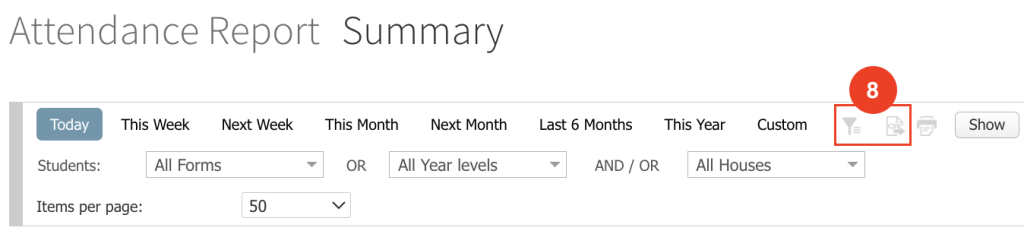
8. Untuk mencetak atau mengekspor laporan ke file CSV, klik ikon Cetak halaman ini (Print this page) atau Ekspor ke CSV (Export to CSV) di bagian atas halaman.
Cara Perhitungan Persentase Kehadiran
-
Rata-rata Kehadiran % (Total Sesi)
(Total Sesi – (Sesi Tidak Hadir Disetujui + Sesi Tidak Hadir Tanpa Persetujuan)) ÷ Total Sesi -
Rata-rata Kehadiran % (Sesi yang Ditandai)
(Total Sesi yang Ditandai – (Sesi Tidak Hadir Disetujui + Sesi Tidak Hadir Tanpa Persetujuan)) ÷ Total Sesi yang Ditandai
Attendance Reports: Viewing Attendance Statistics by Student and Subject
Steps
- Go to Administration > Attendance > General Attendance Report.
- Click on the Filter icon at the top of the page to show additional filtering options.
- Select the Attendance Statistics radio button at the bottom of the filtering options. You will see an additional dropdown list appear.
- Select Student + Subject from the Attendance grouped by dropdown list. By default it is set to Student.
- Use the date filters at the top of the page to specify the date range for your report.
- To filter by Form, Year Level and House, use the appropriate dropdown fields.
- Click the Show button at the top of the page to generate your report.
- To print or export this report to a CSV file, click on the corresponding Print this page or Export to CSV icons at the top of the page.
How the attendance percentages are calculated:
- Average Attendance % (Total Periods)
Total Periods – (Periods App. Absence + Periods Unapp. Absence) / Total Periods - Average Attendance % (Marked Periods)
Total Periods Marked – (Periods App. Absence + Periods Unapp. Absence) / Total Periods Marked