
Creating events – details of the Event/Fee
Membuat Event – Detail Event/Fee
Halaman Event/Fee Details digunakan untuk mengatur informasi utama yang berkaitan dengan Event atau Fee. Setiap field memiliki fungsi tertentu yang membantu sekolah mengelola informasi acara, biaya, peserta, absensi, dan persetujuan orang tua.
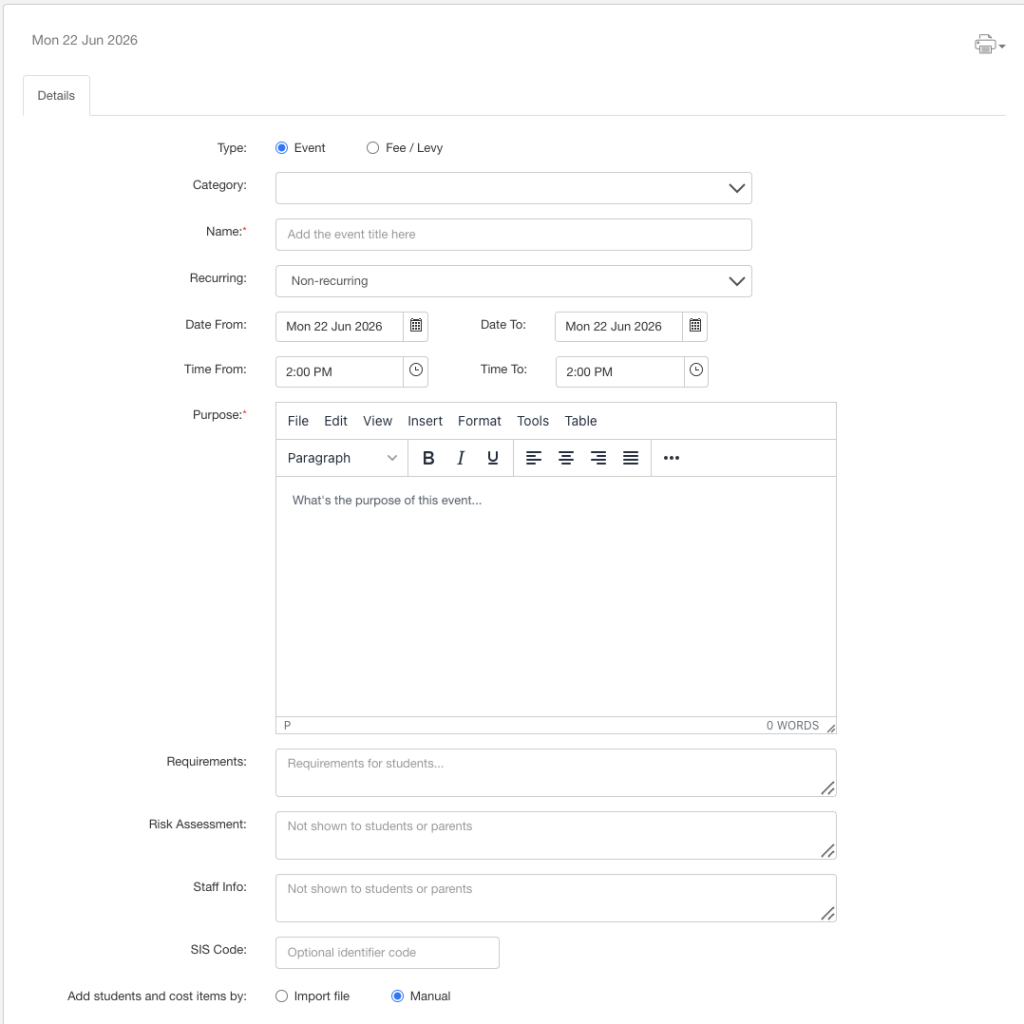
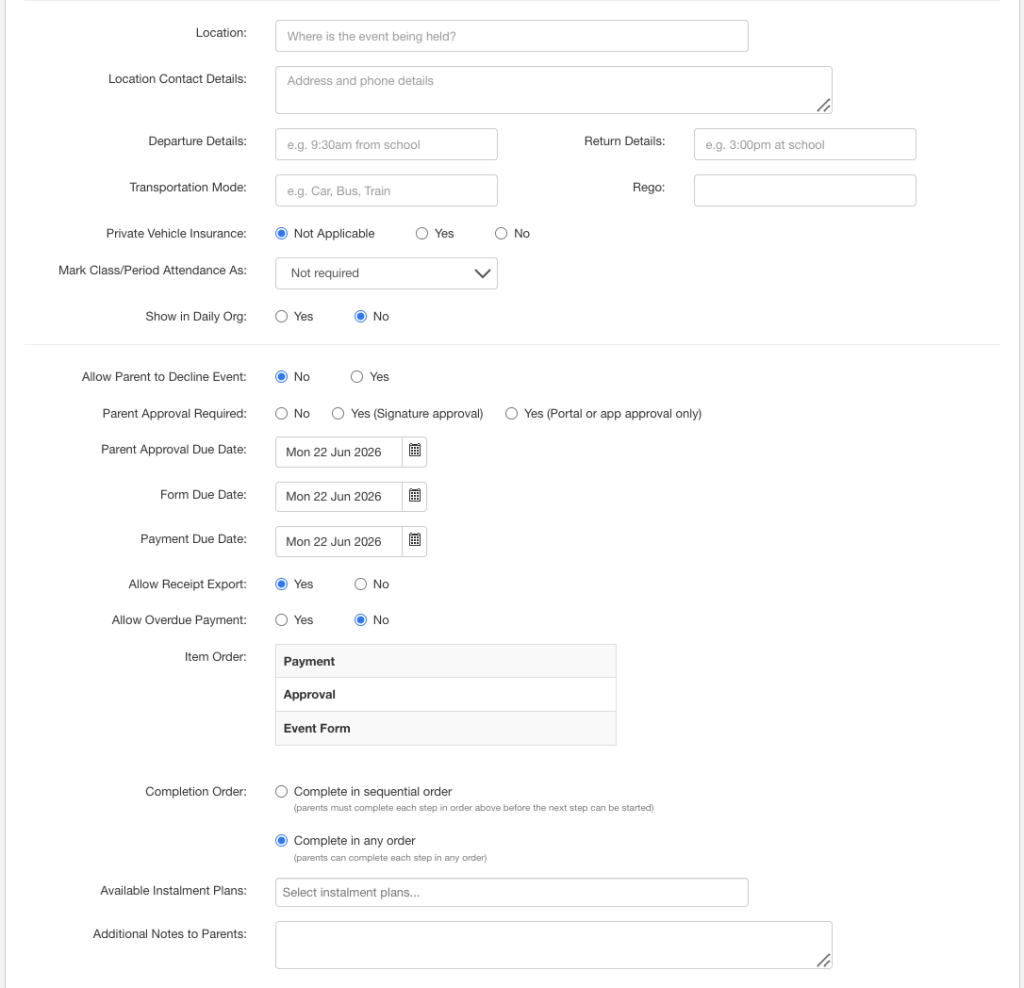
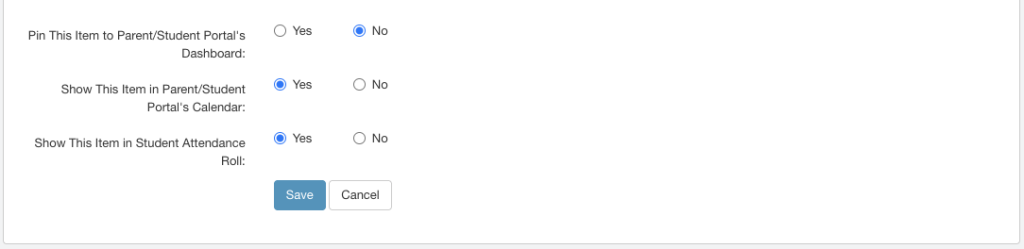
Deskripsi Field
| Nama Field | Deskripsi |
| Category | Pilih kategori Event/Fee dari daftar kategori yang tersedia. |
| Name * | Nama utama Event/Fee. |
| Date From dan Date To | Menentukan rentang tanggal Event/Fee. – Setelah Event disetujui, Event akan ditampilkan pada School Events Calendar untuk setiap tanggal dalam rentang tersebut. – Event juga akan muncul pada kalender pribadi staf yang ditugaskan ke Event. – Jika opsi Scheduled Absences digunakan, absensi terjadwal akan diterapkan selama rentang tanggal ini. |
| (E) Time From dan Time To | Menentukan waktu mulai dan selesai Event. Catatan: Field ini hanya digunakan sebagai informasi bagi staf, siswa, dan orang tua, serta tidak digunakan untuk pencatatan kehadiran. |
| Purpose * | Tujuan atau deskripsi lengkap mengenai Event/Fee. |
| (E) Requirements | Daftar perlengkapan atau kebutuhan yang harus dibawa siswa untuk mengikuti Event. Informasi ini akan ditampilkan pada: – Parent Portal – Student Portal – Mobile App |
| (E) Risk Assessment | Informasi penilaian risiko untuk kebutuhan internal sekolah. Catatan: Tidak ditampilkan kepada orang tua maupun siswa. |
| (E) SIS Code | Kode identifikasi yang digunakan oleh sistem SIS sekolah. Field ini diisi secara manual jika diperlukan. |
| Add Students and Cost Items By | Menentukan metode penambahan siswa dan item biaya. Import File Jika opsi ini dipilih, pengguna dapat mengimpor file CSV yang dibuat secara manual Manual Input Jika opsi ini dipilih, pengguna harus: Menambahkan siswa secara manual Menambahkan item biaya secara manual Catatan: Setelah Event/Fee disetujui (Approved), pengaturan ini tidak dapat diubah. |
| (E) Location | Lokasi penyelenggaraan Event. |
| (E) Location Contact Details | Informasi kontak lokasi Event, seperti: – Alamat – Nomor telepon |
| (E) Departure Details | Digunakan untuk Event di luar sekolah. Berisi informasi mengenai: – Kapan peserta berangkat – Bagaimana peserta berangkat – Dari mana peserta berangkat |
| (E) Return Details | Digunakan untuk Event di luar sekolah. Berisi informasi mengenai: – Kapan peserta kembali – Bagaimana peserta kembali – Ke mana peserta kembali |
| (E) Transportation Mode | Jenis transportasi yang digunakan untuk mengikuti Event. |
| (E) Rego | Nomor registrasi kendaraan. Biasanya digunakan ketika sekolah menyediakan kendaraan untuk Event. |
| (E) Private Vehicle Insurance | Menentukan apakah kendaraan pribadi yang digunakan memiliki perlindungan asuransi. |
| (E) Requires Scheduled Absence | Jika memilih Yes, pilih alasan absensi pada field Schedule As. Fitur ini akan: – Secara otomatis menandai absensi siswa pada roll kelas – Memberikan informasi kepada guru mengenai alasan siswa tidak hadir Catatan Penting: – Scheduled Attendance hanya ditandai pada awal setiap hari Event. – Fitur ini tidak mencatat kehadiran siswa di lokasi Event. – Fitur ini hanya menandai ketidakhadiran siswa dari kelas reguler. |
| (E) Show in Daily Org | Jika diaktifkan, sistem akan menampilkan notifikasi bahwa staf yang ditugaskan ke Event tidak tersedia untuk mengajar pada periode Event tersebut. |
| (E) Periods | Secara default semua periode akan dipilih. Anda dapat menghapus centang pada periode yang tidak terkait dengan Event sehingga hanya periode yang berlangsung selama Event yang tetap dipilih. Jika Requires Scheduled Absence diaktifkan, maka periode yang dipilih akan ditandai menggunakan alasan absensi yang telah ditentukan. |
| Allow Parent to Decline Event/Fee | Jika diaktifkan, orang tua dapat memilih untuk: – Menyetujui (Approve) partisipasi anak pada Event/Fee, atau – Menolak (Decline) partisipasi anak pada Event/Fee. |
| Parent Approval Required | Menentukan apakah orang tua harus memberikan persetujuan terhadap keikutsertaan siswa dalam Event. No: Tidak diperlukan persetujuan dari orang tua. Yes (Signature Approval): Orang tua harus menandatangani formulir izin dan mengembalikannya ke sekolah. Yes (SMS or Signature Approval): Orang tua dapat memberikan persetujuan secara elektronik melalui Prestia (hanya jika sekolah berlangganan paket SMS) atau dengan menandatangani dan mengembalikan formulir izin ke sekolah. |
| Due Dates | Tanggal jatuh tempo untuk persetujuan, formulir, dan pembayaran dapat dibuat sama atau berbeda. Rekomendasi: Tetapkan Approval Due Date pada tanggal yang sama atau lebih awal dibandingkan tanggal jatuh tempo lainnya, bukan setelahnya. Misalnya, persetujuan orang tua diperlukan terlebih dahulu sebelum sekolah memastikan Event akan dilaksanakan, sedangkan pembayaran dapat dilakukan mendekati tanggal keberangkatan. |
| Approval Due Date | Tanggal batas akhir bagi orang tua untuk: – Memberikan persetujuan – Mengembalikan formulir izin |
| Form Due Date | Tanggal batas akhir pengumpulan formulir atau kuesioner yang harus diisi. |
| Payment Due Date | Tanggal batas akhir pembayaran Event/Fee. |
| Allow Overdue Payment | Pilih Yes untuk mengizinkan orang tua melakukan pembayaran setelah melewati Payment Due Date. |
| Allow Payment Only After Parent Approval & Form Completion | Jika diatur ke Yes, orang tua harus: 1. Menyetujui Event/Fee terlebih dahulu, dan 2. Menyelesaikan seluruh formulir yang diwajibkan, sebelum pembayaran dapat dilakukan. |
| Available Instalment Plans | Pilih satu atau beberapa rencana cicilan (instalment plans) yang tersedia untuk Event/Fee. Catatan: – Rencana cicilan masih dapat ditambahkan setelah Event/Fee disetujui (Approved). – Namun, rencana cicilan tidak dapat ditambahkan setelah Event/Fee dipublikasikan (Published), kecuali jika: 1. Event/Fee diubah menjadi Unpublished, 2. Rencana cicilan ditambahkan, 3. Event/Fee dipublikasikan kembali. |
| Additional Notes to Parents | Informasi tambahan yang ingin disampaikan kepada orang tua terkait Event. Catatan: Disarankan agar informasi standar yang selalu digunakan (misalnya detail pembayaran seperti nomor rekening) dimasukkan ke dalam Default Event Form Template, bukan pada bagian Additional Notes. |
Below is a list of explanations for the fields shown in the image.
Items shown for Events only are denoted with (E) on this page.
Category: Select from the dropdown of available Event/Fee Categories
Name*: The overall name of the Event/Fee, for example, Year 9 Interschool Music, Grade 6 camp
Date From and Date To: The date range of the Event/Fee. Once approved, the Event will show in the School Events Calendar for each day within the range and in the personal calendar of any staff members added to the Event. If Scheduled Absences is selected it will apply for this date range. When creating a Fee enter last date that the Fee should be visible to Staff, Students, Parents – enter this date into both the From and To field.
(E) Time From and Time To: The start and end of the Event. This is not used for attendance purposes, just for parent/student/staff information
Purpose*: The purpose or a longer description of the Event/Fee
(E) Requirements: Anything students need for the Event. Shown in the Parent/Student Portal/App
(E) Risk Assessment: Risk assessment for school purposes only and not displayed to Parent/Students
(E) SIS Code: An Identifier code used by your SIS system, manually entered, if required
Add students and cost items by: Import file / Manual. If Import file is selected, the user may import either an invoice file from CASES21, or a CSV file manually created, to aid the creation of payment requests in bulk without having to add invoices in CASES21 which is not permitted for certain charges. If the users selects Manual, they will need to select students and add costs to the event manually. Once the Event/Fee is Approved you may not change this setting.
(E) Location: The location of the Event
(E) Location Contact Details: This could be the address, phone number, email etc.
(E) Departure Details: Used for external Events When, how and where the attendees will leave
(E) Return Details: Used for external Events detailing when, how and where the attendees will return
(E) Transportation Mode: Used for external Events. Transport required to attend the Event
(E) Rego: Generally used when a school vehicle is booked
(E) Private Vehicle Insurance: If a private vehicle is used, whether that vehicle has insurance
(E) Requires Scheduled Absence: If Yes, enter Schedule As from the dropdown. Scheduled attendance will automatically mark the class roll and inform the teacher why the student is absent from class. Scheduled Attendance is marked only at the start of each day of the Event, not before.
Note: This does not mark Event attendance, i.e. whether the student has arrived at the Event.
(E) Show in Daily Org: An alert will show that the staff member assigned to the event is unavailable for any class they are assigned to for the Event periods
(E) Periods: By default, all periods are selected but you can deselect the periods that don’t apply, leaving the periods running at the time of the Event. If Required Scheduled Absence is selected, these are the periods which will be marked with the Scheduled Absence reason specified
Allow Parent to Decline Event/Fee: Parents will be able to either approve or decline their child’s attendance or participation in the event or fee.
Parent Approval Required: Whether a parent must approve the student’s attendance at the Event.
- No: No Approval required
- Yes (Signature approval): The parent must sign and return a permission form to the school
- Yes (SMS or signature approval): The parent may approve electronically via XUNO, only if the school has the SMS package, or by returning a permission form to the school
Due Dates: The due dates may be the same or different dates. It is recommended that the Approval Due Date is before or the same as the other dates, not after, e.g., approval may be required prior to confirming the Event will go ahead and payments required close to departure date
Approval Due Date: Due date for approval by the parent and return of the permission form
- Form Due Date: Due date for the return of question Forms
- Payment Due Date: Due date for payments to be made
Allow Overdue Payment: Yes to allow payment by a parent payment due date
Allow Payment Only After Parent Approval & Form Completion: If set to Yes, parents must approve the Event/Fee and complete Forms before Payment can be made
Available Instalment Plans: Select the instalment plan/s to be available to for the Event/Fee
Note: Instalment Plans can be added after Approval but not if the Event/Fee has been Published unless the Event is unpublished, instalment plan added and then Published again
Additional Notes to Parents: Any further information you wish to include about the Event to parents.
Note: It is recommended that any standard information you wish to include e.g. BSB payment details, are included in the Default Event Form template, not in additional notes.