
Managing Daily Organisation staffing preferences and relief teachers
Mengelola Daily Organisation staffing preferences dan Relief Teachers
Staffing Preferences digunakan untuk mengubah Teacher Allotment, Availability, dan Maximum Extras. Pengaturan ini sebaiknya dilakukan pada awal setiap term atau diperbarui ketika timetable berubah agar statistik dan informasi pada halaman Daily Organisation tetap akurat.
Cara mengubah Max Extras, Under Allotment, dan Availability
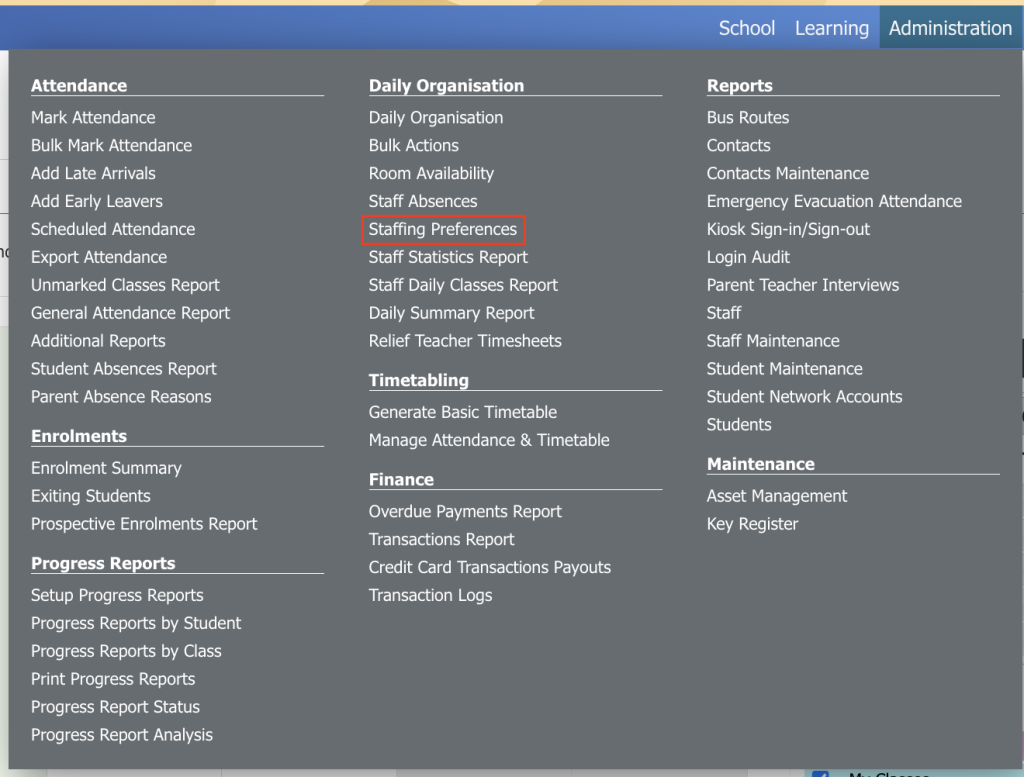
1. Dari menu Administration, klik Staffing Preferences pada bagian Daily Organisation.
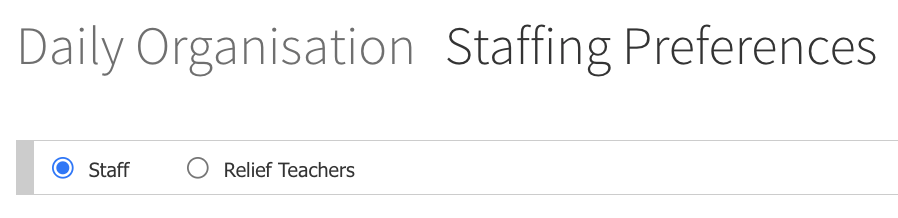
2. Gunakan radio button untuk memfilter berdasarkan Staff atau Relief Teachers.
3. Cari baris staf yang ingin Anda ubah.
4. Klik ikon Pencil untuk mengedit staf yang dipilih.
5. Pada bagian School Details, ubah nilai Max Extras untuk menentukan jumlah maksimum kelas tambahan (extras) yang dapat diambil oleh staf tersebut dalam satu siklus tahun.
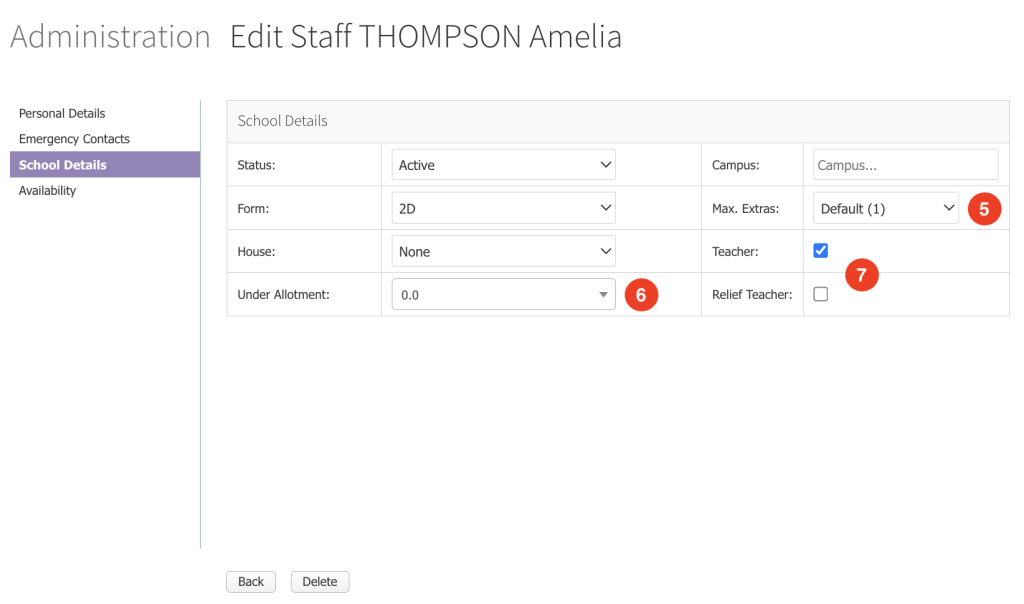
6. Ubah nilai Under Allotment untuk menentukan jumlah kelas yang masih kurang dialokasikan kepada guru tersebut. Nilai 0.0 berarti tidak ada kekurangan alokasi.
7. Jika staf tersebut adalah guru yang dapat atau akan mengajar kelas, termasuk kelas pengganti, centang kotak Teacher atau Relief Teacher yang sesuai. Jika opsi ini tidak dicentang, guru tersebut akan disembunyikan dari daftar guru pengganti pada halaman Daily Organisation.
8. Perubahan akan otomatis disimpan saat Anda mengubah nilainya.
9. Jika Anda ingin menentukan hari-hari dalam seminggu ketika guru tersebut tersedia, buka bagian Availability.
10. Pilih atau batalkan pilihan pada hari dan periode sesuai kebutuhan. Perubahan akan langsung disimpan setelah Anda membuat pilihan.
Cara menambahkan atau mengubah Relief Teacher
Anda dapat menambahkan Relief Teacher secara manual ke dalam Prestia. Relief Teacher akan ditampilkan pada halaman Daily Organisation, dan jika Anda membuat login LDAP yang sesuai untuk mereka, staf yang ditetapkan sebagai Relief Teacher juga akan muncul dalam daftar guru pengganti “CRT” pada Daily Organisation.
1. Dari menu Administration, klik Staffing Preferences pada bagian Daily Organisation.
2. Pilih opsi filter Relief Teachers.
3. Klik tombol Add, atau klik ikon Pencil pada Relief Teacher yang ingin Anda ubah.
4. Lengkapi semua kolom pada tab Personal Details, School Details, dan Availability sesuai kebutuhan. Jika guru tersebut akan digunakan sebagai Relief Teacher, Anda harus mengisi kolom Max Extras, Under Allotment, dan Teaching Availability, serta mencentang kotak Relief Teacher.
5. Klik tombol Save.
Staffing Preferences are used to change teacher Allotment, Availability, and Maximum Extras. These should be set up at the beginning of each term or altered when the timetable is changed to correctly reflect the statistics and information on the Daily Organisation page.
How to change Max Extras, Under Allotment and Availability
- From the Administration menu click on Staffing Preferences under the Daily Organisation subheading.
- Use the radio buttons to filter by Staff or Relief Teachers .
- Find the row of the staff member you would like to edit.
- Click on the Pencil icon to edit selected staff member.
- In the School Details section, you can change the corresponding Max Extras value to set the maximum amount of extras the staff member is allowed to take per cycle year.
- Change the corresponding Under Allotment value to set the amount of classes the teacher is under allotted. 0.0 = none.
- If the staff member is a teacher that can or will take classes, including replacement classes, then select their corresponding Teacher or Relief Teacher check box. Deselecting this option will cause the teacher to be hidden in the Daily Organisation replacement teachers list.
- Your changes are automatically saved when you edit the values.
- If you want to specify which days of the week that teacher is available for, select the Availability section.
- Select or deselect the days and periods as required. Your changes are saved as soon as you make a selection.
How to add or modify a Relief Teacher
You can manually add relief teachers into Prestia. Relief teachers will be shown on the Daily Organisation page, and if you setup a matching LDAP login for them. Staff set as relief teachers will appear in your Daily Organisation “CRT” list of replacement teachers.
- From the Administration menu click on Staffing Preferences under the Daily Organisation subheading.
- Select the Relief Teachers filtering option.
- Click on the Add button or click on the pencil edit icon that corresponds to the relief teacher you want to edit.
- Fill out all of the fields under the Personal Details , School Details and Availability tabs accordingly. If you will be using this teacher as a relief teacher then you must fill out the Max Extras , Under Allotment and Teaching Availability fields, as well as tick the Relief Teacher check box.
- Click on the Save button.