
Skip to main content
What can we help you with?
Push notifications in the Prestia Family app not working? Follow these steps
Untuk memastikan Aplikasi Anda diatur dengan benar untuk menerima notifikasi, Anda dapat mengikuti instruksi di bawah ini untuk pertama-tama menghapus pendaftaran akun dari perangkat Anda, lalu menghapus instalasi aplikasi, dan menginstalnya kembali – dan terakhir, kembali mendaftarkan akun tersebut di aplikasi.
Langkah-langkah untuk 1- menghapus pendaftaran, 2- menghapus instalasi, 3- menginstal ulang, dan 4- mendaftarkan ulang aplikasi:
BAGIAN 1 dari 4 – Hapus Pendaftaran Akun Anda:
- Ketuk ikon menu di kiri atas aplikasi untuk menampilkan menu.
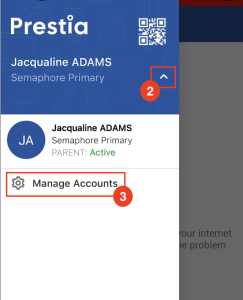
- Kemudian ketuk panah di sebelah nama Anda dan nama sekolah
- Ketuk Kelola Akun
- Untuk perangkat Apple / iOS : Geser ke kiri pada nama Anda dan klik tanda silang untuk menghapus pendaftaran akun Anda. Konfirmasikan pop up untuk menghapus akun.
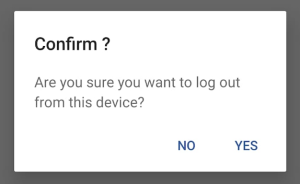
- Untuk perangkat Android , tekan dan tahan pada nama Anda dan pop up akan muncul menanyakan Anda untuk mengonfirmasi penghapusan akun.
Bagian 2 dari 4 – Hapus Aplikasi dari Ponsel Anda.
- Untuk perangkat Apple / iOS, temukan aplikasi di layar utama Anda atau di Pustaka Aplikasi Anda. Ketuk dan tahan ikon hingga Anda melihat menu muncul – ketuk Hapus Aplikasi – lalu ketuk Hapus Aplikasi. Jangan ketuk Hapus dari Layar Utama karena ini tidak sepenuhnya menghapus aplikasi dari perangkat Anda.
- Untuk pengguna Android, buka aplikasi Google Play Store
.
- Di kanan atas, ketuk ikon Profil.
- Ketuk Kelola aplikasi & perangkat
Kelola.
- Ketuk nama aplikasi yang ingin Anda hapus.
- Ketuk Hapus Instalasi.
Bagian 3 dari 4 – Instal Ulang aplikasi Prestia Family
- Instal ulang versi terbaru dari App Store/Google Play Store dengan mencari Prestia Family dan menginstalnya.
- Buka aplikasi, dan ketika muncul perintah untuk mengizinkan notifikasi, pilih Ya.
Bagian 4 dari 4 – Daftarkan Ulang Akun Anda dengan aplikasi Prestia Family
- Buka aplikasi, dan Anda akan melihat pop up yang meminta Nama Sekolah, Nama Pengguna, dan Kata Sandi. Masukkan detail dengan benar dan ketuk Daftar.
In order to make sure your App is set up correctly to receive notifications, you can follow the instructions below to first deregister the account from your device, then uninstall the app, and reinstall it – and finally,
re-register the account in the app.
Steps to 1- deregister, 2- uninstall, 3- re-install and 4- re-register the app:
PART 1 of 4 – Deregister your account:
Part 3 of 4 – Reinstall the Prestia Family app
Part 4 of 4 – Reregister your account with the Prestia Family app
re-register the account in the app.
Steps to 1- deregister, 2- uninstall, 3- re-install and 4- re-register the app:
PART 1 of 4 – Deregister your account:
- Tap the menu icon at the top left of the app to reveal the menu.
- Then tap on the arrow next to your name and the school name
- Tap on Manage Accounts
- For Apple devices / iOS: Swipe left on your name and click on the cross to deregister your account. Confirm the pop up to remove the account.
- For Android devices, press and hold on your name and a pop up will appear asking you to confirm the removal of the account.
- For Apple / iOS devices, find the app on your home screen or in your App Library. Tap and hold the icon until you see a menu appear – tap Remove App – then tap Delete App. Do not tap Remove from Home Screen as this does not completely remove the app from your device.
- For Android users, open the Google Play Store app
- At the top right, tap the Profile icon.
- Tap Manage apps & devices
- Tap the name of the app you want to delete.
- Tap Uninstall.
Part 3 of 4 – Reinstall the Prestia Family app
- Reinstall the latest version from the App store/Google Play store by searching for Prestia Family and installing.
- Open the app, and when the prompt comes up to allow notifications, select Yes.
Part 4 of 4 – Reregister your account with the Prestia Family app
- Open the app, and you should see a popup asking for School Name, Username and Password. Enter the details correctly and tap Register.