
Attendance reports: Period Attendance Under Percentage
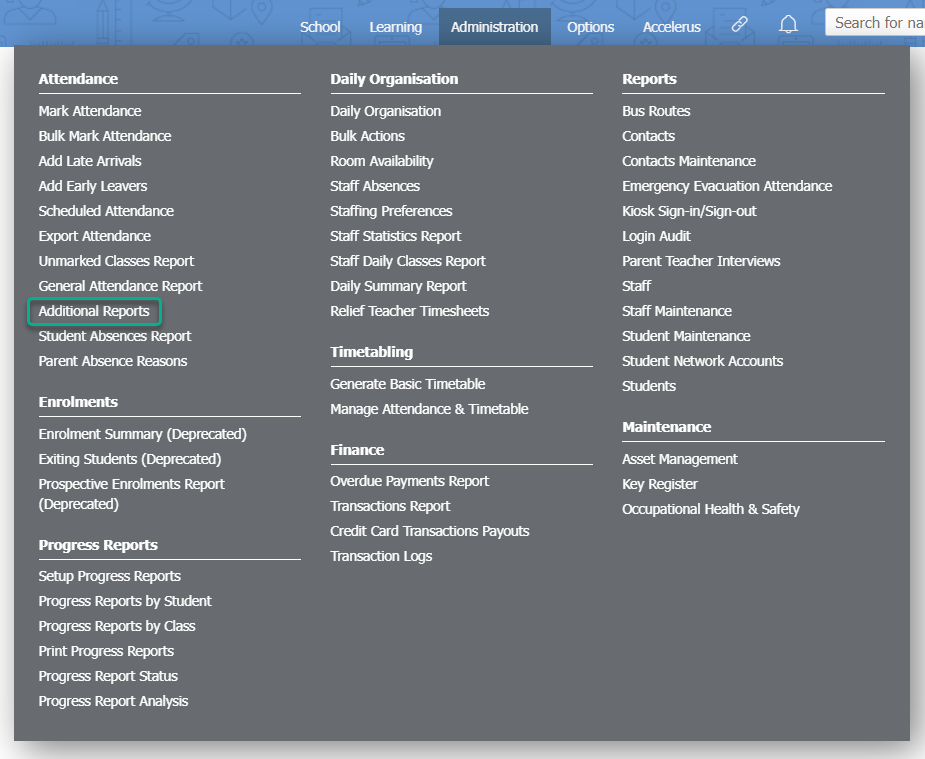
- Go to Administration > Attendance > Additional Reports.
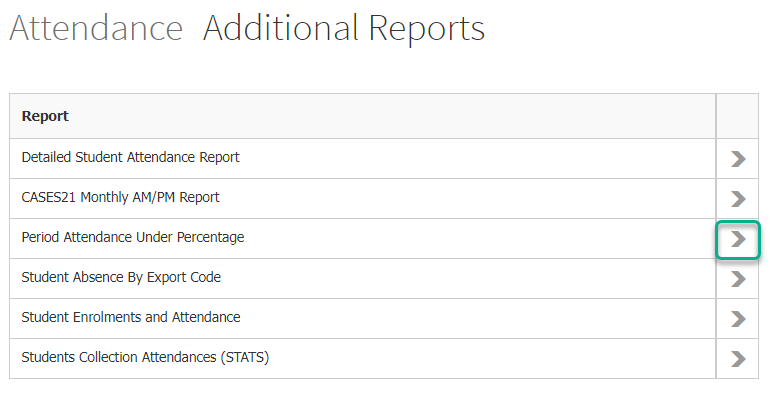
- Click the Arrow icon inline with the Period Attendance Under Percentage item.
- Use the Date filters at the top of the page to specify the date range for your report.
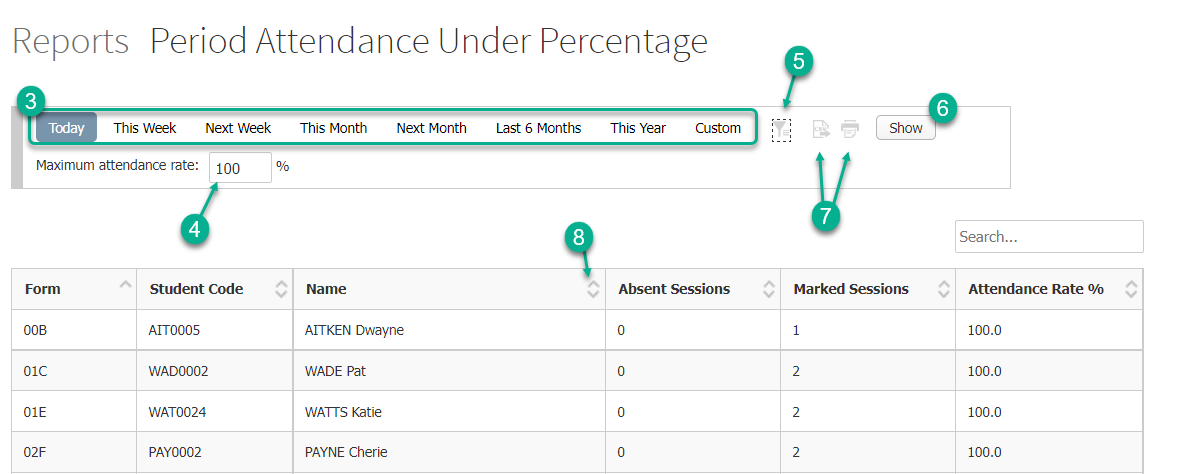
- Set the Maximum attendance rate. The default value is 100%.
- To see additional filtering options, click on the Filter Icon at the top of the page.
- Click the Show button to generate your report.
- To print or export this report to CSV, click on the corresponding Print or Export to CSV icons at the top of the page.
- You can sort by any of the columns with up and down arrows in their column header.
Laporan Kehadiran: Kehadiran Periode Di Bawah Persentase (Period Attendance Under Percentage)
Laporan ini menampilkan siswa dari pilihan Anda yang memiliki persentase kehadiran di bawah nilai yang Anda tentukan.
-
Buka Administration > Attendance > Additional Reports.
-
Klik ikon Panah (Arrow) yang sejajar dengan item Period Attendance Under Percentage.
-
Gunakan filter Tanggal (Date) di bagian atas halaman untuk menentukan rentang tanggal laporan Anda.
-
Atur Tingkat kehadiran maksimum (Maximum attendance rate). Nilai bawaannya (default) adalah 100%.
-
Untuk melihat opsi pemfilteran tambahan, klik Ikon Filter di bagian atas halaman.
-
Klik tombol Show untuk membuat laporan Anda.
-
Untuk mencetak atau mengekspor laporan ini ke CSV, klik ikon Print atau Export to CSV yang sesuai di bagian atas halaman.
-
Anda dapat mengurutkan kolom apa pun yang memiliki panah atas dan bawah pada tajuk (header) kolomnya.