
Class Attendance Marking Guide for Teachers
Class Attendance Marking Guide for Teachers
This page explains how teachers can quickly and efficiently view attendance status and complete daily class roll marking using Prestia.
Steps to Mark Attendance
-
Log In to the Dashboard and Check the Calendar:
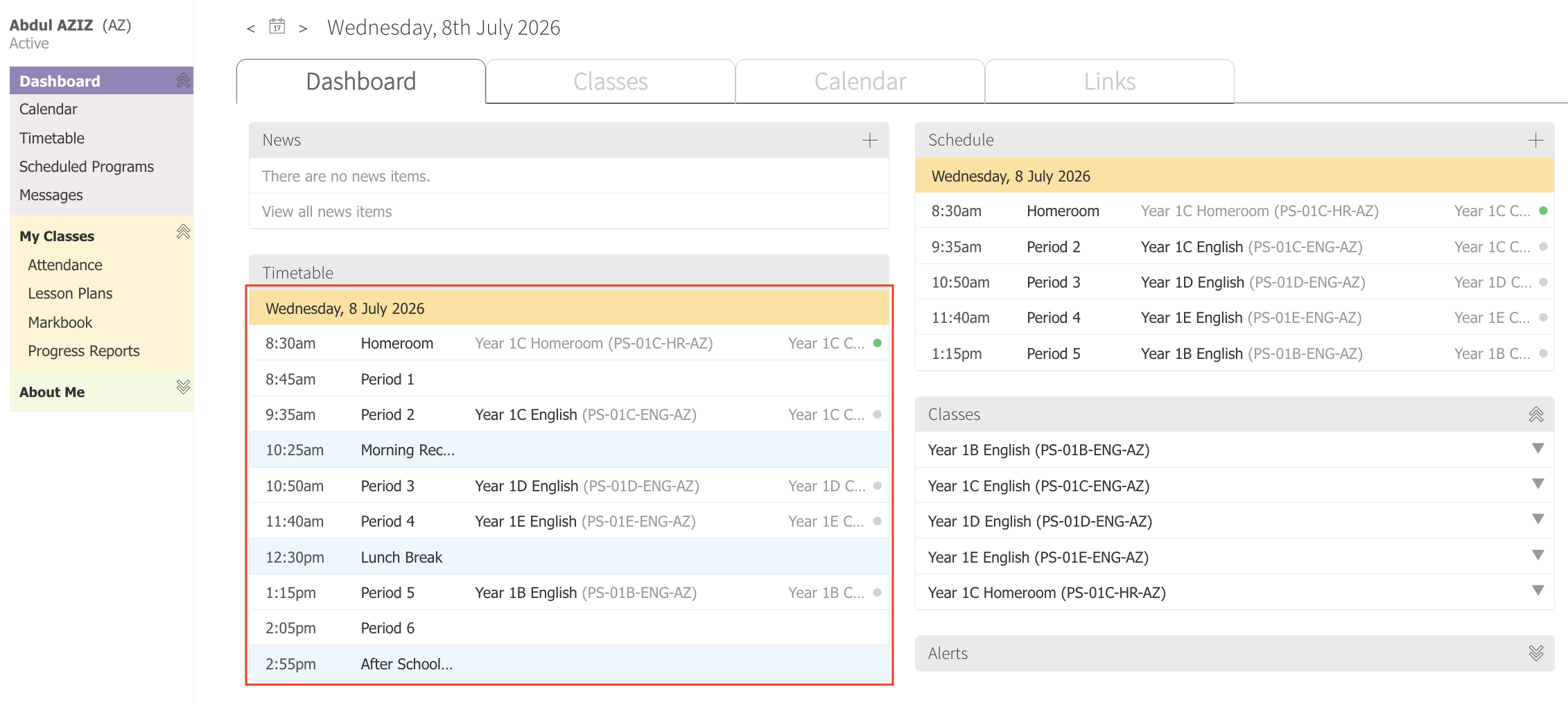
When you log in to Prestia, the main page will immediately display your daily calendar. This section lists all your scheduled classes along with additional information, such as replacement classes (extras) or cancellations.
-
Identify the Roll Status:
Pay attention to the color indicators on your calendar to determine the attendance status:
-
Grey Dot: Indicates the class attendance has not been marked yet (unmarked).
-
Green Dot: Indicates the class attendance is complete (marked).
-
-
Open the Class Attendance Sheet:
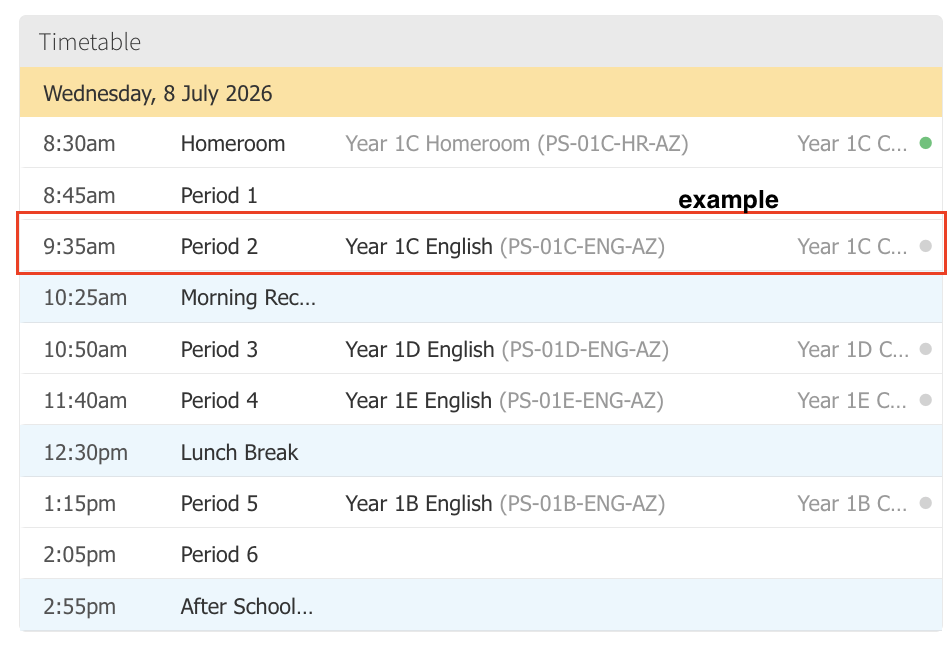
Click directly on the class name featuring a grey dot indicator to open that class’s attendance roll, which will be ready for formatting.
-
Mark Absent Students (Mark by Exception):
Most schools utilize the mark by exception method. To do this, scan down the student list from top to bottom and update the status of absent students by selecting the appropriate absent reasons next to their names.
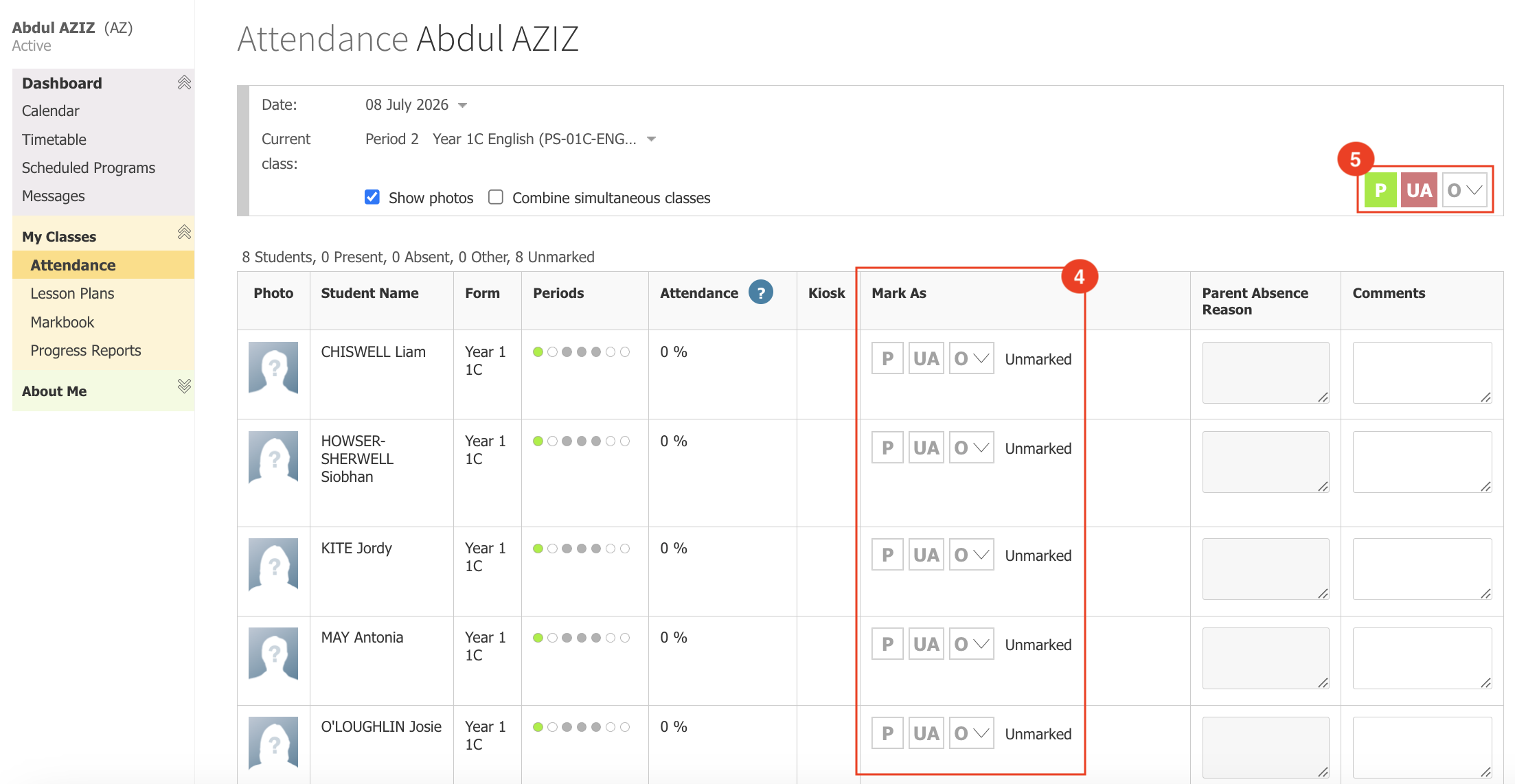
Visual Info: Next to each student’s name is a series of small dots. These dots represent the other periods of that day, allowing you to see the student’s attendance status in prior classes before they enter yours. -
Bulk Mark Present Students:
Once all absent students have been updated, you do not need to change the remaining students individually. Simply click the green “P” button at the top to bulk mark all remaining students as Present. You can also use the yellow Other dropdown menu if you need to apply an alternative status to the rest of the students.
-
Complete and Verify Status:
When you are finished, you can return to the main page by clicking the Prestia logo. The status of your class on the calendar will now change to a green dot (marked).
Additional Features on the Attendance UI
-
Kiosk Integration: If your school utilizes the Prestia Kiosk, real-time student sign-in (late arrivals) or sign-out (early departures) information will appear on your attendance sheet for review.
-
Switch Class Feature: You can quickly switch your attendance sheet to another class scheduled for the same day using the Current Class dropdown menu at the top, without needing to return to the main page.
-
Alerts Section: If you forget to mark attendance for earlier periods, a list of unmarked classes will always appear in the Alerts section of your dashboard so you can complete them at any time.
Panduan Mencatat Absensi Kelas bagi Guru
Halaman ini menjelaskan cara bagi guru untuk melihat status kehadiran dan melakukan pencatatan absensi (roll marking) kelas sehari-hari secara cepat dan efisien melalui Prestia.
Langkah-Langkah Mencatat Absensi
Saat Anda melakukan login ke Prestia, halaman utama akan langsung menampilkan kalender harian Anda. Di sini tertera seluruh daftar kelas Anda serta informasi tambahan seperti kelas pengganti (extras) atau pembatalan kelas.
Perhatikan indikator warna pada kalender Anda untuk mengetahui status absensi:
-
Titik Abu-abu (Grey Dot): Menandakan kelas belum diabsensi (unmarked).
-
Titik Hijau (Green Dot): Menandakan kelas sudah selesai diabsensi (marked).
Klik langsung pada nama kelas yang memiliki indikator titik abu-abu untuk membuka lembar absensi (attendance roll) kelas tersebut yang siap untuk diisi.
Sebagian besar sekolah menggunakan metode mark by exception (menandai pengecualian). Caranya, sisir daftar nama siswa dari atas ke bawah, lalu ubah status siswa yang tidak hadir dengan memilih alasan absen (absent reasons) yang sesuai pada nama siswa terkait.
Info Visual: Di samping nama setiap siswa terdapat rangkaian titik kecil. Titik-titik ini merepresentasikan jam pelajaran (periods) lain pada hari itu, sehingga Anda dapat melihat status kehadiran siswa tersebut di kelas-kelas sebelumnya sebelum masuk ke kelas Anda.
Setelah semua siswa yang tidak hadir selesai ditandai, Anda tidak perlu mengubah siswa yang masuk satu per satu. Cukup klik tombol huruf “P” berwarna hijau di bagian atas untuk menandai seluruh sisa siswa lainnya sebagai hadir (Present) secara massal. Anda juga bisa menggunakan menu dropdown Other berwarna kuning jika ingin menerapkan status alternatif lain untuk sisa siswa tersebut.
Jika Anda telah selesai, Anda dapat kembali ke halaman utama dengan mengklik logo Prestia. Status kelas Anda pada kalender kini akan berubah menjadi titik hijau (marked).
Fitur Tambahan pada UI Attendance:
-
Integrasi Kiosk: Jika sekolah Anda menggunakan Prestia Kiosk, informasi kedatangan terlambat (sign-in) atau pulang awal (sign-out) siswa akan muncul secara real-time di lembar absensi Anda untuk ditinjau.
-
Fitur Switch Class: Anda dapat berpindah lembar absensi ke kelas lain pada hari yang sama secara cepat menggunakan menu dropdown Current Class di bagian atas tanpa harus kembali ke halaman utama.
-
Alerts Section: Jika Anda lupa mengisi absensi di jam-jam sebelumnya, daftar kelas yang belum diabsensi (unmarked classes) akan selalu muncul di bagian Alerts pada dashboard agar Anda bisa melengkapinya kapan saja.