
How to Swap A Room
How to swap a room
This page explains the steps to exchange or change a classroom through the Prestia system. This change can be made directly via the Daily Organisation dashboard.
Steps to Change a Classroom
-
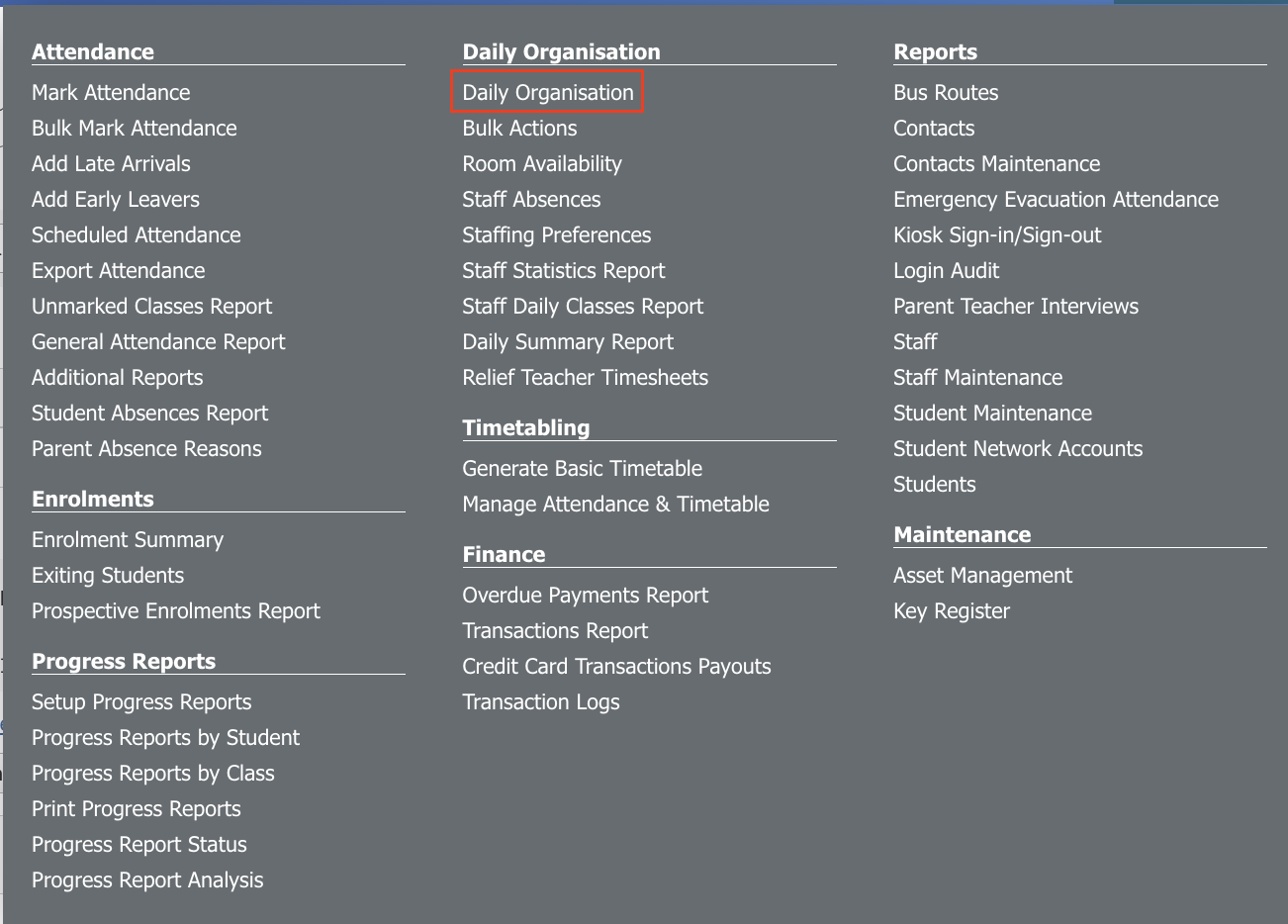
Access the Daily Organisation Menu: Log in to your Prestia account, navigate to the Administration menu on the top bar, and then select Daily Organisation located under the Daily Organisation sub-menu.
-
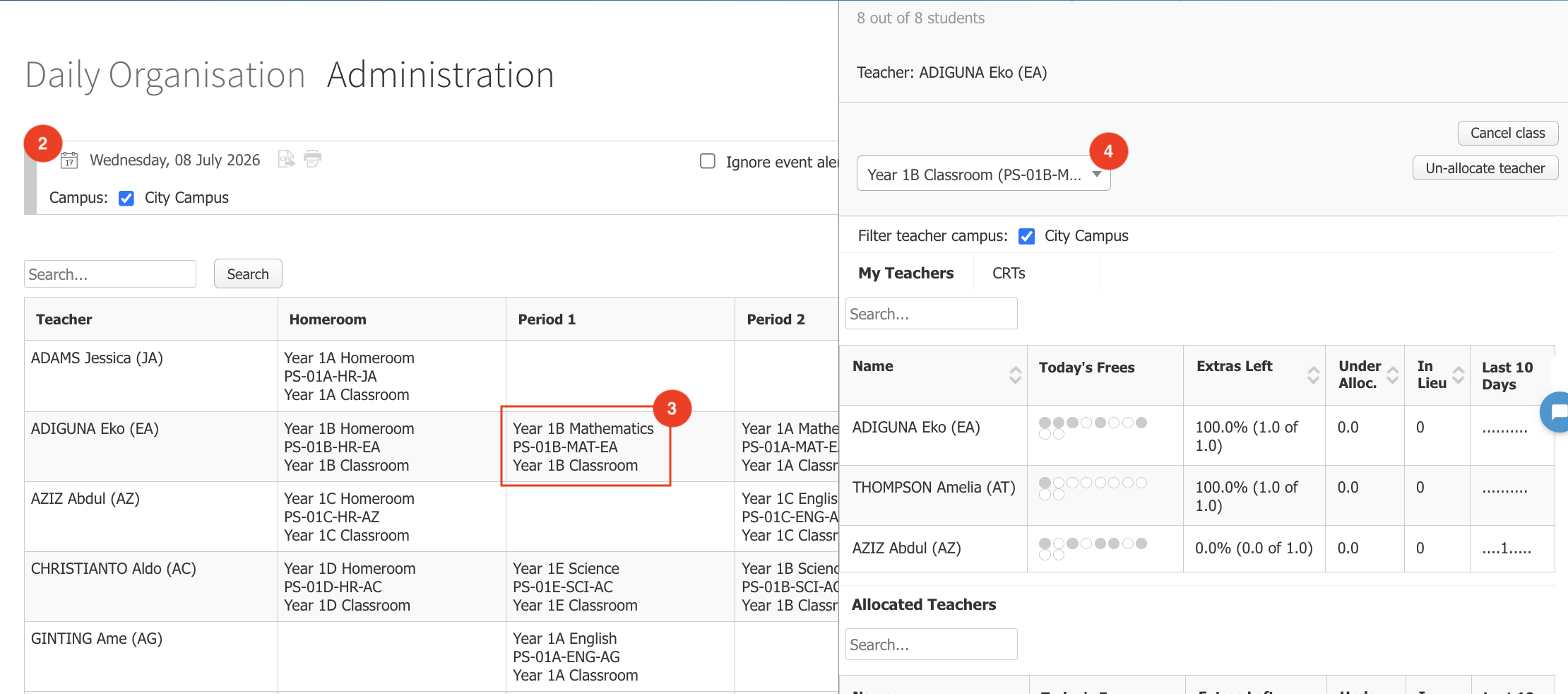
Select the Schedule Date: The page will display the daily schedule in a table format. Ensure you have selected the correct date for the class schedule you want to change using the date filtering feature at the top of the page.
-
Select the Class to Change: Find the row for the relevant teacher or class, then click on the specific cell (schedule box) of the class whose room you want to change. Once clicked, a sidebar (side panel) will automatically appear on the right side of the screen.
-
Select a New Room or Perform a Swap: In the sidebar, find the dropdown menu for room selection. Choose an available new room from the list.
Note: Rooms marked in red mean they are currently unavailable. If you still select that room, the system will trigger a room clash alert.
-
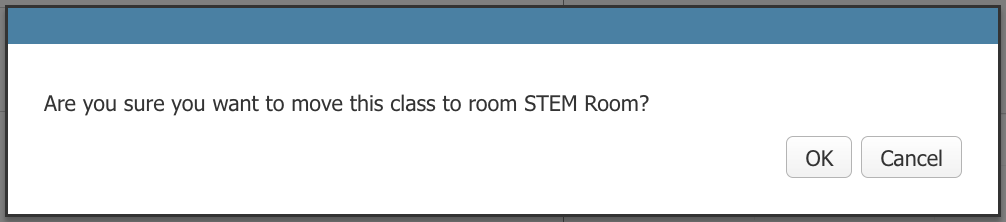
Confirm and Save Changes: After selecting the desired room, click the OK button to confirm your request.
-
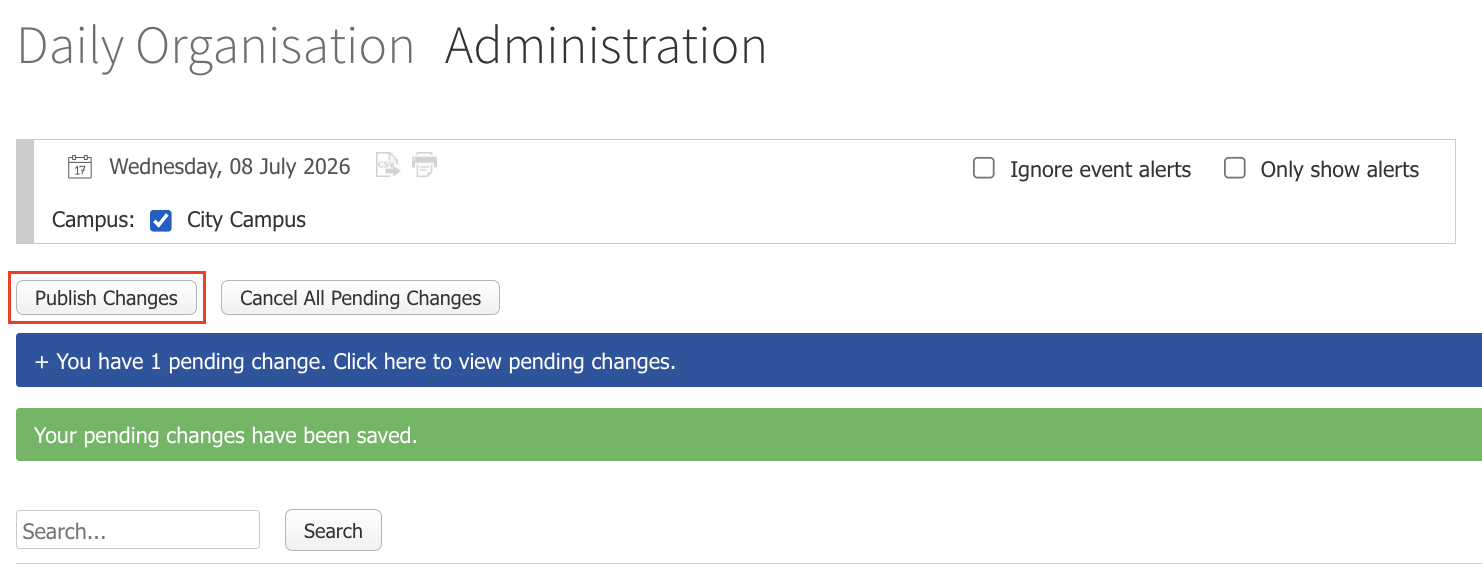
Apply Pending Changes: The change you just made will be highlighted in blue, indicating that its status is still pending. To make the change official in the system, click the Publish Changes button so the latest schedule is instantly updated on the school timetable.
Additional Information Regarding Cell Colors on the Daily Organisation UI:
-
Red Cell: Requires immediate attention due to an unresolved schedule clash or absence.
-
Blue Cell: A pending change that has not yet been applied to the live timetable.
-
Green Cell: A room change or substitute teacher that has been successfully applied
Cara Mengganti Ruangan
Halaman ini menjelaskan langkah-langkah untuk melakukan penukaran atau perubahan ruangan kelas melalui sistem Prestia. Perubahan ini dapat dilakukan langsung melalui dashboard Daily Organisation.
Langkah-Langkah Mengubah Ruangan Kelas
Catatan: Ruangan yang ditandai dengan warna merah berarti sedang tidak tersedia (unavailable). Jika Anda tetap memilih ruangan tersebut, sistem akan memicu peringatan bentrokan ruangan (room clash alert).
Informasi Tambahan Terkait Warna Cell pada UI Daily Organisation:
-
Cell Merah: Memerlukan perhatian segera karena adanya bentrokan jadwal atau ketidakhadiran yang belum teratasi.
-
Cell Biru: Perubahan berstatus pending yang belum diterapkan ke live timetable.
-
Cell Hijau: Perubahan ruangan atau guru pengganti yang telah berhasil diterapkan (applied).