
Skip to main content
What can we help you with?
News Items in the Prestia Staff App
Catatan: Sekolah Anda harus menggunakan Prestia versi terbaru untuk memastikan aplikasi berfungsi dengan baik. Anda juga harus selalu memperbarui perangkat lunak perangkat Anda untuk memastikan kompatibilitas dengan aplikasi Prestia Staff. Mengizinkan pembaruan otomatis pada aplikasi ini juga direkomendasikan.
Melihat Item Berita
- Anda dapat melihat item berita yang ada dengan mengetuk item Berita melalui menu Notifikasi jika Anda baru saja menerimanya, atau ketuk ikon menu
 dan ketuk Berita di menu.
 - Anda dapat berpindah ke waktu yang berbeda dengan mengetuk Bulan dan Tahun di bilah hijau di bagian atas. Gunakan menu gulir untuk memilih tanggal.
- Setelah Anda menemukan item berita yang ingin Anda lihat, ketuk item tersebut. Anda akan melihat detail item berita.
- Anda akan dapat melihat judul item Berita, deskripsi, siapa yang membuatnya, serta melihat lampiran apa pun di dalam item Berita.
Mengedit Item Berita
- Anda dapat melihat item berita yang ada dengan mengetuk item Berita melalui menu Notifikasi jika Anda baru saja menerimanya, atau ketuk ikon menu dan ketuk Berita di menu.
- Anda dapat berpindah ke waktu yang berbeda dengan mengetuk Bulan dan Tahun di bilah hijau di bagian atas. Gunakan menu gulir untuk memilih tanggal.
- Setelah Anda menemukan item berita yang ingin Anda lihat, ketuk item tersebut. Anda akan melihat detail item berita.
- Jika Anda memiliki izin, Anda juga akan melihat Edit di sudut kanan atas. Ketuk Edit untuk membuat perubahan. Anda akan melihat sesuatu yang mirip dengan di bawah ini:
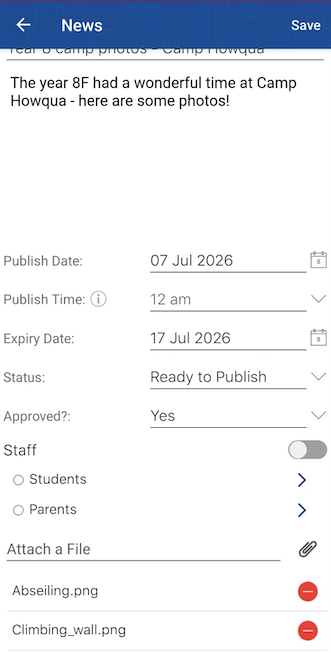
- Tugas-tugas berikut dapat diselesaikan dari layar ini:
- Ketuk judul untuk mengeditnya
- Ketuk deskripsi untuk mengeditnya
- Ketuk tanggal mulai untuk mengubahnya – ini adalah tanggal kapan item Berita mulai ditampilkan untuk pengguna yang ditentukan (Staf, orang tua, dan/atau siswa)
- Ketuk tanggal berakhir untuk mengubahnya – ini adalah tanggal kapan item Berita berhenti ditampilkan di bagian Berita untuk pengguna yang ditentukan (Staf, orang tua, dan/atau siswa)
- Ketuk tombol Staf untuk mengaktifkan atau menonaktifkan visibilitas untuk semua staf
- Ketuk berbagai opsi Siswa dan Orang Tua untuk mengedit siapa yang dapat melihat item Berita ini
- Ketuk ikon penjepit kertas untuk melampirkan semua jenis file termasuk gambar, video, musik, PDF. Saat ini, dokumen Microsoft Word tidak direkomendasikan karena banyak perangkat seluler mengalami kesulitan membukanya.
- Anda dapat mengetuk ikon merah di samping lampiran yang ada untuk menghapusnya – aplikasi akan meminta Anda untuk mengonfirmasi, jadi pastikan Anda memiliki salinan lampiran yang tersimpan jika Anda membutuhkannya lagi di masa mendatang.
- Ketuk Simpan di sudut kanan atas untuk memastikan perubahan Anda telah disimpan.
Membuat Item Berita
- Ketuk ikon menu dan ketuk Berita di menu.
- Ketuk ikon Buat
 dan gunakan fungsi yang sama seperti yang ditentukan di atas dalam instruksi Edit Item Berita untuk mengedit item baru.
 - Klik Simpan untuk membuat item.
- Jika sekolah Anda mengaktifkan notifikasi aplikasi untuk item Berita Baru, notifikasi aplikasi akan segera dikirim setelah mengeklik Simpan untuk pertama kali.
Viewing a News item
- You can view an existing news item by tapping the News item via the Notification menu if you have recently received one, or tap the menu icon
 and tap News in the menu.
 - You can move to a different point in time by tapping the Month and Year in the green bar at the top. Use the scrolling menu to choose a date.
- Once you have found the news item you wish to view, tap it. You will see the details of the news item.
- You will be able to view the News item title, description, who created it, as well as view any attachments within the News item.
Editing a News item
- You can view an existing news item by tapping the News item via the Notification menu if you have recently received one, or tap the menu icon
 and tap News in the menu.
 - You can move to a different point in time by tapping the Month and Year in the green bar at the top. Use the scrolling menu to choose a date.
- Once you have found the news item you wish to view, tap it. You will see the details of the news item.
- If you have permission, you will also see Edit in the top right corner. Tap Edit to make changes. You will see something similar to the below:
- The following tasks can be completed from this screen:
- Tap the title to edit it
- Tap the description to edit it
- Tap the start date to change it – this is the date when the News item starts showing for the specified users (Staff, parents and/or students)
- Tap the end date to change it – this is the date when the News item stops showing in the News section for the specified users (Staff, parents and/or students)
- Tap the Staff switch to enable or disable visibility for all staff
- Tap the various Students and Parents options to edit who can see this News item
- Tap the paperclip to attach any type of file including images, videos, music, pdfs. At this point in time, Microsoft Word documents are not recommended as many mobile devices have trouble opening them.
- You may tap the red icon next to existing attachments to remove them – the app will ask you confirm, so please make sure you have a copy of the attachment saved in case you need it again in future.
- Tap Save in the top right corner to ensure your changes have been saved.
Creating a News item
- Tap the menu icon
 and tap News in the menu.
 - Tap the Create icon
 and use the same functions as specified above in the Edit News item instructions to edit the new item.
 - Click Save to create the item.
- If your school has app notifications enabled for New News items, an app notification will be sent immediately after clicking Save the first time.