
Event permission slips, forms, medical details, and reports
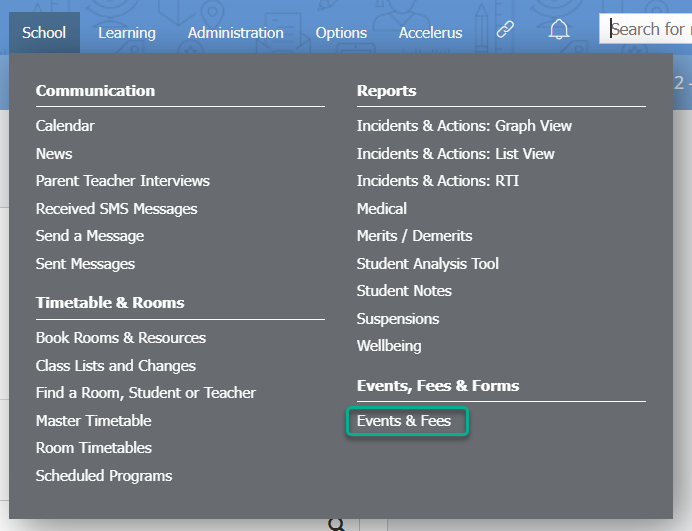
To access an event, go to School > Events, Fees & Forms > Events & Fees, then click on the row of the event.
Printing permission slips
- Click on the Students tab of an event.
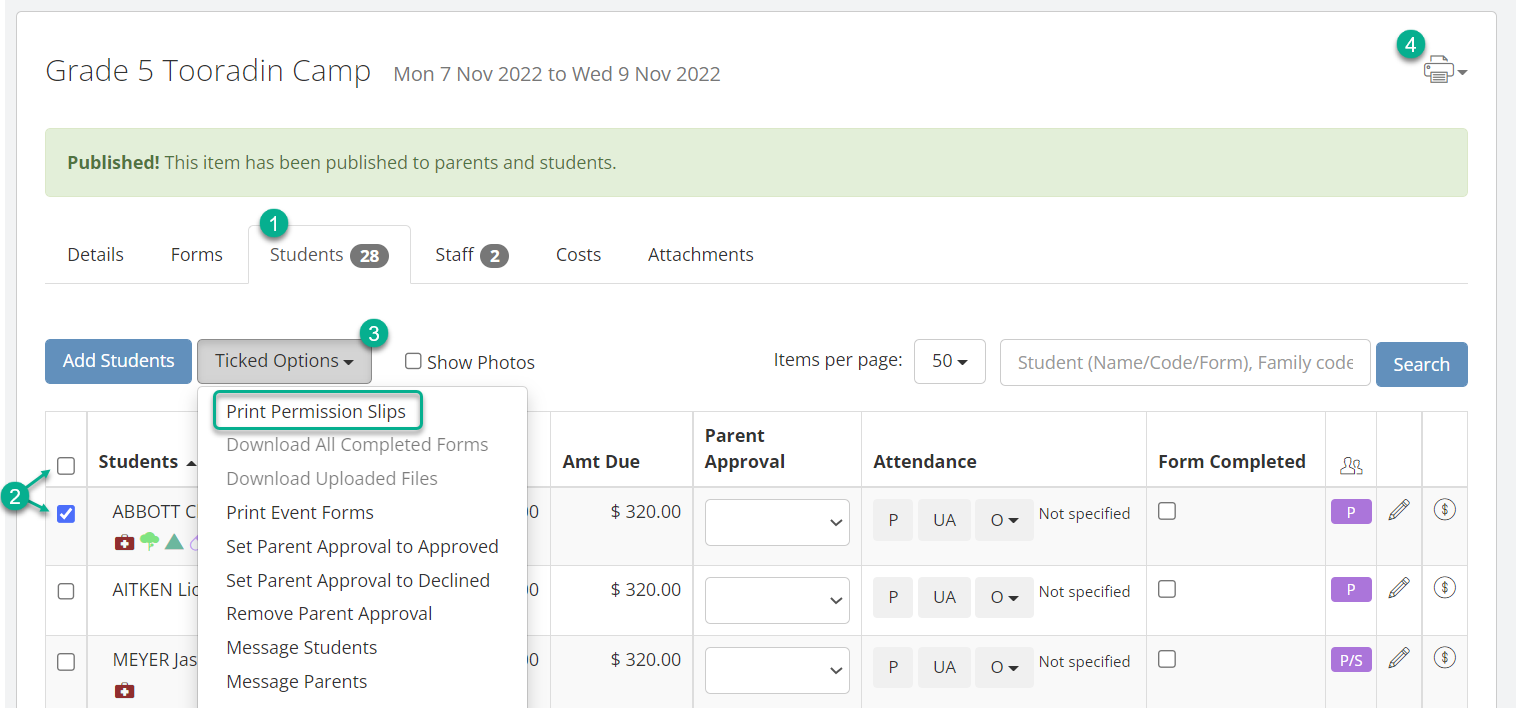
- Select the student(s) you wish to print permission slips for, or select all students using the checkbox in the top left.
- Click on the Ticked Options dropdown list and select Print Permission Slips. This produces a permission slip with all the event details and name for each student you selected as a PDF, which you can then print.
- Alternatively, you can print a permission slip with no name attached using the Printer icon in the top left. Click on the icon and select Blank Permission Slip from the dropdown list. The permission slip will contain all the event details, but no student name.
Note: You cannot change the formatting or content of the template that produces permission slips.
Printing event forms for parents to complete
- Click on the Students tab of an event.
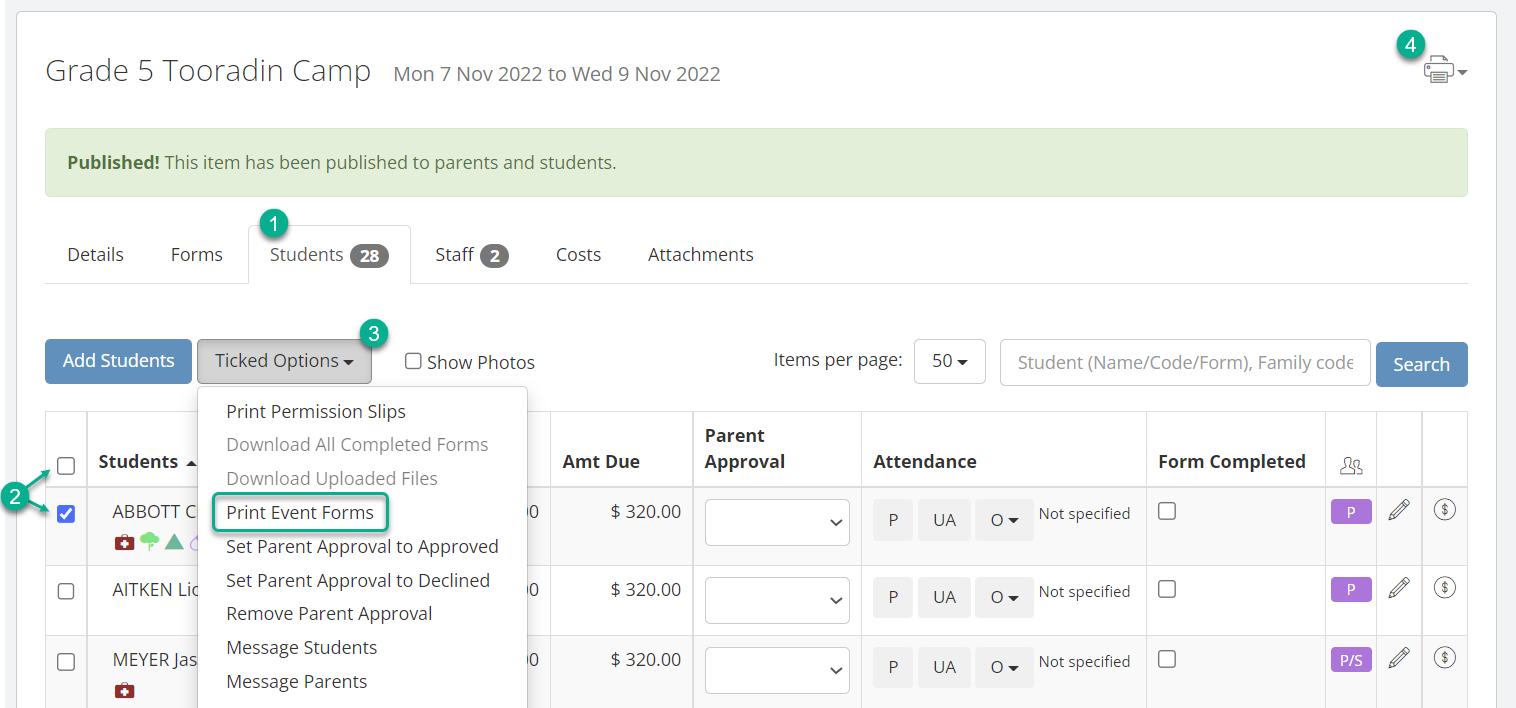
- Select the student(s) you wish to print event forms for, or select all students using the checkbox in the top left. Note: This will select all students shown on the current page. You may need to increase the Items per page count using the dropdown list.
- Click on the Ticked Options dropdown list and select Print Event Forms. This produces an event form with all the event details, form fields and questions, and name for each student you selected as a PDF, which you can then print.
- Alternatively, you can print an event form with no name attached using the Printer icon in the top left. Click on the icon and select Print Default Event Form from the dropdown list. The event form will contain all the event details, form fields and questions, but no student name.
Note: To adjust the formatting of the template that is used to print event forms, see the following section.
Event form templates
You can adjust the template that Prestia will use when a parent or staff member chooses to print an event form for an event.
There are two relevant templates in Prestia:
- The Default Event Form template. To adjust this template:
- Go to Options > Software Settings > Award, Letter & Email Templates.
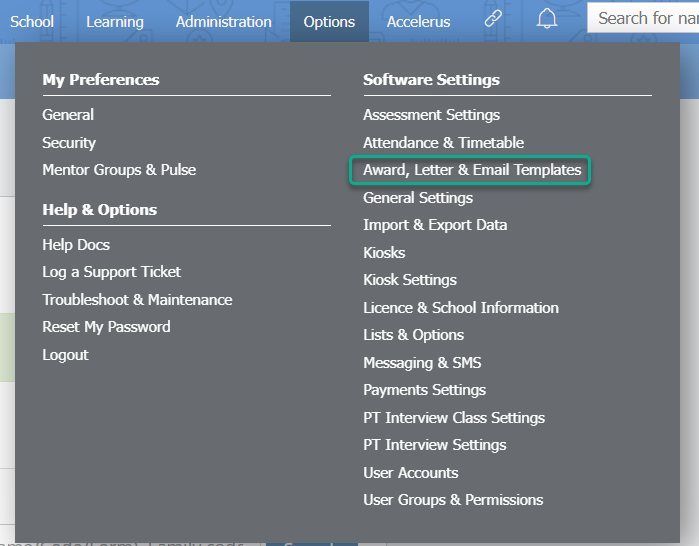
- Select Events from the dropdown list.
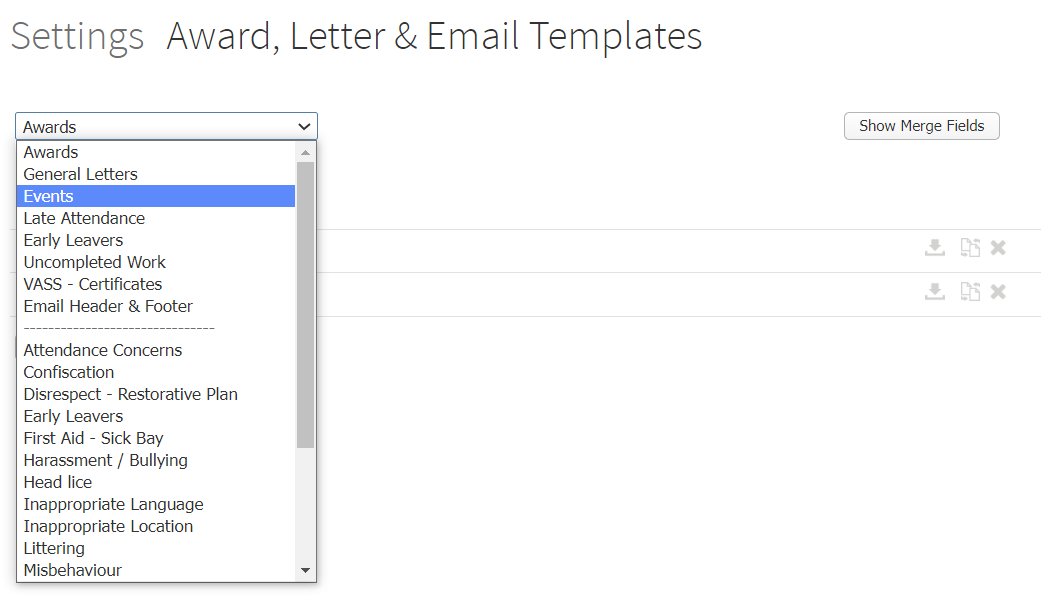
- To download the existing template to view and/or edit it, click on the Download template icon.
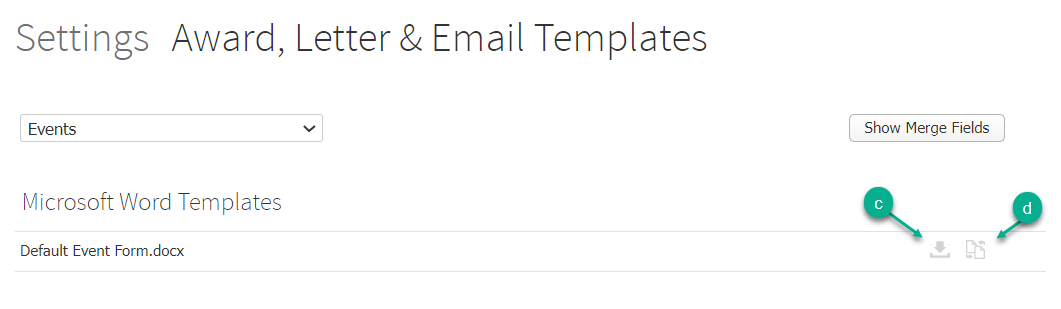
- To replace the existing template, click the Replace template icon and upload your new template.
- Go to Options > Software Settings > Award, Letter & Email Templates.
- The Custom template for a particular event. To add a custom template to an event, click on the Attachments tab in the event, then use the Upload custom template button.
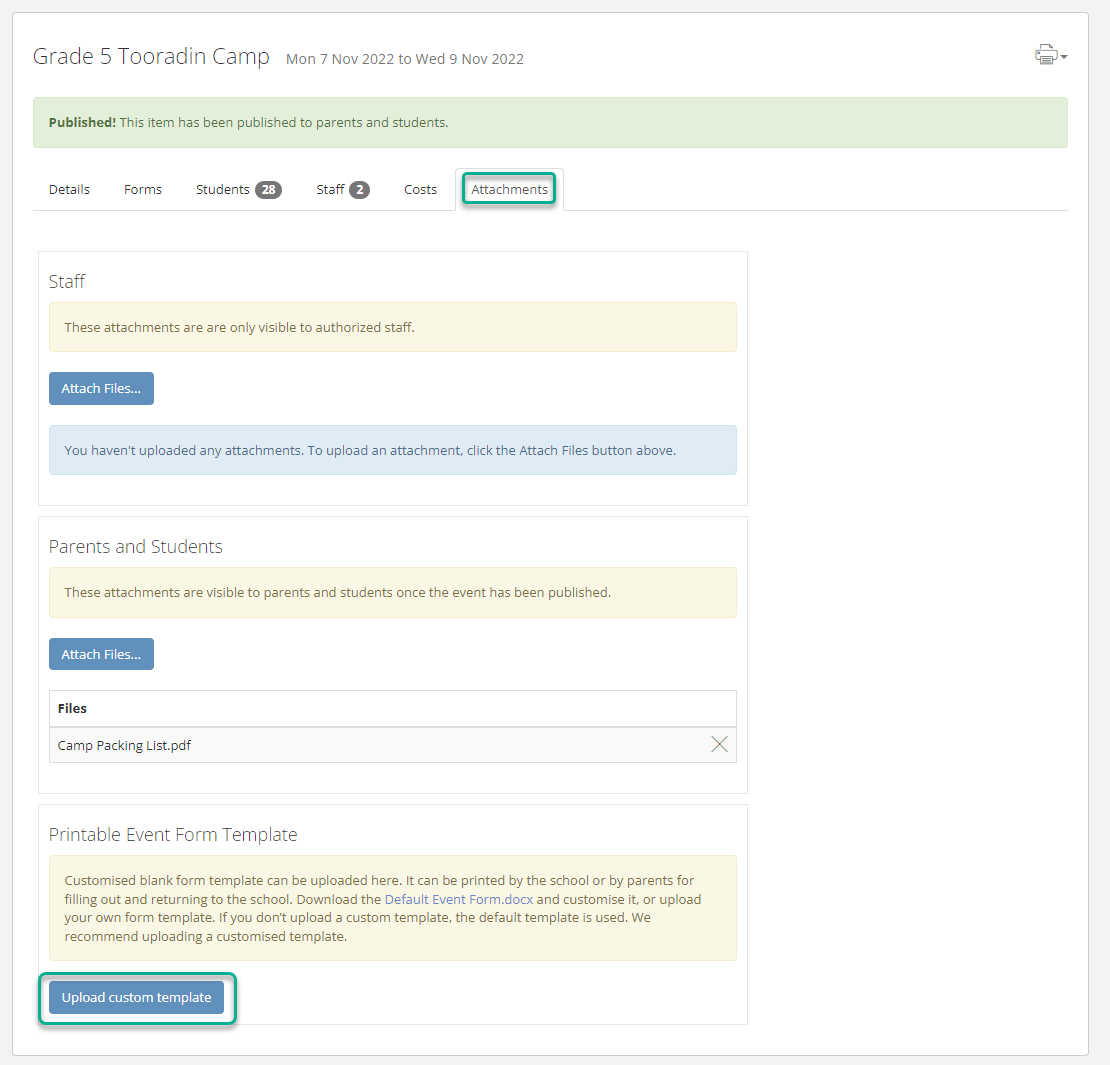
Note: If there is no custom template attached to an event, Prestia will instead use the default event form template when an event form is printed.
Viewing completed event forms and entering information from a paper form into Prestia
Once parents have started inputting their answers to your form questions, you may need to see their answers, or download their completed forms to print out. If a parent chooses to fill in a paper form, you can transfer their answers into Prestia, so that all students’ information for the event is stored electronically, in the one place.
To view or edit an event form:
- In the event, go to the Students tab.
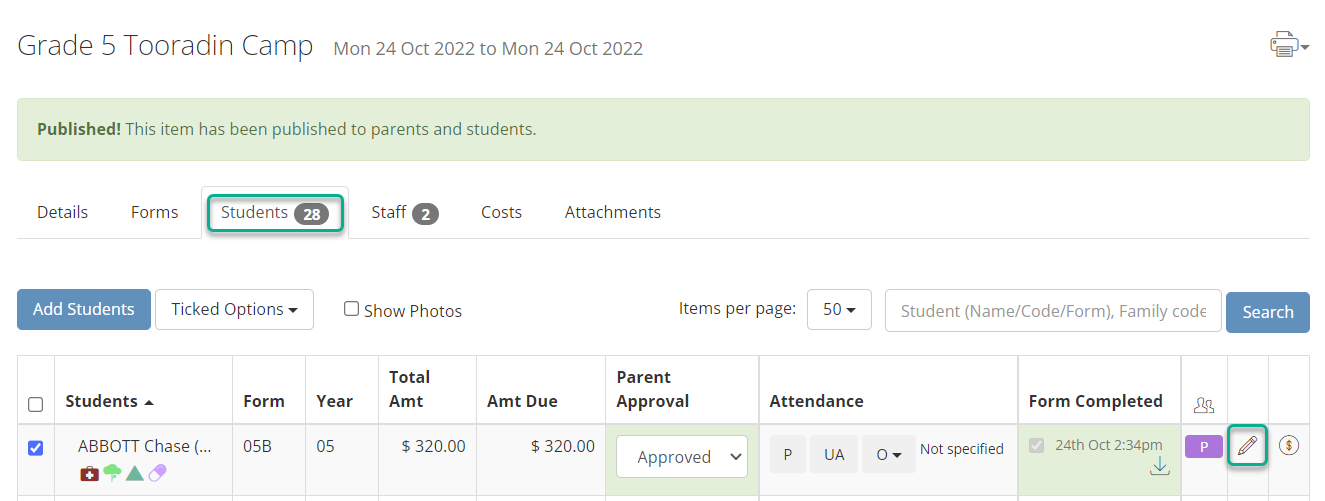
- Click on the Pencil icon to view a parent or student’s completed form, or to transfer information from a paper form into Prestia.
- Click the Update or Cancel button when you have finished viewing or editing the form.
To download completed forms:
- In the event, go to the Students tab.
- Select the student(s) you wish to download completed event forms for, or select all students using the checkbox in the top left. Note: This will select all students shown on the current page. You may need to increase the Items per page count using the dropdown list.
- Click on the Ticked Options: dropdown list and select Download all Completed Forms.
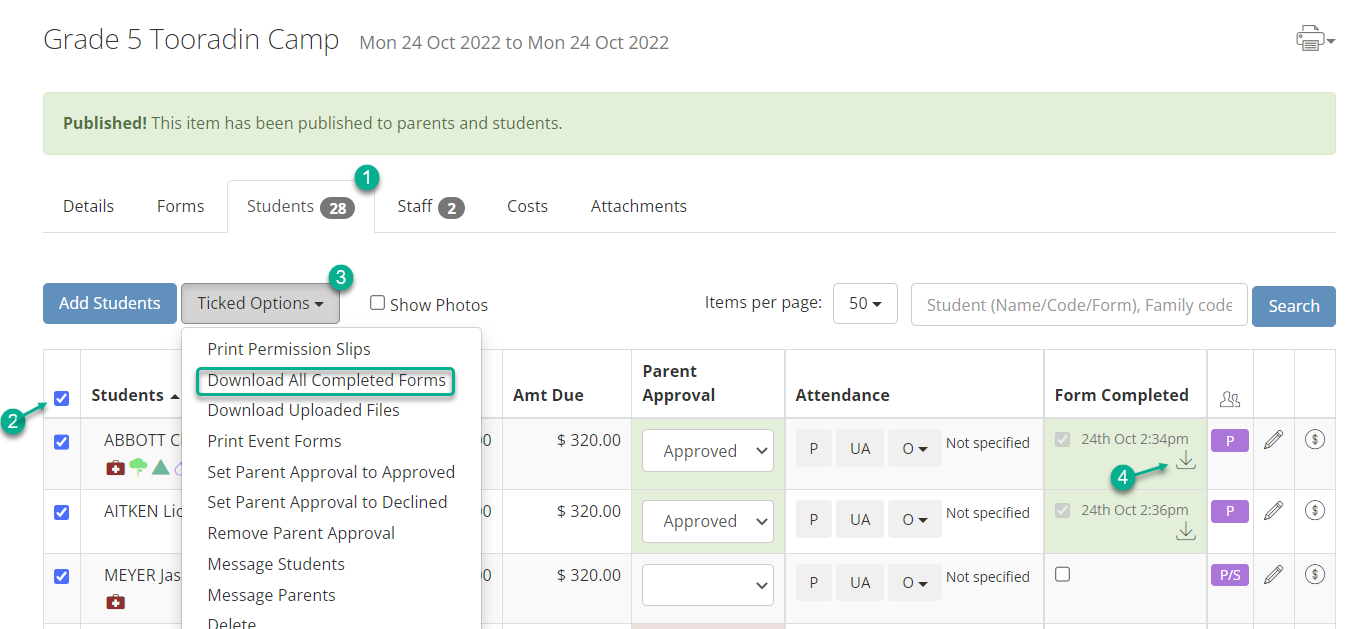
- Alternatively, you can download an individual student’s form using the Download icon in their row.
- If parents have uploaded files as part of the event form, you can also Download Uploaded Files by selecting this option in step 3.
Event form report
The event form report is useful for collating data from all students in an event, organised by event form question. You can report on the information from one or more questions in your event form, and export the report to PDF or CSV. This can be useful, for example, to pull out dietary restriction details from a full camp event form, when you need only this information and not the rest of that entered in the form.
To access the event form report:
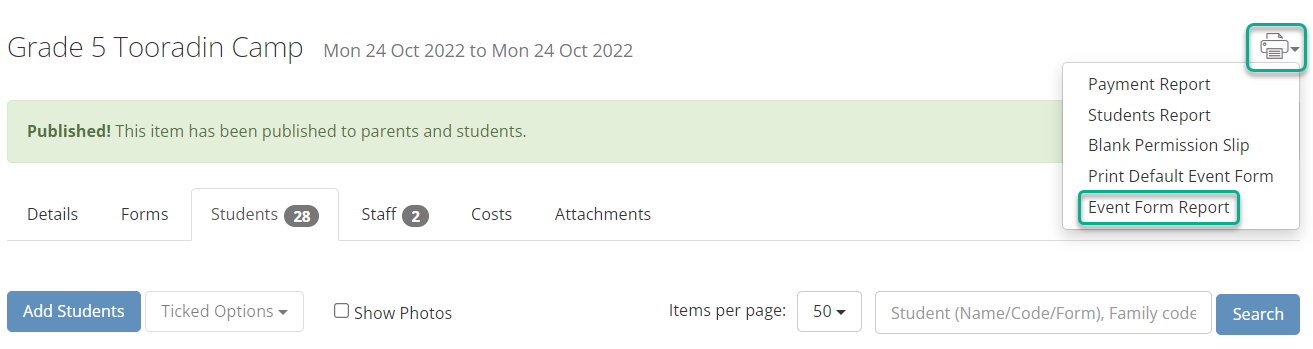
- In any tab of your event, click on the Printer icon and use the dropdown list to select Event Form Report.
- Use the checkboxes to select the question(s) you’d like included in the report, or use the checkbox in the top left to select all questions.
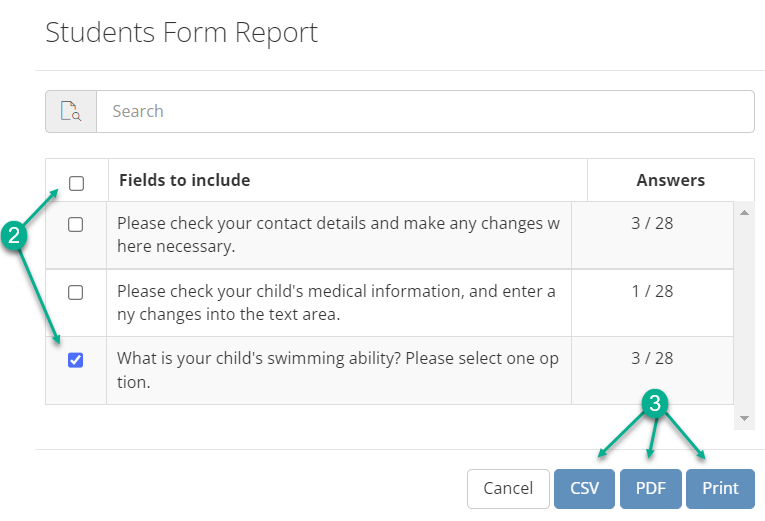
- Use the applicable button to either export to CSV or PDF, or Print the report.
Viewing or editing parental approval
The Parent Approval field is automatically updated for the corresponding student on the Students tab of the event when a parent successfully approves or declines an event online. A staff member can also use the dropdown list to change the selection manually.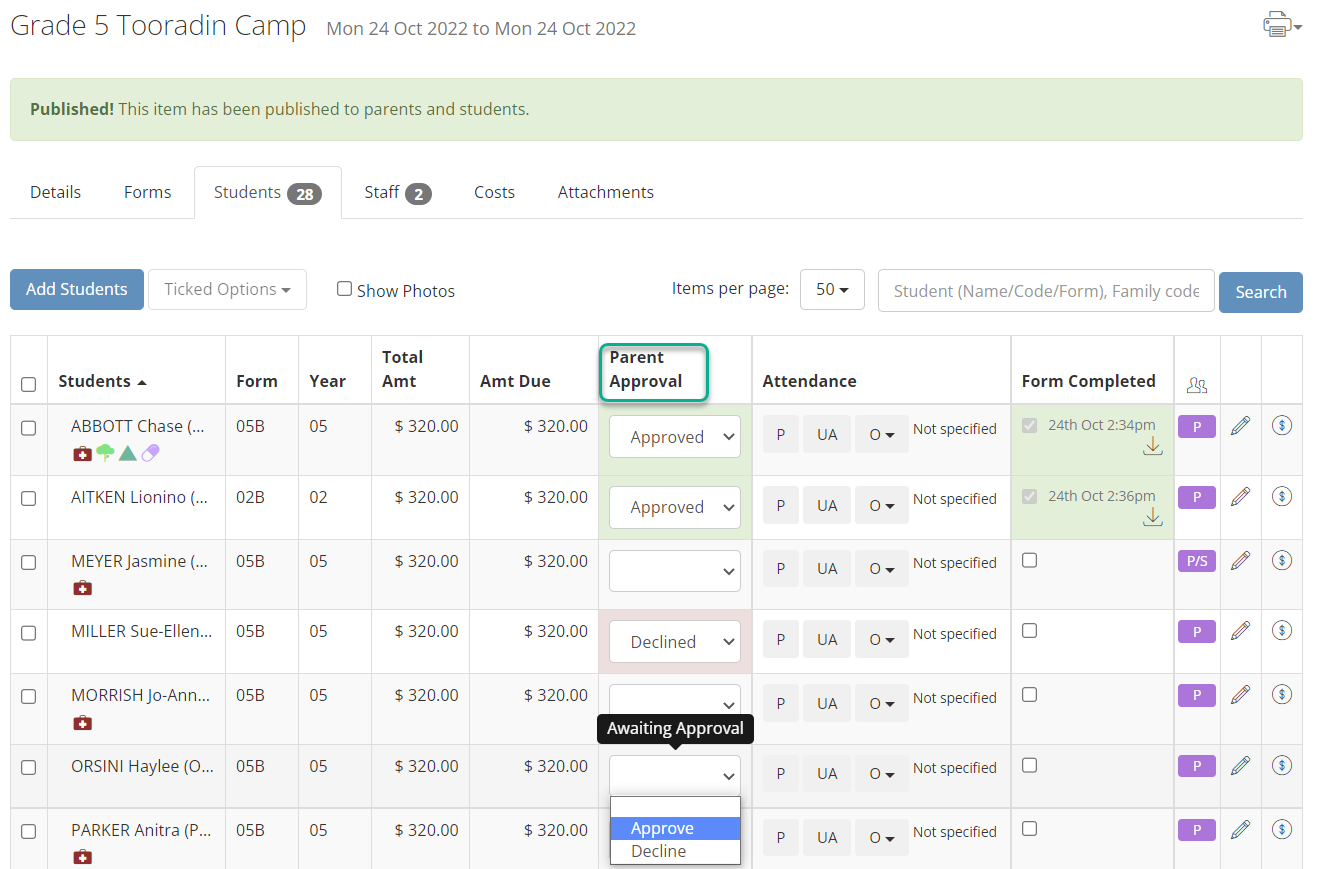
Hovering over the field will show details of who last approved or declined the event, and when. If a parent has given a reason for declining, this will also be displayed.
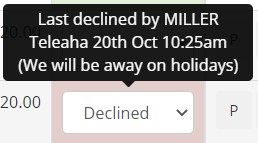
Note that the Decline option will only be available if this particular event allows it. This setting is chosen in the Details tab.
Students report
This report is designed to be used during the event to show which students have paid in full and have been approved. The report also shows each student’s medical details (imported from your SIS and those entered in Prestia) and the student’s primary emergency contacts.
- In any tab of your event, click on the Printer icon and use the dropdown list to select Students Report.
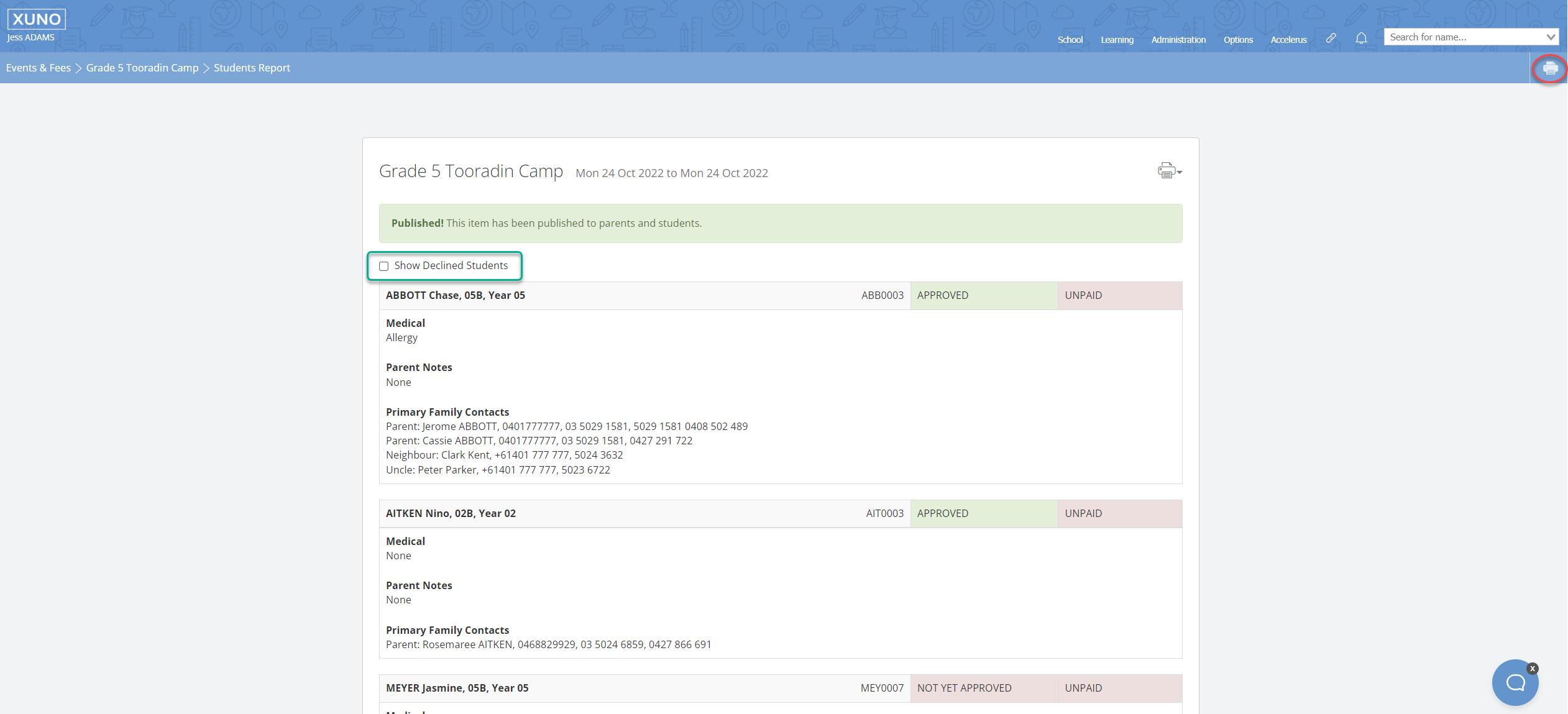
You can show declined students in the report by ticking the Show Declined Students checkbox. Declined students will be displayed immediately, there is no need to save or refresh the page. - To print the report to PDF or your printer, use the Printer icon in the top right of your Prestia page, shown above circled in red.
Payments report
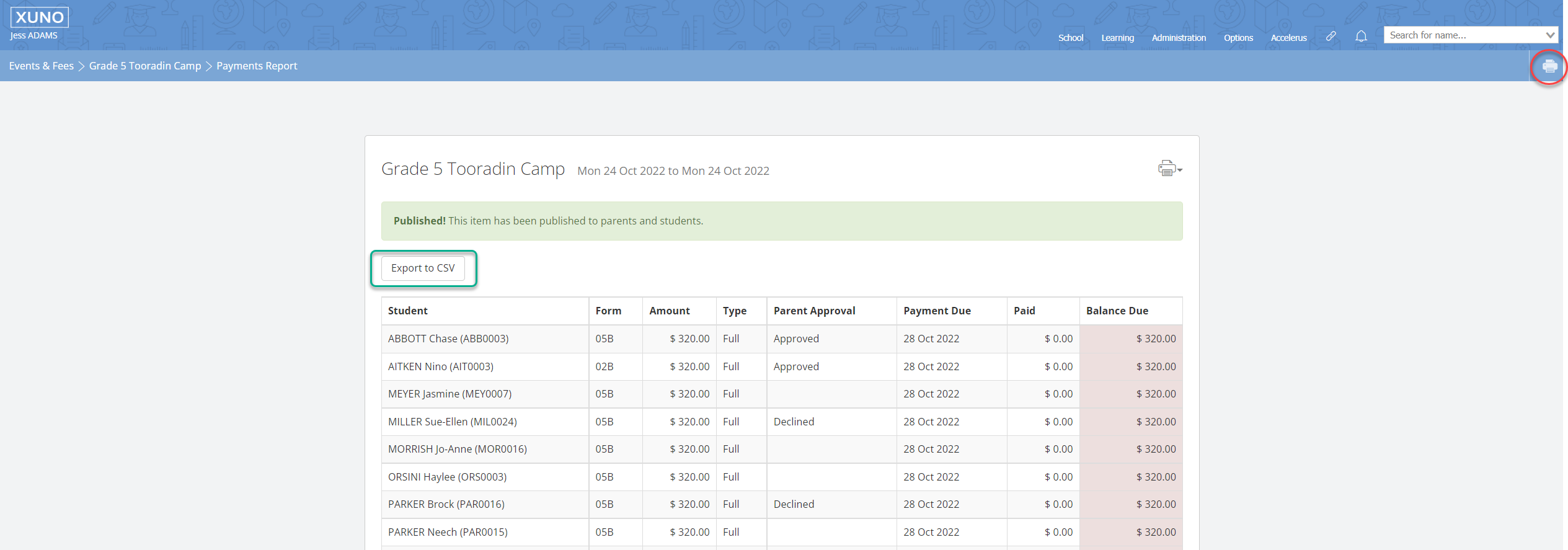
This report is designed to show you the balance due for each individual payment item for each student, including payment plans and split payments. View the transactions report for a complete list of each manual and online payment made.
- In any tab of your event, click on the Printer icon and use the dropdown list to select Payment Report.
- You can view the report on screen, use the Export to CSV button, or print the report to PDF or your printer, using the Printer icon in the top right of your Prestia page, shown below circled in red.
Lembar Izin Acara, Formulir, Rincian Medis, dan Laporan
Artikel ini ditujukan bagi staf yang perlu mencetak lembar izin atau formulir acara, atau membuat laporan mengenai siswa dan pembayaran yang terkait dengan suatu acara atau biaya.
Untuk mengakses suatu acara, buka School > Events, Fees & Forms > Events & Fees, lalu klik pada baris acara yang dimaksud.
Mencetak Lembar Izin (Permission Slips)
-
Klik tab Students pada suatu acara.
-
Pilih siswa yang lembar izinnya ingin Anda cetak, atau pilih semua siswa menggunakan kotak centang di pojok kiri atas.
-
Klik daftar pilihan (dropdown) Ticked Options dan pilih Print Permission Slips. Fitur ini akan menghasilkan lembar izin berformat PDF yang berisi seluruh rincian acara dan nama untuk setiap siswa yang Anda pilih, yang kemudian dapat Anda cetak.
Cara Alternatif: Anda juga dapat mencetak lembar izin tanpa nama siswa menggunakan ikon Printer di pojok kiri atas. Klik ikon tersebut dan pilih Blank Permission Slip dari daftar pilihan. Lembar izin tersebut akan berisi seluruh rincian acara, namun tanpa nama siswa.
Catatan: Anda tidak dapat mengubah format atau konten dari templat (template) yang digunakan untuk menghasilkan lembar izin ini.
Mencetak Formulir Acara untuk Diisi Orang Tua
-
Klik tab Students pada suatu acara.
-
Pilih siswa yang formulir acaranya ingin Anda cetak, atau pilih semua siswa menggunakan kotak centang di pojok kiri atas. (Catatan: Ini akan memilih semua siswa yang tampil di halaman saat ini. Anda mungkin perlu meningkatkan jumlah item per halaman menggunakan daftar pilihan Items per page).
-
Klik daftar pilihan Ticked Options dan pilih Print Event Forms. Fitur ini akan menghasilkan formulir acara berformat PDF yang berisi seluruh rincian acara, kolom formulir, pertanyaan, dan nama untuk setiap siswa yang Anda pilih, yang kemudian dapat Anda cetak.
Cara Alternatif: Anda dapat mencetak formulir acara tanpa nama siswa menggunakan ikon Printer di pojok kiri atas. Klik ikon tersebut dan pilih Print Default Event Form dari daftar pilihan. Formulir ini akan berisi seluruh rincian acara, kolom formulir, dan pertanyaan, namun tanpa nama siswa.
Catatan: Untuk menyesuaikan format templat yang digunakan saat mencetak formulir acara, lihat bagian berikut.
Templat Formulir Acara (Event Form Templates)
Anda dapat menyesuaikan templat yang akan digunakan Prestia saat orang tua atau staf memilih untuk mencetak formulir acara. Terdapat dua templat yang relevan di Prestia:
-
Templat Default Formulir Acara (Default Event Form template)
Untuk menyesuaikan templat ini:
-
Buka Options > Software Settings > Award, Letter & Email Templates.
-
Pilih Events dari daftar pilihan.
-
Untuk mengunduh templat yang ada agar dapat dilihat/diedit, klik ikon Download template.
-
Untuk mengganti templat yang ada, klik ikon Replace template dan unggah templat baru Anda.
-
-
Templat Kustom untuk Acara Tertentu (Custom template)
Untuk menambahkan templat kustom ke suatu acara, klik tab Attachments pada acara tersebut, lalu gunakan tombol Upload custom template.
Catatan: Jika tidak ada templat kustom yang dilampirkan pada suatu acara, Prestia akan secara otomatis menggunakan templat formulir acara bawaan (default) saat formulir dicetak.
Melihat Formulir yang Telah Diisi dan Memasukkan Informasi dari Formulir Kertas ke Prestia
Setelah orang tua mulai mengisikan jawaban mereka, Anda mungkin perlu melihat jawaban tersebut atau mengunduh formulir yang telah selesai diisi untuk dicetak. Jika orang tua memilih untuk mengisi formulir kertas, Anda dapat memindahkan jawaban mereka ke dalam Prestia agar seluruh informasi siswa untuk acara tersebut tersimpan secara elektronik di satu tempat.
Untuk melihat atau mengedit formulir acara:
-
Buka tab Students pada acara tersebut.
-
Klik ikon Pensil untuk melihat formulir yang telah diisi oleh orang tua/siswa, atau untuk memindahkan informasi dari formulir kertas ke Prestia.
-
Klik tombol Update atau Cancel setelah Anda selesai melihat atau mengedit formulir.
Untuk mengunduh formulir yang telah diisi:
-
Buka tab Students pada acara tersebut.
-
Pilih siswa yang formulirnya ingin Anda unduh, atau pilih semua siswa menggunakan kotak centang di pojok kiri atas. (Catatan: Ini akan memilih semua siswa pada halaman saat ini. Anda mungkin perlu menyesuaikan jumlah Items per page).
-
Klik daftar pilihan Ticked Options: dan pilih Download all Completed Forms.
-
Atau, Anda dapat mengunduh formulir siswa secara individual menggunakan ikon Download di baris masing-masing siswa.
-
Jika orang tua mengunggah berkas sebagai bagian dari formulir acara, Anda juga dapat memilih Download Uploaded Files pada langkah 3.
Laporan Formulir Acara (Event Form Report)
Laporan formulir acara sangat berguna untuk mengumpulkan data dari seluruh siswa dalam suatu acara yang dikelompokkan berdasarkan pertanyaan formulir. Anda dapat membuat laporan dari informasi satu atau beberapa pertanyaan, lalu mengekspornya ke format PDF atau CSV. Hal ini berguna, misalnya, untuk menarik rincian pantangan makanan siswa dari formulir kemah secara keseluruhan tanpa perlu menyertakan sisa informasi lainnya.
Cara mengakses laporan formulir acara:
-
Pada tab mana saja di acara Anda, klik ikon Printer dan gunakan daftar pilihan untuk memilih Event Form Report.
-
Gunakan kotak centang untuk memilih pertanyaan yang ingin dimasukkan ke dalam laporan, atau gunakan kotak centang di pojok kiri atas untuk memilih semua pertanyaan.
-
Gunakan tombol yang sesuai untuk mengekspor ke CSV, PDF, atau Cetak (Print) laporan tersebut.
Melihat atau Mengedit Persetujuan Orang Tua
Kolom Parent Approval akan diperbarui secara otomatis untuk siswa yang bersangkutan pada tab Students ketika orang tua berhasil memberikan persetujuan atau menolak acara secara daring (online). Staf juga dapat menggunakan daftar pilihan untuk mengubah pilihan tersebut secara manual.
Mengarahkan kursor ke atas kolom tersebut akan menampilkan rincian siapa yang terakhir kali menyetujui atau menolak acara, beserta waktunya. Jika orang tua memberikan alasan penolakan, alasan tersebut juga akan ditampilkan.
Catatan: Opsi Decline (Tolak) hanya akan tersedia jika acara tersebut mengizinkannya. Pengaturan ini diaktifkan melalui tab Details.
Laporan Siswa (Students Report)
Laporan ini dirancang untuk digunakan selama acara berlangsung guna menunjukkan siswa mana saja yang telah membayar lunas dan telah disetujui. Laporan ini juga menampilkan rincian medis setiap siswa (yang diimpor dari SIS Anda serta yang dimasukkan di Prestia) dan kontak darurat utama siswa.
-
Pada tab mana saja di acara Anda, klik ikon Printer dan gunakan daftar pilihan untuk memilih Students Report.
-
Anda dapat menampilkan siswa yang menolak dengan mencentang kotak Show Declined Students. Siswa yang menolak akan langsung ditampilkan tanpa perlu menyimpan atau menyegarkan (refresh) halaman.
-
Untuk mencetak laporan ke PDF atau printer Anda, gunakan ikon Printer di pojok kanan atas halaman Prestia Anda.
Laporan Pembayaran (Payments Report)
Laporan ini dirancang untuk menampilkan sisa pembayaran (balance due) untuk setiap item pembayaran dari masing-masing siswa, termasuk skema skema cicilan (payment plans) dan pembayaran terpisah (split payments). Untuk melihat daftar lengkap setiap pembayaran manual maupun daring yang telah dilakukan, buka laporan transaksi (transactions report).
-
Pada tab mana saja di acara Anda, klik ikon Printer dan gunakan daftar pilihan untuk memilih Payment Report.
-
Anda dapat melihat laporan di layar, menggunakan tombol Export to CSV, atau mencetak laporan ke PDF/printer menggunakan ikon Printer di pojok kanan atas halaman Prestia Anda.