
How to embed Canva media object in Prestia News?
You can use Canva to create stunning social media posts, videos, cards, flyers, photo collages & more. When you are ready to publish the Canva photo or video in a Prestia Newsletter, you can follow the steps below to include the object in your school newsletter.
- In the Canva app, open the object you want to include in Prestia News, click on Share.
- Click … More at the bottom of the screen.
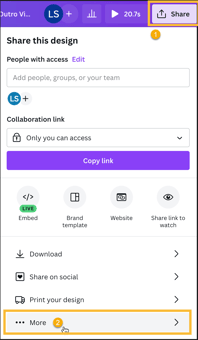
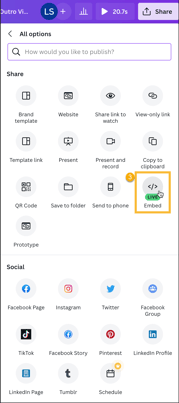
- Click on the Embed icon.
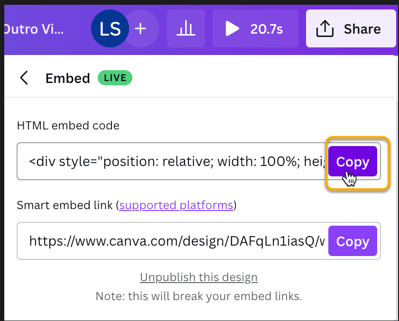
- Click on Copy for the “HTML embed code” field.
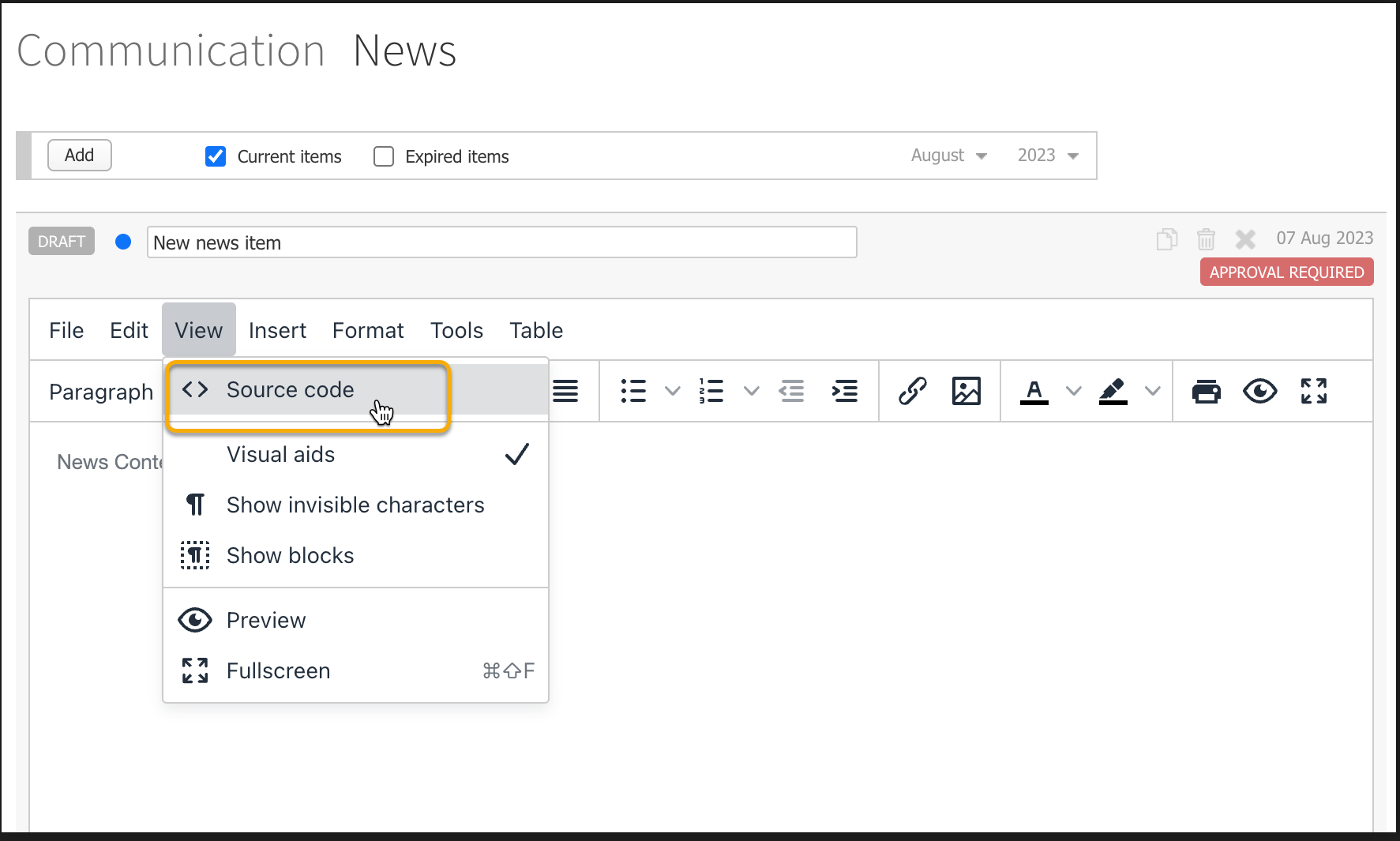
- Log in to Prestia, go to School > Communication > News, create a new news item or open the news item you would like to embed the Canva object in.
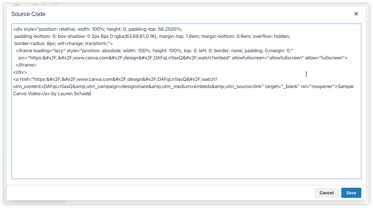
- Choose the View > Source Code menu option in the news content editor.
- Paste the HTML embed code you have copied in Step 4 above. Click Save.
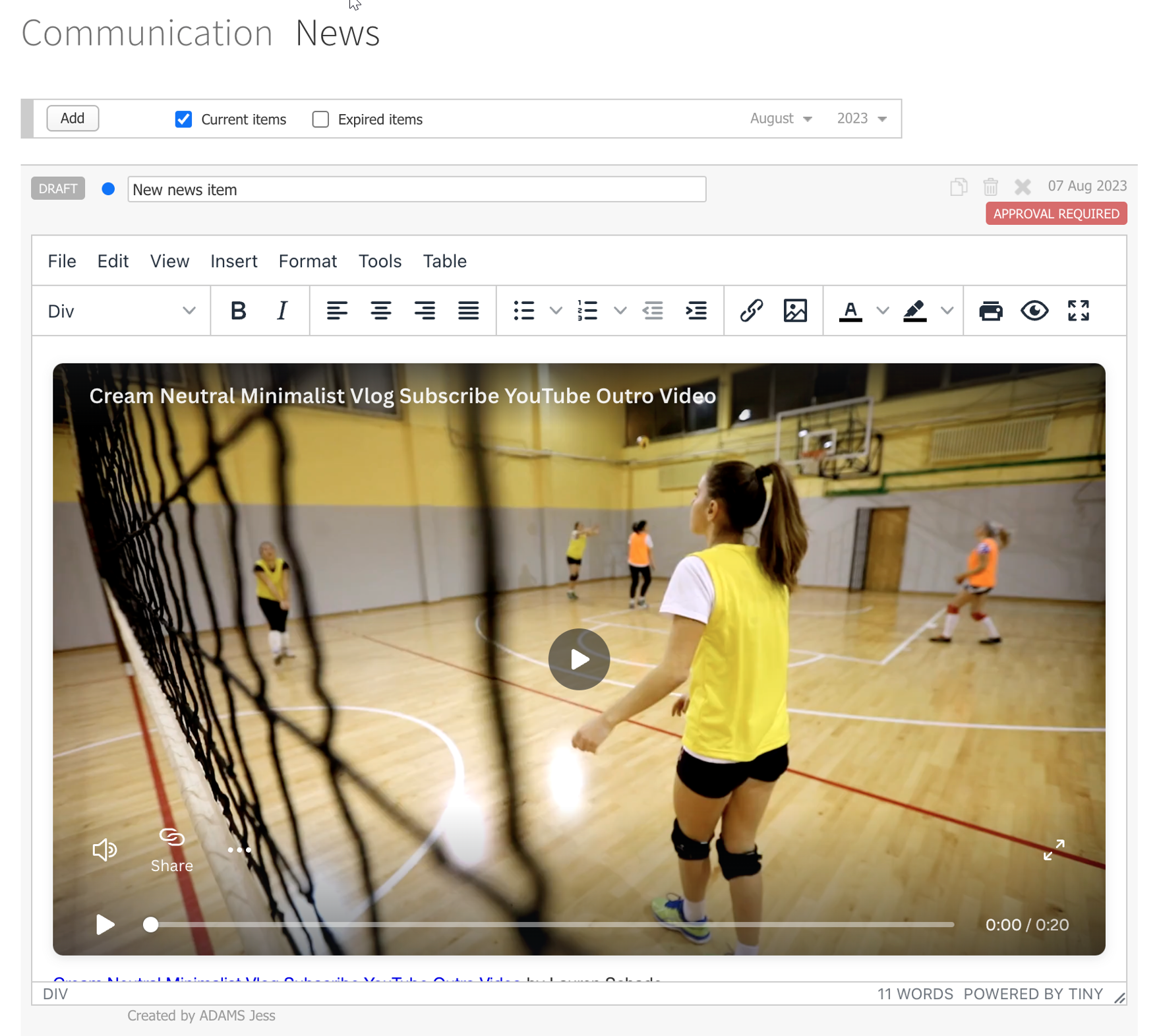
- You should see the Canva object embedded in the News item you are editing. You can continue with editing this news item and publish the news item when you are ready.
Cara Menematkan (Embed) Media Canva ke Dalam Berita Prestia (Prestia News)
Berikut adalah panduan langkah demi langkah tentang cara menematkan (embed) foto atau video dari Canva ke dalam Berita Prestia (Prestia News).
Anda dapat menggunakan Canva untuk membuat unggahan media sosial, video, kartu, selebaran (flyer), kolase foto, dan lainnya yang menarik. Jika Anda siap mempublikasikan foto atau video Canva tersebut ke dalam Buletin Prestia, ikuti langkah-langkah di bawah ini untuk memasukkan objek tersebut ke dalam buletin sekolah Anda.
-
Di aplikasi Canva, buka objek/desain yang ingin Anda masukkan ke dalam Berita Prestia, lalu klik Share (Bagikan).
-
Klik tombol … More (… Lainnya) di bagian bawah layar.
-
Klik ikon Embed (Sematkan).
-
Klik tombol Copy pada bidang “HTML embed code” (Kode sematan HTML).
-
Masuk (log in) ke Prestia, buka School > Communication > News, lalu buat berita baru atau buka berita yang ingin Anda tambahkan objek Canva-nya.
-
Pada editor konten berita, pilih menu View > Source Code.
-
Tempelkan (paste) kode sematan HTML yang sudah Anda salin di Langkah 4 di atas, lalu klik Save.
-
Objek Canva kini sudah terpasang (embedded) di dalam berita yang sedang Anda edit. Anda dapat melanjutkan proses penyuntingan dan mempublikasikan berita tersebut jika sudah siap.