
How to merge duplicate staff
Important
Merging staff cannot be undone. Make sure that your selections are correct before completing the merge.
Note
Merging staff will combine all selected staff records into the one staff member. The original duplicate staff will no longer appear in Prestia.
Please ensure that any duplicated staff are also removed from your Student Information System (SIS) (e.g. CASES21, EdSAS, etc.) otherwise they will reappear in Prestia after the next auto-import.
- Make sure that your staff data is correct in your SIS, and that this data has been imported into Prestia before you continue. This includes removing any duplicate staff from your SIS.
- Go to Administration > Reports > Staff Maintenance.
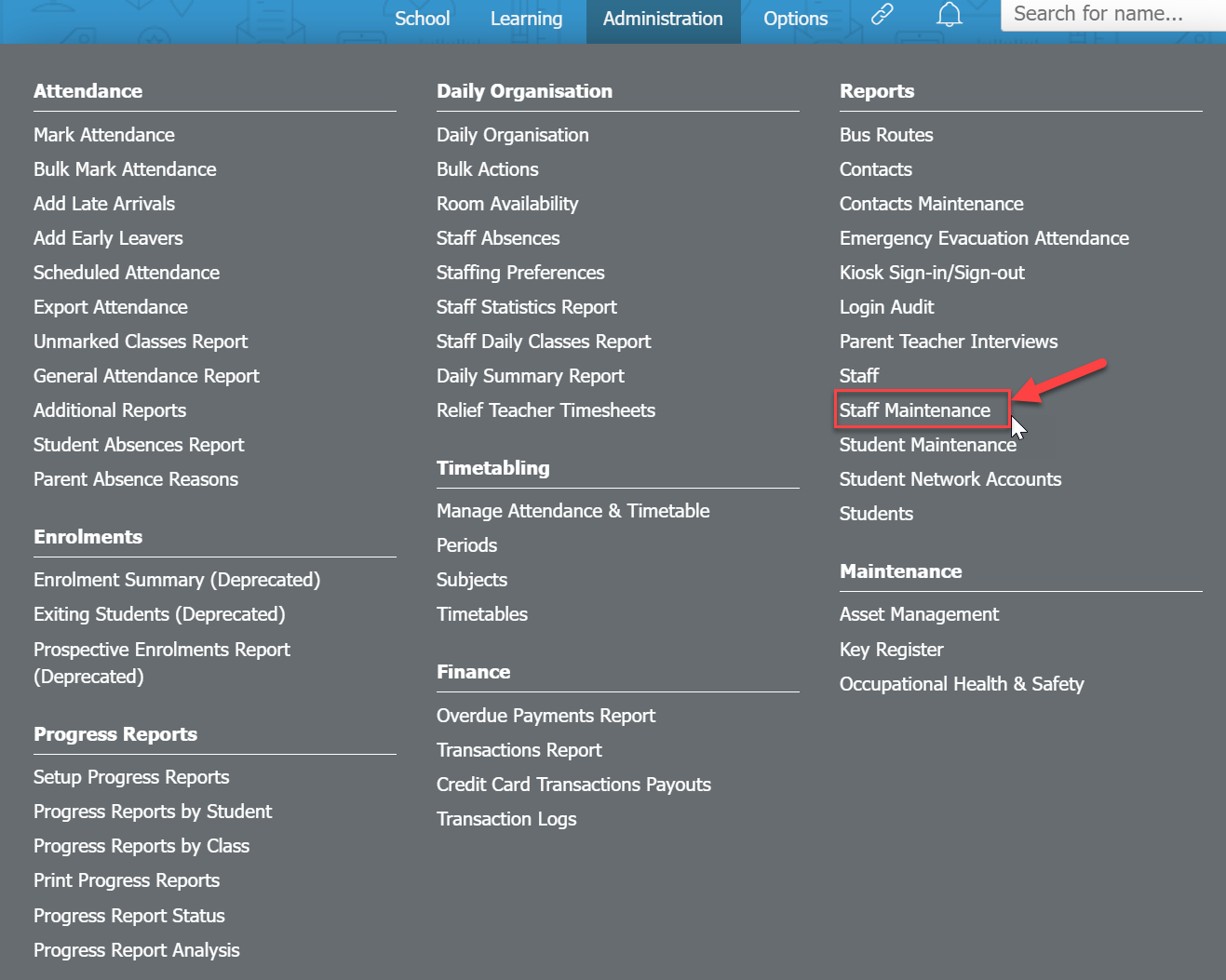
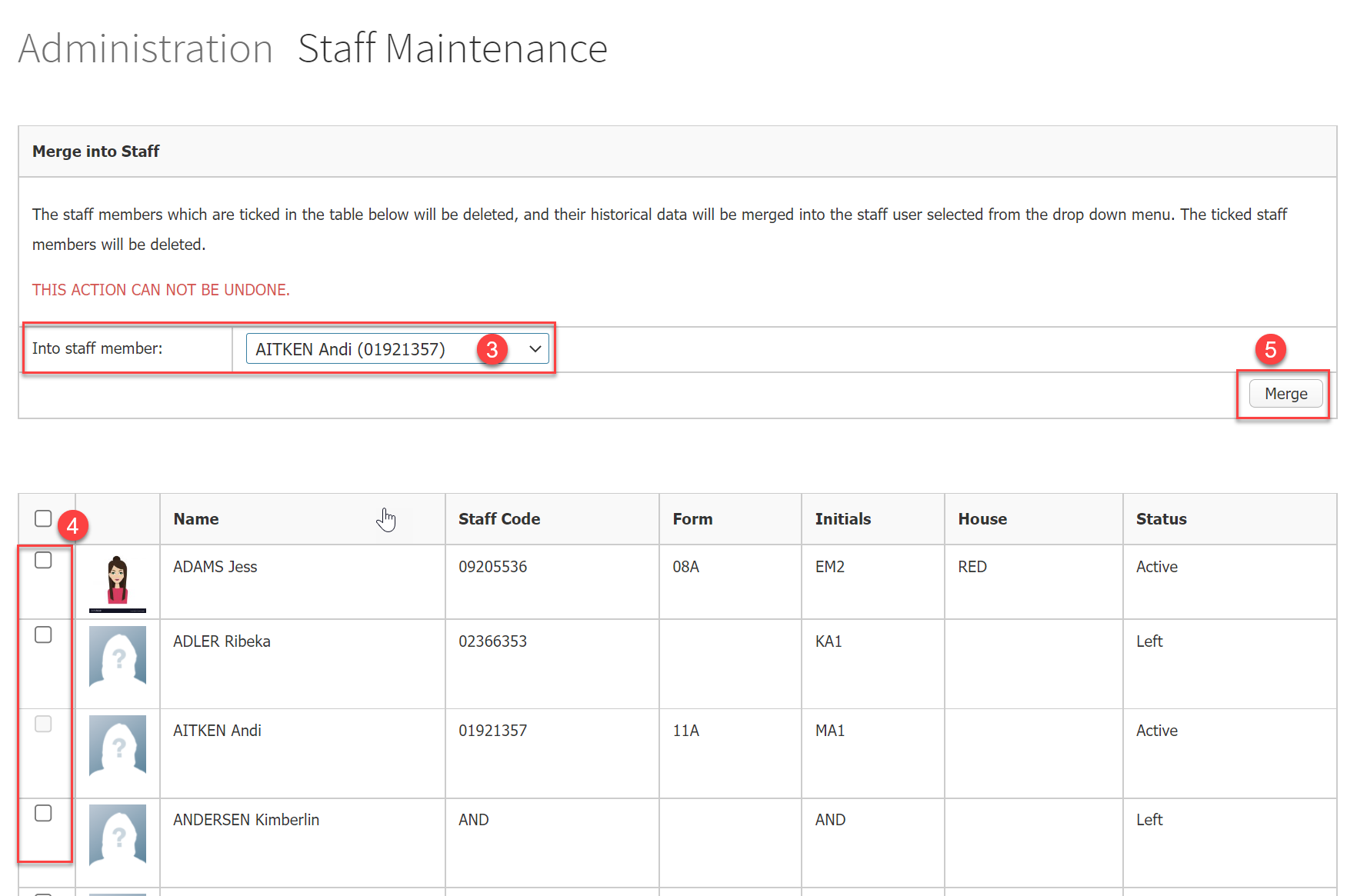
- In the dropdown list at the top of the Staff Maintenance page, select the name of the staff member that the duplicate records should be merged into.

- Search for the duplicate staff in the table below and tick the checkbox for each staff member that you want to merge. The selected staff member(s) and all of their records will be merged into the staff member you selected in Step 3.
- Click the Merge button.
- A popup confirmation window will appear. Read the details carefully, and if correct, click the OK button to complete the merge. You will not be able to undo any merges you make.
Cara menggabungkan data staf yang ganda (duplicate)
Penting:
Penggabungan data staf tidak dapat dibatalkan. Pastikan pilihan Anda sudah benar sebelum menyelesaikan proses penggabungan.
Catatan:
Menggabungkan data staf akan menyatukan semua data staf yang dipilih menjadi satu akun staf. Data staf ganda yang asli tidak akan muncul lagi di Prestia.
Pastikan data staf ganda tersebut juga telah dihapus dari Sistem Informasi Siswa (Student Information System / SIS) Anda (seperti CASES21, EdSAS, dll.), jika tidak, data tersebut akan muncul kembali di Prestia setelah impor otomatis berikutnya.
Langkah-langkah Menggabungkan Data Staf:
-
Pastikan data staf Anda sudah benar di SIS Anda, dan data tersebut telah diimpor ke Prestia sebelum Anda melanjutkan. Ini termasuk menghapus setiap data staf ganda dari SIS Anda.
-
Buka Administration > Reports > Staff Maintenance.
-
Pada daftar dropdown di bagian atas halaman Staff Maintenance, pilih nama staf utama yang akan menerima gabungan data dari rekaman ganda lainnya.
-
Cari staf ganda pada tabel di bawahnya dan centang kotak (checkbox) untuk setiap staf yang ingin Anda gabungkan. Data staf yang dipilih beserta seluruh rekamannya akan digabungkan ke dalam akun staf yang Anda pilih pada Langkah 3.
-
Klik tombol Merge.
-
Jendela konfirmasi pop-up akan muncul. Baca rinciannya dengan cermat, dan jika sudah benar, klik tombol OK untuk menyelesaikan penggabungan. Anda tidak akan dapat membatalkan penggabungan yang telah dibuat.