
Menambahkan Early Leavers – Penanda Siswa Pulang Lebih Awal / Adding early leavers
Adding early leavers
The Add Early Leavers feature is used to record students who leave school early before the school day ends. Through this feature, the school can mark a student’s absence for a specific period or for the remainder of the day, while also recording the reason for leaving early and printing a permission slip or pass if required.
Steps to Add Early Leavers
- Click on the Administration dropdown menu and then click on Add Early Leavers under the Attendance subheading.
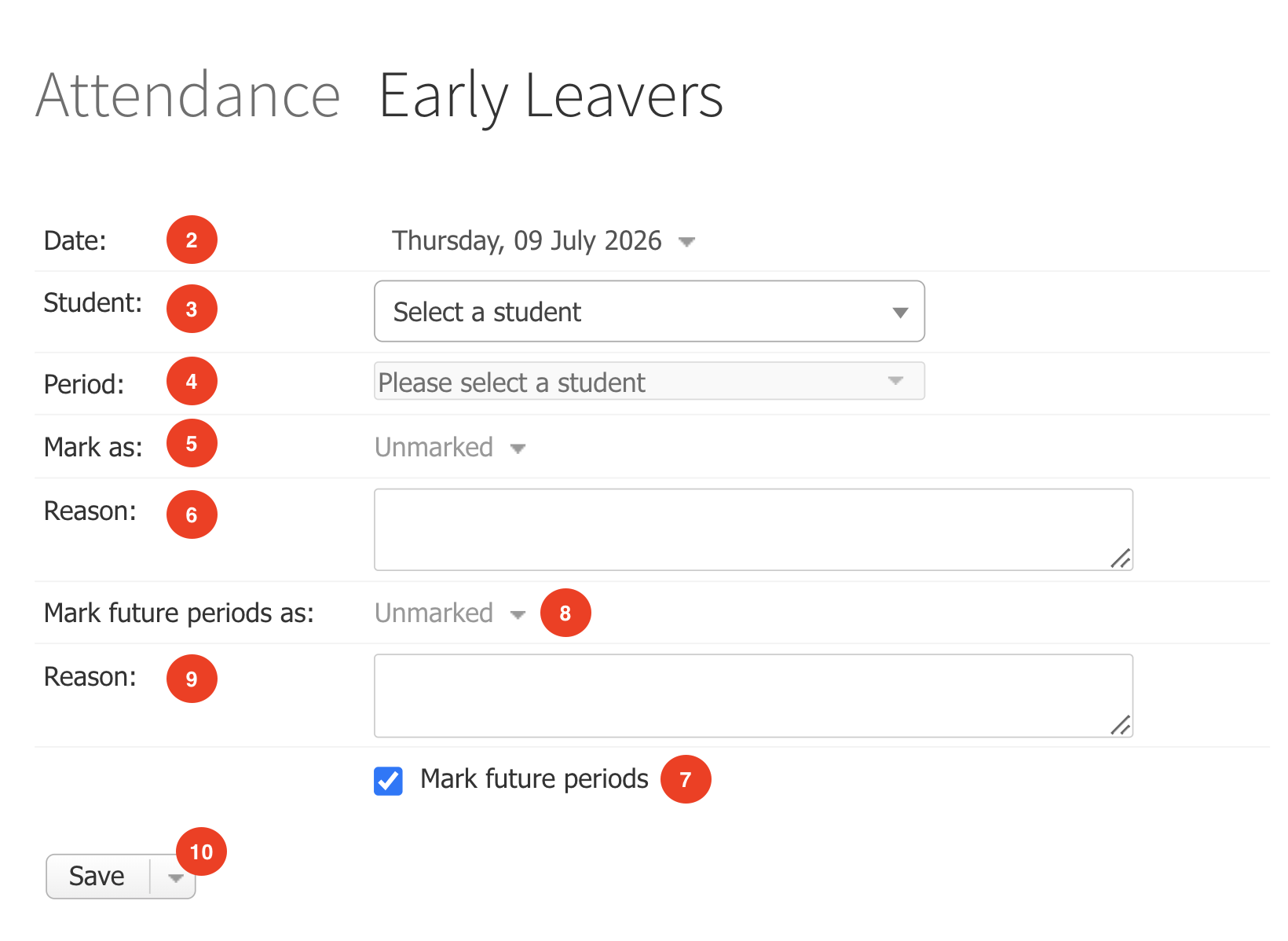
- Leave today’s date or choose a previous date.
- Choose a student from the Student drop-down list. You can use your keyboard to quickly jump to a surname.
- Choose a period from the Period drop-down list.
- Choose an option from the Mark As drop-down.
- If you need to, enter a Reason into the text box provided.
- If the Student will be absent for the rest of the day, click Mark Future Periods.
- Choose an option from the Mark Future Periods As drop-down.
- If you need to, enter a Reason into the text box provided.
- Click on the Save button, or click on the down arrow next to your Save button to save and print a early leavers pass or letter.
Menambahkan Early Leavers – Penanda Siswa Pulang Lebih Awal
Fitur Add Early Leavers digunakan untuk mencatat siswa yang meninggalkan sekolah lebih awal sebelum jam belajar berakhir. Melalui fitur ini, sekolah dapat menandai ketidakhadiran siswa pada periode tertentu atau untuk sisa hari tersebut, sekaligus mencatat alasan kepulangan lebih awal dan mencetak surat izin atau pass jika diperlukan.
1. Klik menu Administration, kemudian pilih Add Early Leavers pada bagian Attendance.
2. Biarkan tanggal hari ini atau pilih tanggal sebelumnya jika diperlukan.
3. Pilih siswa dari daftar Student atau gunakan keyboard untuk mencari nama belakang siswa yang dicari.
4. Pilih periode pada daftar Period.
5. Pilih salah satu opsi pada daftar Mark As.
6. Jika diperlukan, masukkan alasan pada kolom Reason yang tersedia.
7. Jika siswa akan tidak hadir untuk sisa hari tersebut, klik Mark Future Periods.
8. Pilih salah satu opsi pada daftar Mark Future Periods As untuk menandai attendance period sebelumnya.
9. Jika diperlukan, masukkan alasan pada kolom Reason yang tersedia.
10. Klik tombol Save, atau klik panah bawah di samping tombol Save untuk menyimpan sekaligus mencetak surat izin pulang lebih awal atau surat pemberitahuan.