
Prestia Student/Parent portal: Your dashboard
The dashboard is your centralised homepage for your Prestia Portal. Each time you sign in, your dashboard will appear with the latest news, alerts, calendar events, statistics and more.
The Portal is designed to work on all devices, from laptops and desktop computers, to mobile devices and tablets.
The main areas of your Prestia Portal Dashboard are shown below. See each numbered section below the picture to read more. 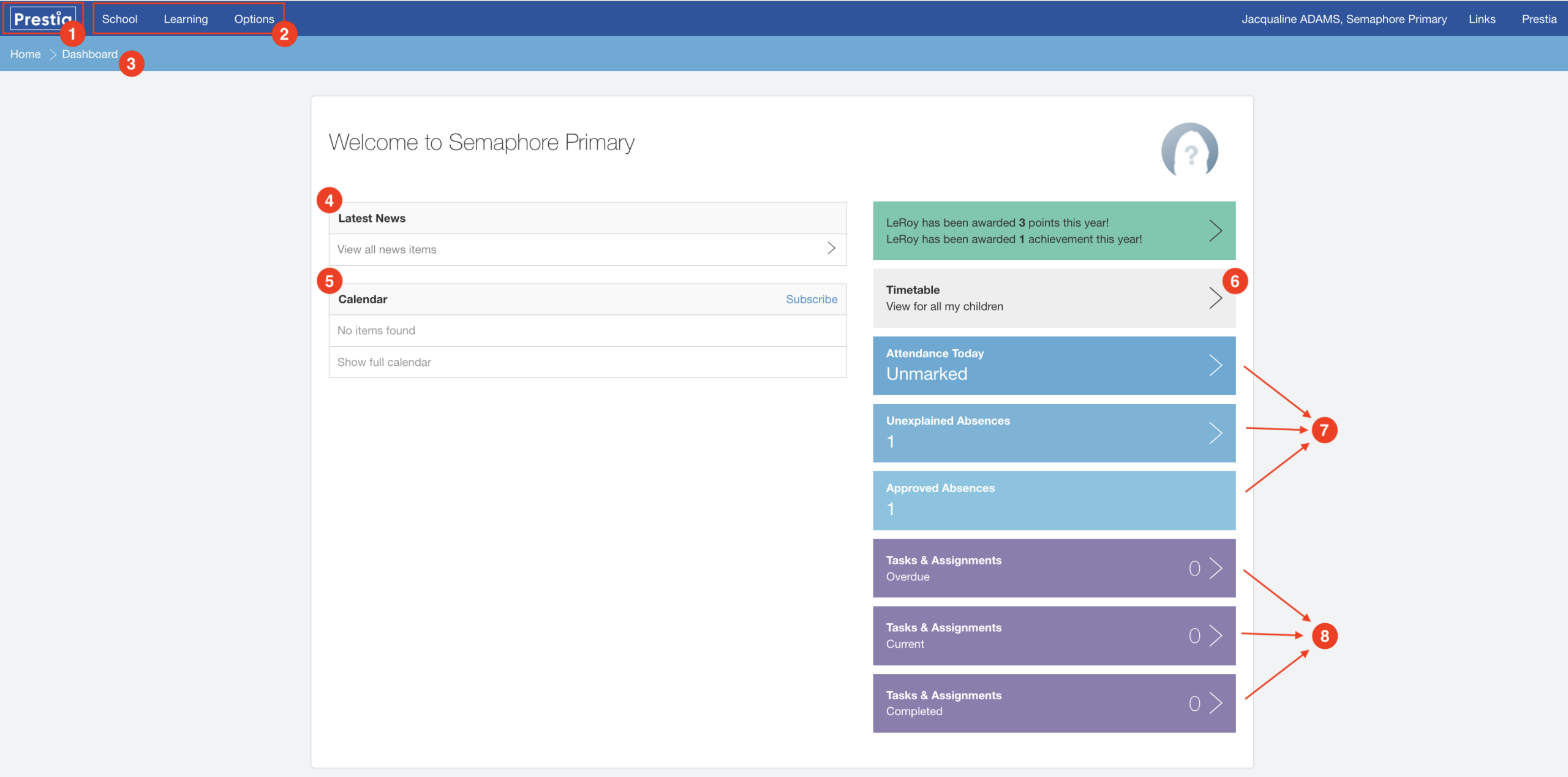
1. Prestia (Home) button
Clicking the Prestia text will always bring you back to the main Dashboard from wherever you are in the Prestia Portal.
2. Top header bar menu headings
The top header bar is the darker blue bar across the top of your screen. The menu options allow you to access different pages within the Prestia Portal.
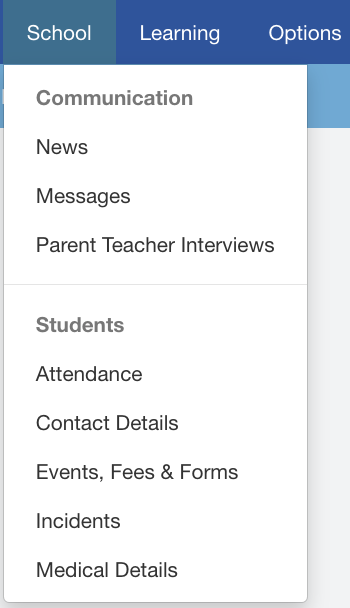
The School menu contains options for communicating with your school, including your school’s News feed, and your Messages page, as well as information about student Attendance, Events and Payments, and more.
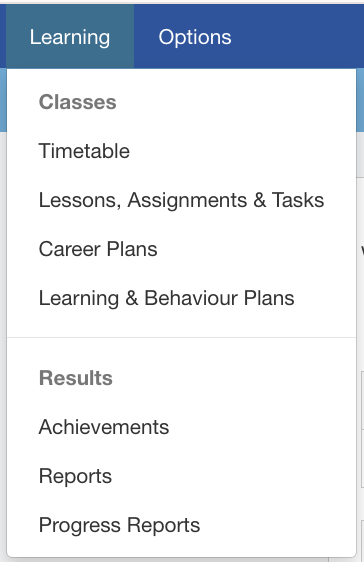
The Learning menu allows you to access Learning Plans, Achievements, Reports and more.
The Options menu contains help and security menu options, and more.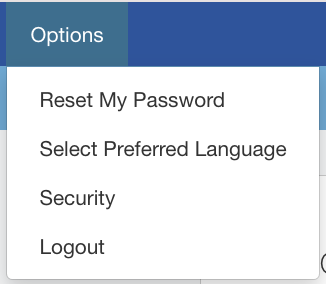
3. Top navigation bar
When we refer to the “top navigation bar”, we mean the coloured bar directly underneath the top header bar. On larger screens it helps you to easily see what page you are viewing relative to your Dashboard through its use of the > arrows. On mobile devices, the arrows and text are removed and only show the title of the current page you are viewing.
4. News
Your school’s latest news is shown under this heading. View the description of each item by clicking on the corresponding title of a row to expand it. Click on the View all news items row at the bottom to show older and previous news items, or to select a custom date range.
5. Calendar
The calendar shows you a running list of events that are occurring at your school, and will show the next 7 days of calendar items. Days that have no calendar entries are not shown on the calendar. You can check for more events into the future by clicking on the Show more items row at the bottom of your calendar.
6. Timetables
Click on the grey Timetables bar to view your children’s timetables.
7. Attendance tiles
Each of the blue Attendance tiles are designed to help you get a quick snapshot of student attendance today, any absences you need to provide a reason for, and all approved absences. You can click on each of the tiles as a quick link to the relevant pages.
8. Assessment tiles
Each of the purple Assessment tiles enables you to click through and view overdue, current and completed Tasks and Assignments.
Portal Siswa/Orang Tua Prestia: Dashboard Anda
Artikel ini ditujukan bagi siswa, orang tua, dan wali di sekolah yang menggunakan Prestia. Anda perlu menggunakan Prestia melalui browser web untuk mengikuti langkah-langkah dalam artikel ini
Dashboard adalah halaman utama terpusat untuk Portal Prestia Anda. Setiap kali Anda masuk (sign in), dashboard akan menampilkan berita terbaru, pemberitahuan, acara kalender, statistik, dan informasi lainnya.
Portal ini dirancang agar dapat digunakan di berbagai perangkat, mulai dari laptop dan komputer desktop hingga ponsel dan tablet.
Bagian-bagian utama Dashboard Portal Prestia ditampilkan pada gambar di bawah ini. Lihat penjelasan untuk setiap nomor yang terdapat di bawah gambar untuk informasi lebih lanjut.
1. Tombol Prestia (Beranda)
Mengklik tulisan Prestia akan selalu membawa Anda kembali ke Dashboard utama dari halaman mana pun di Portal Prestia.
2. Menu pada Header Atas
Bilah header atas adalah bilah berwarna biru tua yang berada di bagian paling atas layar. Opsi menu pada bilah ini memungkinkan Anda mengakses berbagai halaman di dalam Portal Prestia.
Menu School berisi berbagai opsi untuk berkomunikasi dengan sekolah, termasuk Berita Sekolah, halaman Pesan, serta informasi mengenai Kehadiran, Acara, Pembayaran, dan lainnya.
Menu Learning memungkinkan Anda mengakses Rencana Pembelajaran, Pencapaian, Laporan, dan lainnya.
Menu Options berisi berbagai pilihan terkait bantuan, keamanan, dan lainnya.
3. Top navigation bar
Bilah berwarna yang berada tepat di bawah bilah header atas. Pada layar yang lebih besar, bilah ini membantu Anda mengetahui posisi halaman yang sedang dibuka relatif terhadap Dashboard melalui penggunaan tanda panah >. Pada perangkat seluler, tanda panah dan teks tersebut tidak ditampilkan, sehingga hanya judul halaman yang sedang dibuka yang akan terlihat.
4. News
Berita terbaru dari sekolah Anda ditampilkan pada bagian ini. Untuk melihat deskripsi setiap berita, klik judul pada baris yang sesuai hingga bagian tersebut terbuka. Klik baris “View all news items” di bagian bawah untuk menampilkan berita yang lebih lama atau memilih rentang tanggal tertentu.
5. Calendar
Kalender menampilkan daftar acara yang sedang berlangsung di sekolah Anda dan akan memperlihatkan acara untuk 7 hari ke depan. Hari yang tidak memiliki acara tidak akan ditampilkan pada kalender. Untuk melihat acara yang lebih jauh ke depan, klik baris “Show full calendar” di bagian bawah kalender.
6. Timetables
Klik bilah abu-abu timetables untuk melihat jadwal pelajaran anak Anda.
7. Attendance tiles
Setiap attendance tiles berwarna biru dirancang untuk memberikan ringkasan cepat mengenai kehadiran siswa hari ini, ketidakhadiran yang masih memerlukan alasan, serta seluruh ketidakhadiran yang telah disetujui. Anda juga dapat mengklik setiap kartu sebagai pintasan ke halaman terkait.
8. Assessment tiles
Setiap assessment tiles berwarna ungu memungkinkan Anda melihat tugas dan penugasan yang terlambat, sedang berlangsung, maupun yang telah selesai.