
Using the Search Bar
You can search by first name, surname, code, form, year level, house, address details, contact details (such as phone numbers and email addresses) and parent names.
The most relevant results will be displayed in the list. Clicking on a result will take you to the corresponding information page.
By default, only current (active and future) students are shown in the results. To show previous and inactive students click on the down arrow within the search box and tick the Show previous and inactive students checkbox:
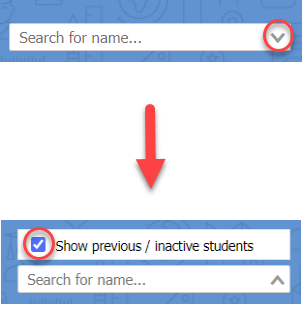
Then, you can search for the inactive or left student’s by typing their name or other details the search bar.
Menggunakan Search Bar
Bilah pencarian Prestia, yang terletak di sudut kanan atas, memungkinkan Anda mencari siswa, anggota staf, atau orang tua/wali mana pun.
Hasil yang paling relevan akan ditampilkan dalam daftar. Mengklik pada hasil akan membawa Anda ke halaman informasi yang sesuai.
Secara default, hanya siswa saat ini (aktif dan masa depan) yang ditampilkan dalam hasil. Untuk menampilkan siswa sebelumnya dan tidak aktif, klik panah bawah di dalam kotak pencarian dan centang kotak centang Tampilkan siswa sebelumnya dan tidak aktif :
Kemudian, Anda dapat mencari siswa yang tidak aktif atau telah keluar dengan mengetikkan nama mereka atau detail lainnya di bilah pencarian.