
Skip to main content
What can we help you with?
How to Customise the Kiosk Conditions of Entry
When the Conditions of Entry feature is activated, visitors will not be able to sign in without agreeing to it. Staff and students will be able to sign in without being required to agree to the Conditions of Entry.
Pre-requisites
- Users must have administrator permission in order to enable the Conditions of Entry feature or change the Conditions of Entry text.
How to Show/hide the Conditions of Entry screen
- Go to Options > Software Settings > Kiosk Settings menu option.
- Scroll to the Legal Options section on the page.
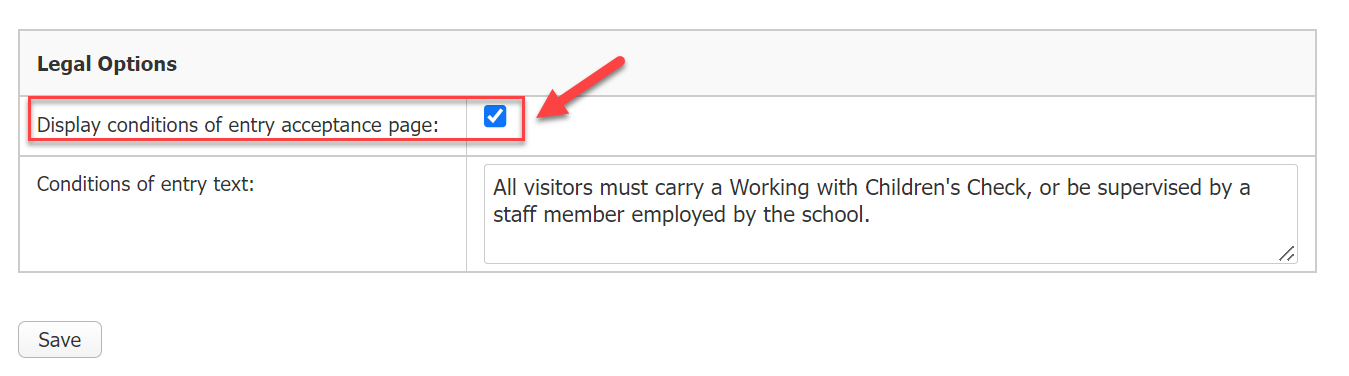
- To show the Conditions of Entry screen on the kiosk, make sure the ‘Display conditions of entry acceptance page’ check box is ticked.
To hide the the Conditions of Entry screen on the kiosk, make sure the ‘Display conditions of entry acceptance page’ check box is un-ticked. - Click Save button to save your changes.
How to Customise the Conditions of Entry text
- Go to Options > Software Settings > Kiosk Settings menu option.
- Scroll to the Legal Options section on the page.
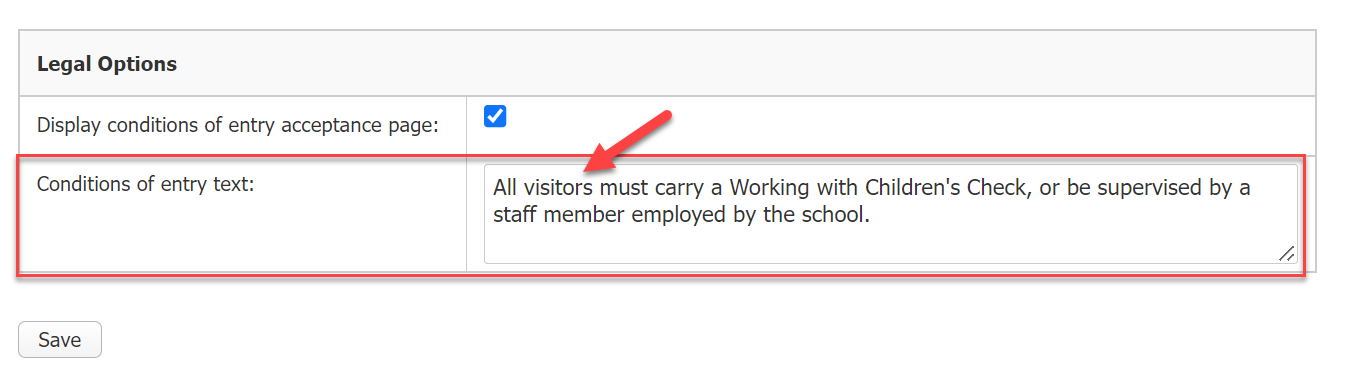
- In the ‘Conditions of entry text’ entry field, type in the conditions of entry as you wish them to appear on the screen. Note you may press Enter to divide text into paragraphs.
- Click Save button to save your changes.
Ketika fitur Ketentuan Masuk diaktifkan, pengunjung tidak akan dapat masuk tanpa menyetujuinya. Staf dan siswa akan dapat masuk tanpa diwajibkan untuk menyetujui Ketentuan Masuk.
Prasyarat
- Pengguna harus memiliki izin administrator untuk mengaktifkan fitur Ketentuan Masuk atau mengubah teks Ketentuan Masuk.
Cara Menampilkan/Menyembunyikan Layar Ketentuan Masuk
- Buka opsi menu Options > Software Settings > Kiosk Settings .
- Gulir ke bagian Legal Options pada halaman.
- Untuk menampilkan layar Ketentuan Masuk pada kios, pastikan kotak centang ‘Display conditions of entry acceptance page’ dicentang.
Untuk menyembunyikan layar Ketentuan Masuk pada kios, pastikan kotak centang ‘Display conditions of entry acceptance page’ tidak dicentang. - Klik tombol Save untuk menyimpan perubahan Anda.
Cara Menyesuaikan Teks Ketentuan Masuk
- Buka opsi menu Options > Software Settings > Kiosk Settings .
- Gulir ke bagian Legal Options pada halaman.
- Pada kolom masukan ‘Conditions of entry text’, ketik ketentuan masuk sesuai keinginan Anda untuk ditampilkan di layar. Perhatikan, Anda dapat menekan Enter untuk memisahkan teks menjadi paragraf.
- Klik tombol Save untuk menyimpan perubahan Anda.