
Melihat dan Mencetak Jadwal (Timetable) Siswa / Viewing and Printing a Student Timetable

Skip to main content
Print

Melihat dan Mencetak Jadwal (Timetable) Siswa / Viewing and Printing a Student Timetable

Melihat dan Mencetak Jadwal (Timetable) Siswa

Prestia memungkinkan Anda untuk melihat jadwal siswa saat ini. Dari menu yang sama, ada opsi untuk mencetak jadwal yang sedang Anda lihat.

Langkah
  1. Temukan siswa menggunakan bilah pencarian dan klik namanya untuk pergi ke dashboard siswa mereka.
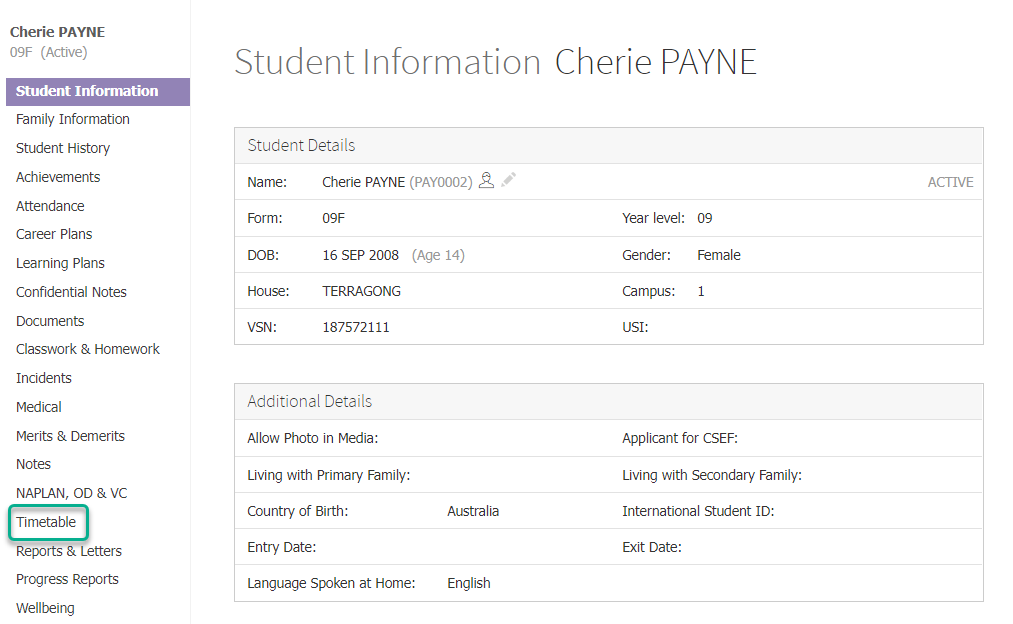
  2. Klik item Timetable di menu sebelah kiri.
    D33v4339jhl8k0.cloudfront.netdocsassets54ae0964e4b04c67ce0d7a2eimages633fabc30f10306a37c0a456file Ot0SGb6OKX
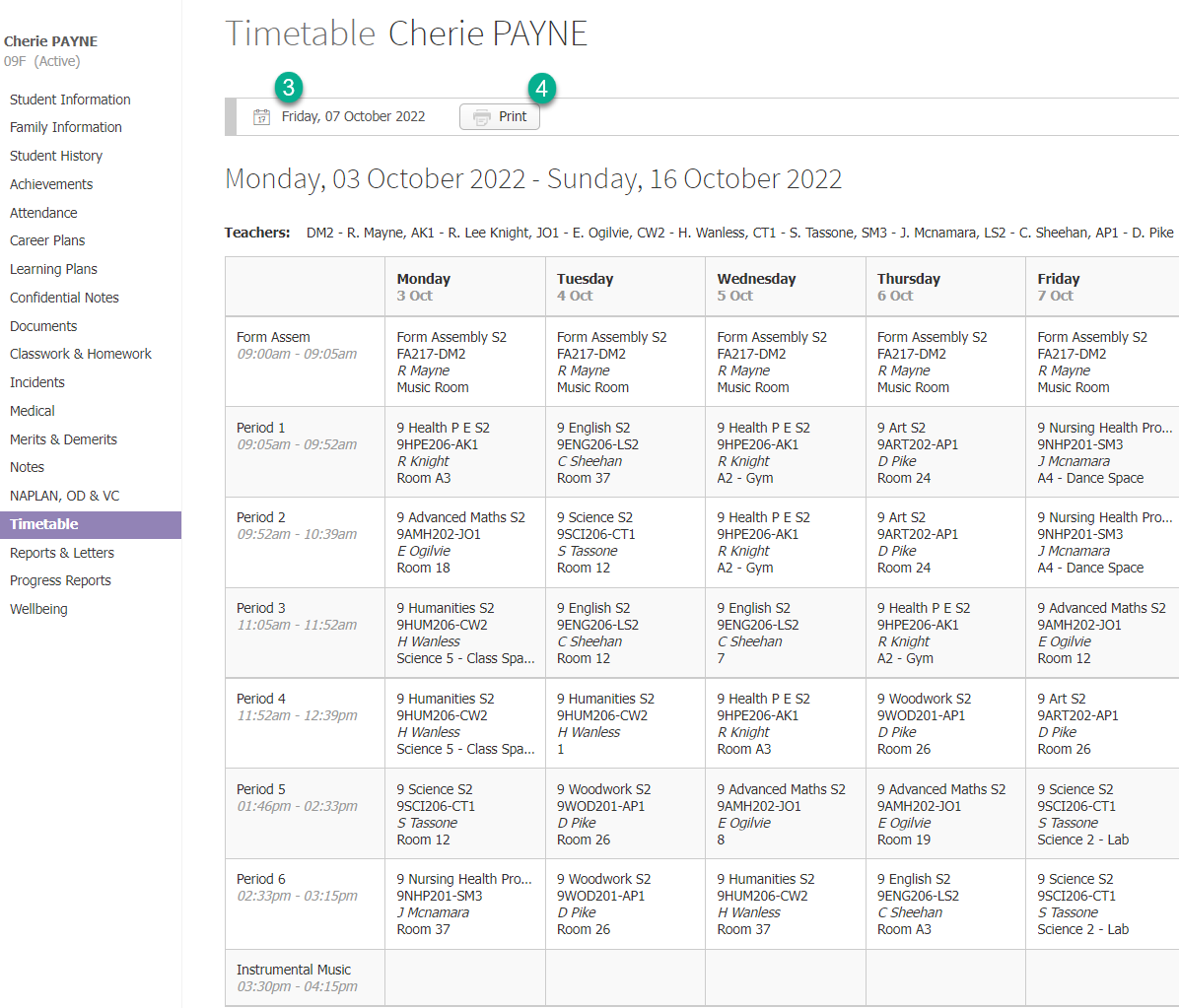
  3. Untuk mengubah tanggal yang ditampilkan, klik Tanggal di bagian atas halaman dan pilih hari dari pemilih kalender yang muncul.
    D33v4339jhl8k0.cloudfront.netdocsassets54ae0964e4b04c67ce0d7a2eimages633fac3d9f7c1931ee007710file Ds767Mr1ws
  4. Untuk mencetak jadwal, klik tombol Print.

Viewing and Printing a Student Timetable

Prestia allows you to view a student’s current timetable. From the same menu, there’s an option to print the timetable you’re viewing.

Steps
  1. Find a student using the search bar and click on their name to go to their student dashboard.
  2. Click on the Timetable item in the left hand menu.

    D33v4339jhl8k0.cloudfront.netdocsassets54ae0964e4b04c67ce0d7a2eimages633fabc30f10306a37c0a456file Ot0SGb6OKX

  3. To change the dates shown, click on the Date at the top of the page and select a day from the calendar picker that appears.

    D33v4339jhl8k0.cloudfront.netdocsassets54ae0964e4b04c67ce0d7a2eimages633fac3d9f7c1931ee007710file Ds767Mr1ws

  4. To print the timetable, click on the Print button.
Table of Contents
Scroll to Top