
Skip to main content
What can we help you with?
Welcome emails from Prestia
Mengirim email selamat datang
Untuk petunjuk cara mengirim email selamat datang Prestia, lihat artikel Mengelola akun pengguna Anda .
Apa yang akan diterima pengguna Prestia baru
- Saat email selamat datang terpicu, orang tersebut akan menerima email seperti ini:
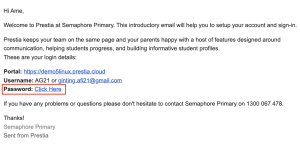
- Anda dapat melihat bahwa detail untuk mengakses Prestia disediakan (email ini ditujukan untuk orang tua, jadi ini dilabeli sebagai Portal dalam email).
- Orang tersebut kemudian harus mengklik tautan Click Here di sebelah Password , agar mereka dapat mengatur kata sandi Prestia baru untuk akun mereka.
- Ini adalah layar yang akan mereka lihat berikutnya:
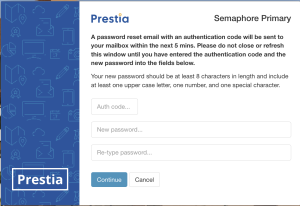
- Mengklik tautan Click Here pada langkah sebelumnya akan memicu email pengaturan ulang kata sandi dengan kode autentikasi. Orang tersebut perlu kembali ke email mereka dan mendapatkan kode tersebut. Catatan: Kode ini dapat memakan waktu hingga 5 menit untuk tiba di kotak masuk email mereka – mereka tidak boleh menyegarkan halaman atau menutup browser Anda selama waktu ini.
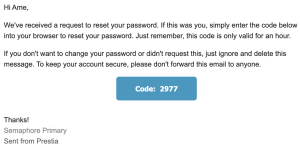
- Kemudian, mereka harus mengetikkan kode autentikasi dari email mereka ke dalam kolom Auth code… .
- Kemudian, mereka akan mengetikkan kata sandi baru mereka ke dalam dua kolom kata sandi. Mereka harus memastikan bahwa mereka mengetikkan kata sandi yang sama dengan benar ke kedua kolom tersebut. Mereka harus memilih kata sandi yang aman yang terdiri dari huruf besar dan kecil serta angka, berisi setidaknya satu karakter khusus, dan memiliki panjang minimal 8 karakter.
- Kemudian, mereka perlu mengklik tombol Continue untuk menyimpan kata sandi baru. Mereka akan menerima konfirmasi email setelah berhasil mengatur kata sandi baru mereka.
- Mereka sekarang dapat masuk ke Prestia menggunakan alamat email atau nama pengguna dan kata sandi baru mereka.
Sending welcome emails
For instructions on how to send Prestia welcome emails, see the article Managing your user accounts.
What new Prestia users will receive
- When the welcome email is triggered, the person will receive an email like this:
- You can see that the details for accessing Prestia are provided (this email is to a parent, so this is labelled as Portal in the email).
- The person should then click on the Click Here link next to Password, so that they can set a new Prestia password for their account.
- This is the screen they will see next:
- Clicking on the Click Here link in the previous step will have triggered a password reset email with an authentication code. The person needs to go back to their emails and get the code. Note: It can take up to 5 minutes for this code to arrive in their email inbox – they should not refresh the page or close your browser during this time.
- Then, they should type the authentication code from their email into the Auth code… field.
- Then, they will type their new password into the two password fields. They should make sure that they correctly type the same password into both fields. They must choose a secure password that consists of upper and lower case letters and numbers, contains at least one special character, and is at least 8 characters long.
- They then need to click on the Continue button to save the new password. They will receive an email confirmation after they have successfully set their new password.
- They can now log in to Prestia using their email address or username and new password.