
Assigning Teachers to New Classes in Your Prestia Basic Timetable
Menugaskan guru ke kelas baru di Prestia Basic Timetable
Ketika guru berpindah kelas, Anda perlu menambahkan mereka ke kelas baru dan membuat ulang Prestia Basic Timetable agar class attendance dan timetable mereka ditampilkan dengan benar.
Gambaran Umum
Seiring berjalannya tahun ajaran, hampir setiap sekolah akan memiliki guru baru atau guru yang dipindahkan ke kelas yang berbeda. Artikel ini menjelaskan cara menambahkan guru ke suatu kelas atau memindahkan guru ke kelas lain agar timetable mereka tetap benar di Prestia.
Menambahkan guru ke kelas yang benar pada timetable quilt
Untuk memulai, Anda perlu menambahkan guru baru ke kelas yang benar pada Prestia timetable quilt:
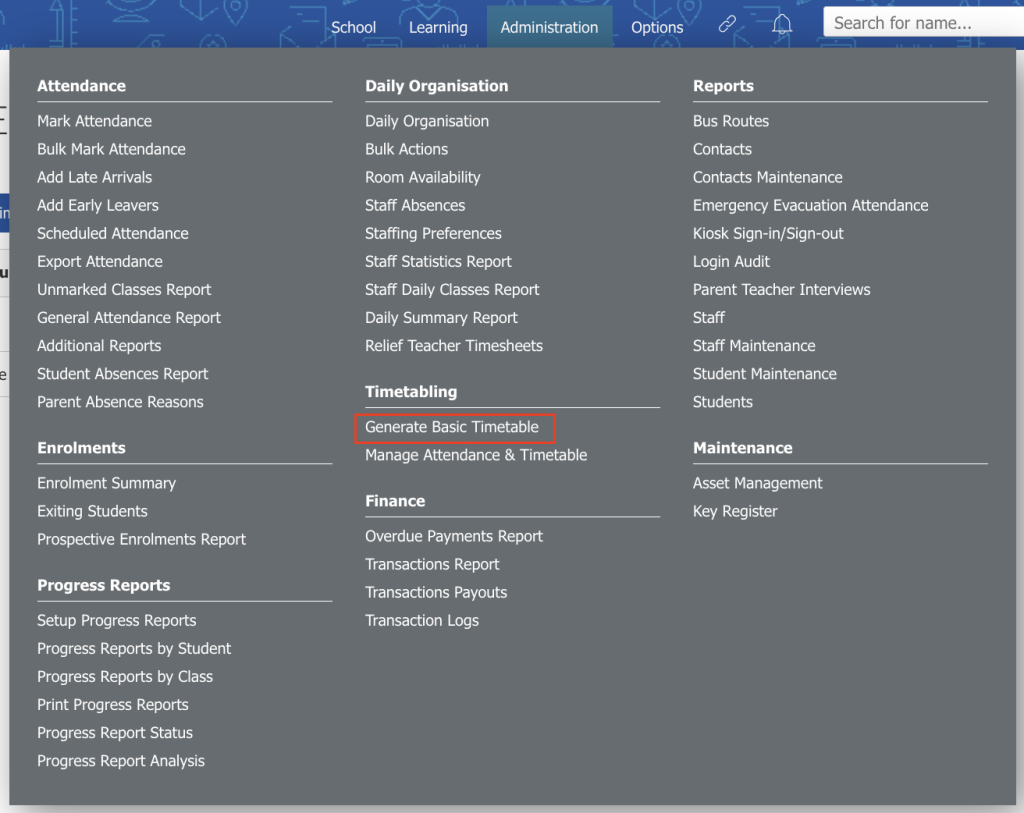
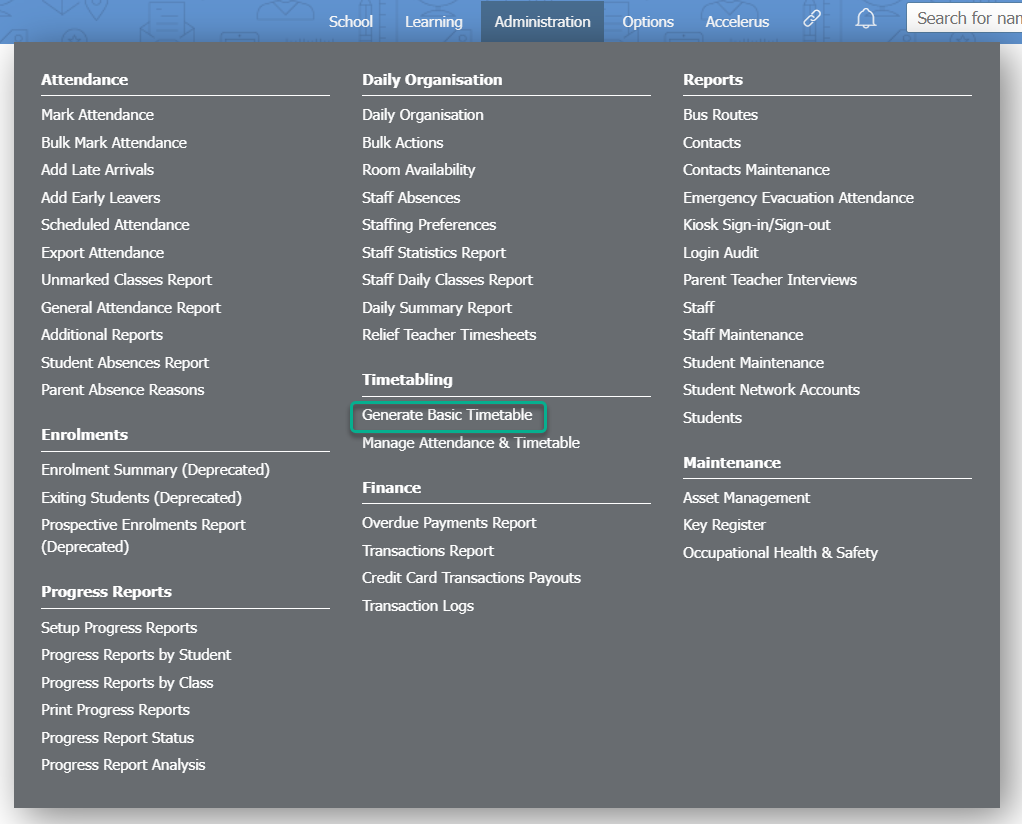
1. Buka Administration > Timetabling > Generate Basic Timetable.
2. Klik ikon Pencil pada baris ketiga, di sebelah Timetables.
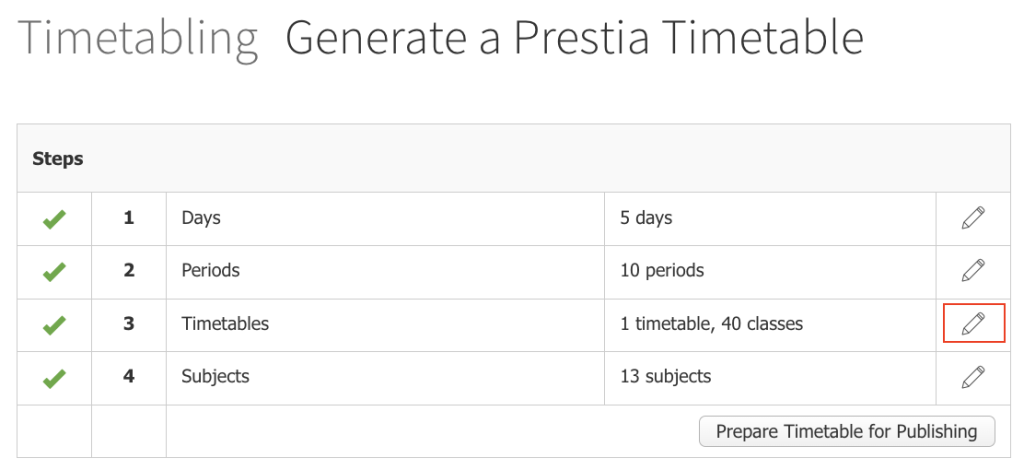
3. Klik ikon Pencil untuk mengedit timetable quilt yang sedang digunakan (biasanya merupakan yang pertama dalam daftar).
4. Jika kelas yang benar untuk guru tersebut sudah tercatat pada student record, Anda dapat mengklik tombol Generate classes & enrolments from forms, kemudian klik tombol OK pada jendela pop-up untuk mengonfirmasi. Tindakan ini juga akan menghapus guru dari kelas yang salah. Setelah itu, lanjutkan ke bagian Saving your changes to the timetable.

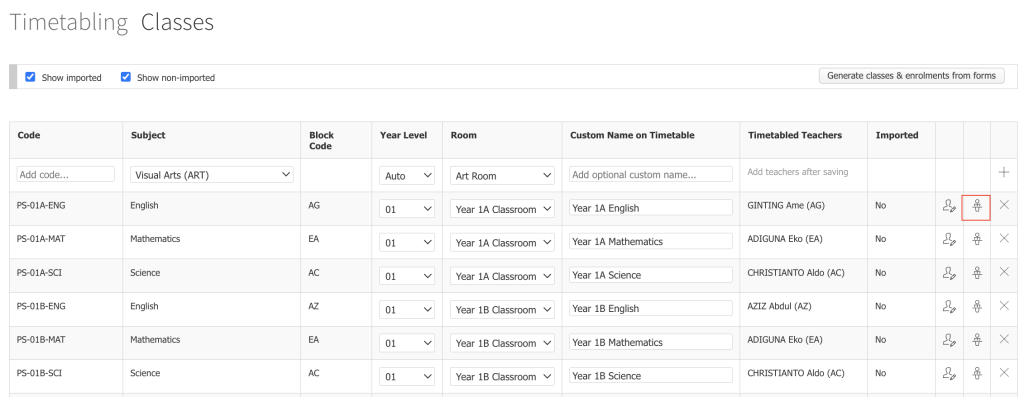
5. Jika Anda tidak menggunakan tombol pada langkah 4, Anda perlu melakukan perubahan kelas secara manual. Di samping kelas yang akan memiliki guru baru, klik ikon Edit the teachers of this class (ikon orang yang duduk di meja).
6. Pilih guru baru yang akan mengajar kelas tersebut dari dropdown list.
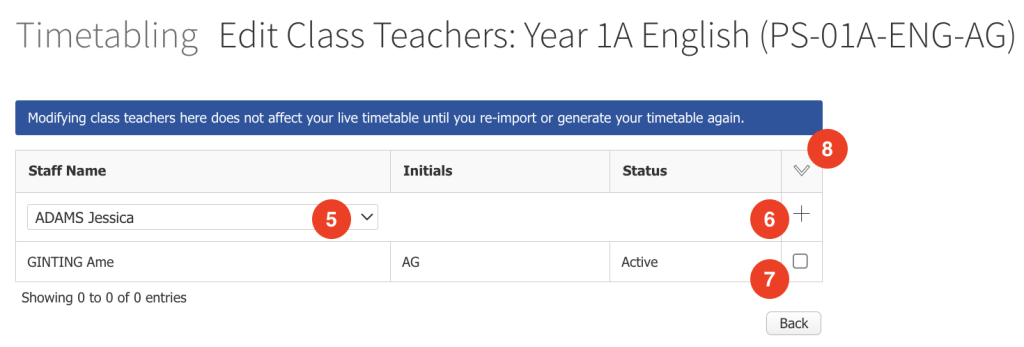
7. Klik ikon + untuk menambahkan guru. Jika Anda tidak perlu menghapus guru sebelumnya dari kelas ini, lanjutkan ke bagian Removing teachers from the incorrect class in the timetable quilt.
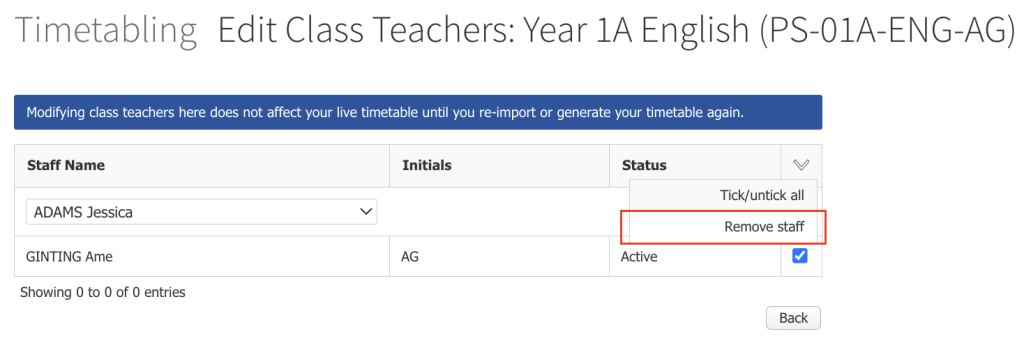
8. Jika Anda perlu menghapus guru sebelumnya, centang checkbox di samping nama guru tersebut. Catatan: Anda dapat memiliki beberapa guru yang mengajar kelas yang sama, selama mereka tidak ditugaskan ke kelas lain pada timetable.
9. Klik dropdown arrow di pojok kanan atas tabel, lalu pilih Remove staff. Klik OK untuk menghapus guru yang dipilih.
Menghapus guru dari kelas yang salah pada timetable quilt
Selanjutnya, Anda perlu menghapus guru dari kelas lamanya. Jika langkah ini tidak diperlukan karena guru tersebut baru bergabung ke sekolah atau sebelumnya belum ditugaskan ke kelas mana pun, lanjutkan ke bagian Saving your changes to the timetable.
1. Buka Administration > Timetabling > Generate Basic Timetable.
2. Klik ikon Pencil pada baris ketiga, di sebelah Timetables.
3. Klik ikon Pencil untuk mengedit timetable quilt yang sedang digunakan (biasanya merupakan yang pertama dalam daftar).
4. Di samping kelas yang ditinggalkan oleh guru tersebut, klik ikon Edit the teachers of this class (ikon orang yang duduk di meja).
5. Centang checkbox di samping nama guru yang ingin dihapus dari kelas.
6. Dari dropdown arrow di pojok kanan atas tabel, pilih Remove staff.
Saving your changes to the timetable
Setelah Anda menugaskan guru ke kelas yang benar dan menghapus mereka dari kelas yang salah, Anda perlu menyimpan perubahan pada timetable. Tindakan ini akan memberi tahu Prestia pada hari dan periode mana attendance perlu dicatat. Di Prestia, proses ini disebut preparing the timetable.
1. Buka Administration > Timetabling > Generate Basic Timetable.
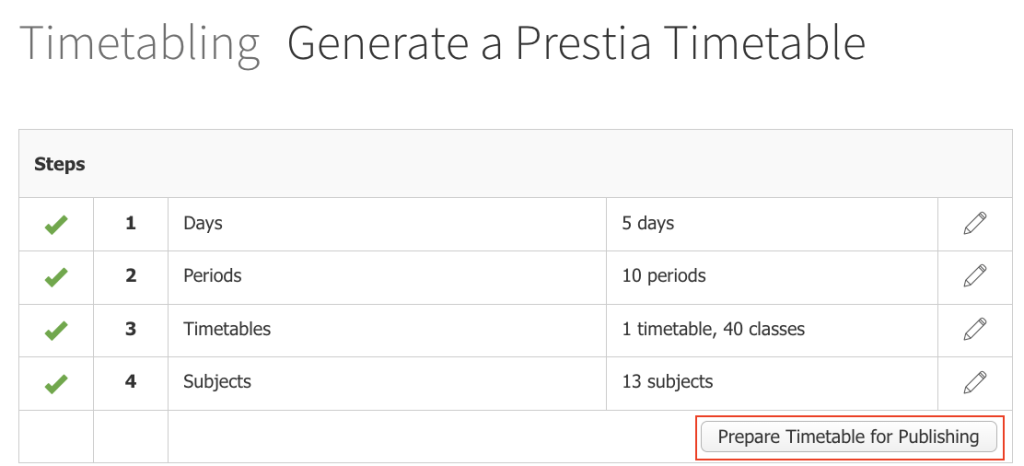
2. Klik tombol Prepare Timetable.
3. Pilih current quilt dari dropdown list (ini adalah quilt yang sama dengan yang Anda edit pada langkah 3 di bagian sebelumnya).
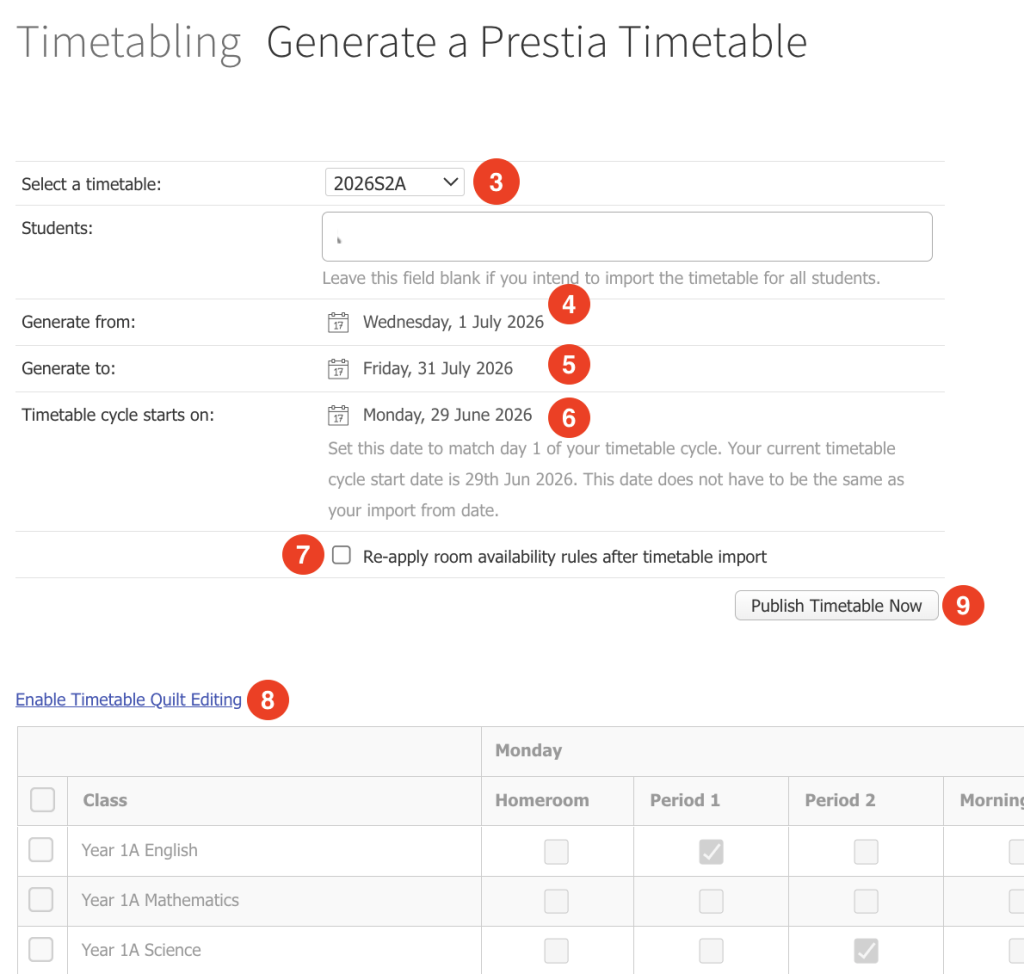
4. Generate From date harus diatur ke hari ketika guru dipindahkan ke kelas barunya. Anda dapat mengubah tanggal tersebut jika diperlukan dengan mengklik tanggal, lalu memilih tanggal baru menggunakan calendar picker yang muncul.
Catatan: Jika guru ini telah mencatat attendance di kelas lamanya dan Anda melakukan backdate pada timetable (yaitu memilih tanggal sebelum hari ini), maka data attendance untuk kelas tersebut akan dihapus saat Anda prepare the timetable. Pastikan Anda memiliki cadangan (backup) data attendance kelas tersebut agar dapat memasukkannya kembali secara manual jika diperlukan.
5. Generate to date adalah hari terakhir Anda ingin mencatat attendance untuk kelas baru. Biasanya ini adalah hari terakhir term, semester, atau year, tergantung seberapa sering sekolah Anda memperbarui Prestia Basic Timetable.
6. Timetable cycle starts on date harus diatur ke hari Senin pada atau sebelum Generate From date.
7. Centang checkbox Re-apply room availability rules after timetable import jika Anda telah mengatur room availability rules di Prestia.
8. Pastikan semua period dan day telah dipilih pada tabel yang memiliki kelas dalam timetable. Jika Anda perlu mengedit tabel tersebut, klik teks Enable Timetable Quilt Editing.
9. Klik tombol Continue untuk menyimpan perubahan pada timetable.
Sebelum mengklik Continue untuk menyimpan perubahan pada timetable, perlu diperhatikan bahwa jika Anda tidak memilih student tertentu, maka timetable akan disimpan untuk semua student. Ini berarti jika Anda memindahkan guru antar kelas dan melakukan backdate pada timetable, sebagian data attendance akan dihapus.
Overview
As the school year goes by, almost every school will have new teachers start, or teachers that are assigned to a different class. This article will talk about how to add a teacher to a class, or move teachers to different classes, to ensure their timetable is correct in Prestia.
Adding teachers to the correct class in the timetable quilt
To begin, we will need to add the new teacher to the correct class in the Prestia timetable quilt:
- Go to Administration > Timetabling > Generate Basic Timetable.
- Click on the Pencil icon in the third row, next to Timetables .
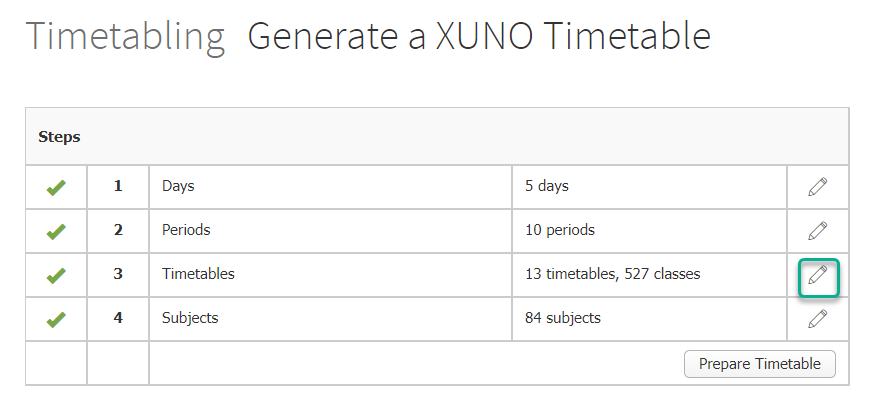
- Click on the Pencil icon to edit the current timetable quilt (this will usually be the first one listed).
- If the teacher’s correct class is recorded in their student record (either synced from your school’s Student Information system, e.g. CASES21, or added manually), then you can click the Generate classes & enrolments from forms button, then click the OK button in the popup to confirm. This will also remove the teacher from their incorrect class.

- If you did not use the button in step 4, you will need to make class changes manually. Next to the class that will have the new teacher, click the E dit the teachers of this class icon (the person sitting at the desk).
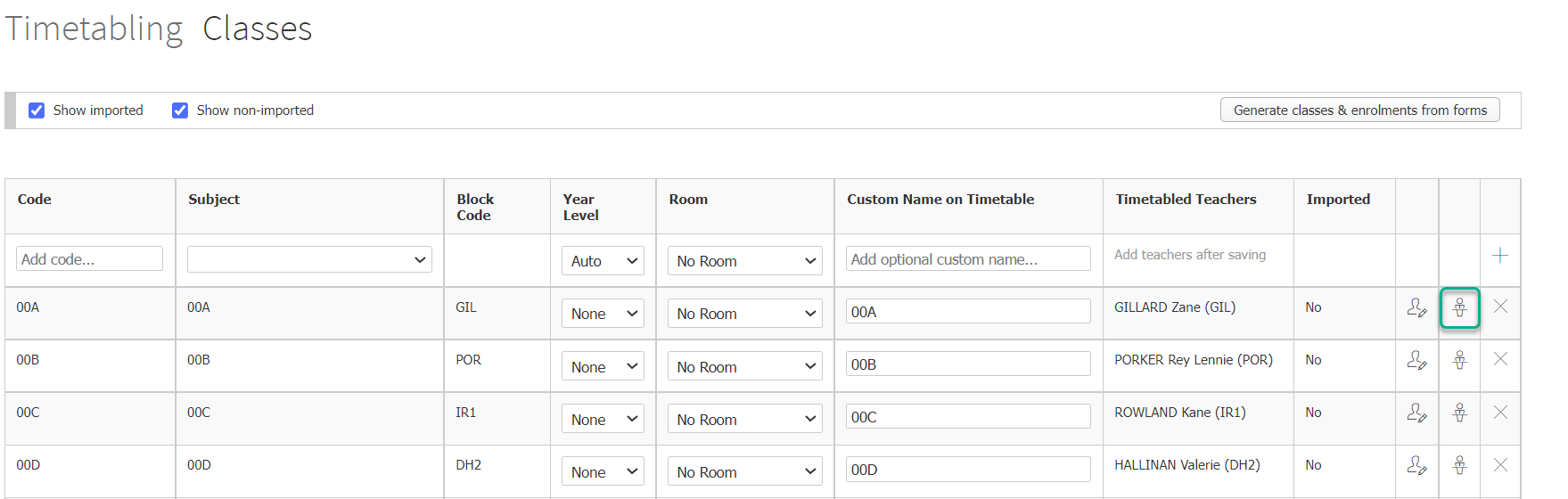
- Select the new teacher that is going to teach the class from the dropdown list.
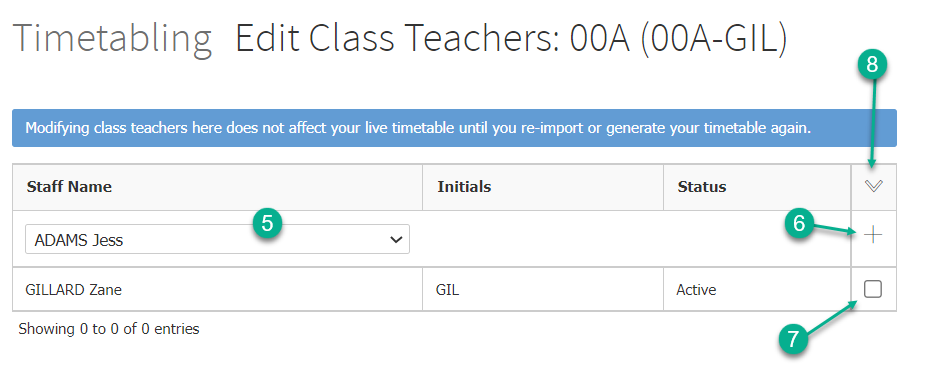
- Click the + icon to add the teacher. If you don’t need to remove the previous teacher of this class, go to the next section, Removing teachers from the incorrect class in the timetable quilt .
- If you need to remove the previous teacher, tick the checkbox next to their name. Note: You can have multiple teachers teaching the same class, as long as they aren’t assigned to another class in the timetable.
- Click on the dropdown arrow at the top right of the table, and select Remove staff . Click OK to remove the selected teacher
Removing teachers from the incorrect class in the timetable quilt
Next, we will need to remove the teacher from their old class. If you don’t need to perform this step because the teacher is new to the school, or wasn’t assigned to a class before, go to the next section, Saving your changes to the timetable .
- Go to Administration > Timetabling > Generate Basic Timetable .
- Click on the Pencil icon in the third row, next to Timetables .
- Click on the Pencil icon to edit the current timetable quilt (this will usually be the first one listed).
- Next to the class that the teacher is moving from, click the Edit the teachers of this class icon (the person sitting at the desk).
- Tick the checkbox next to the teacher that you wish to remove from the class.
- From the dropdown arrow in the top right of the table, select Remove staff .
Saving your changes to the timetable
Once you have assigned teachers to their correct classes and removed them from incorrect ones, you will need to save your changes to the timetable. This will tell Prestia what days and periods will need attendance marked. In Prestia, this is called preparing the timetable.
- Go to Administration > Timetabling > Generate Basic Timetable .
- Click on the Prepare Timetable button.
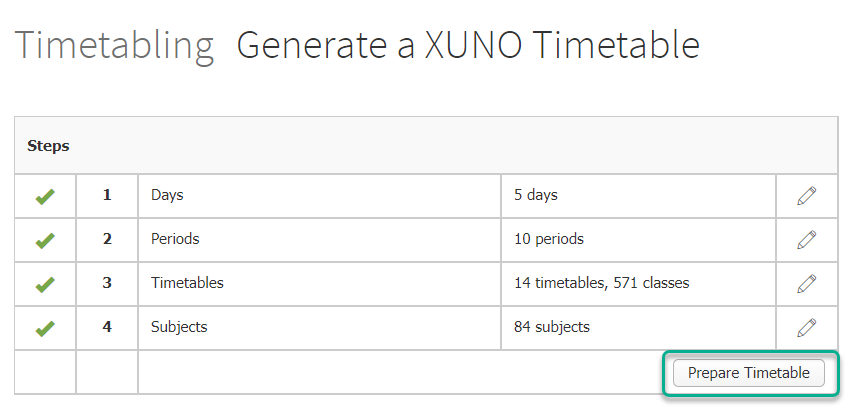
- Select the current quilt from the dropdown list (this is the same one you edited in the above section, in Step 3).
- The Generate From date will need to be the day the teacher is moved to their new class. You can edit the date, if required, by clicking on the date and selecting a new date using the calendar picker that appears.
Note: If this teacher has marked attendance in their old class and you backdate the timetable (i.e. choose a date before today), you will delete attendance data for this class when you prepare the timetable. Make sure you have a backup of the attendance data for the class to re-enter manually, if this is the case.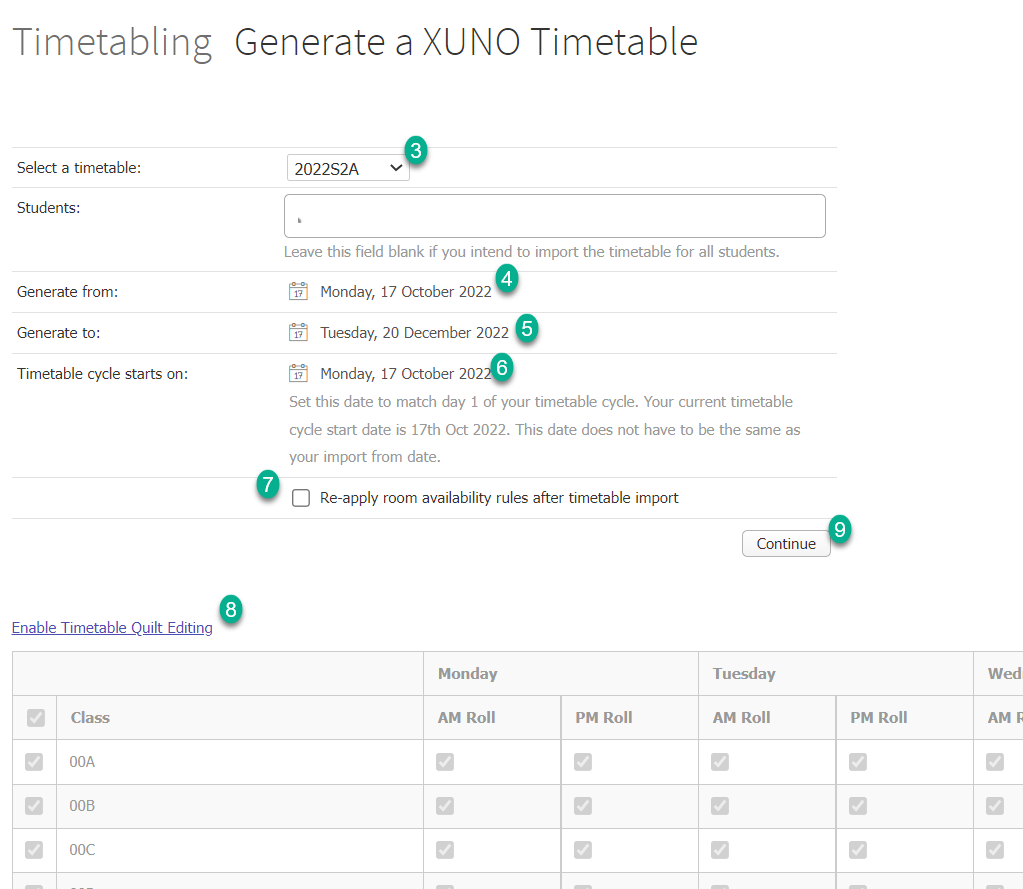
- The Generate to date will be the last day you would like to mark attendance for the new class – this will usually be the last day of the term, semester or year, depending on how often your school updates their Prestia Basic Timetable.
- The Timetable cycle starts on date will be the Monday on or before your Generate From date.
- Tick the Re-apply room availability rules after timetable import checkbox, if you have room availability rules set up in Prestia.
- Make sure all periods and days are selected in the table where there is a timetabled class. If you need to edit this table, click the [Enable Timetable Quilt Editing ] text.
- Click the Continue button to save your changes to the timetable.
Before clicking Continue to save your changes to the timetable, please keep in mind that if you don’t choose a specific student, this will save the timetable for all students. This means that if you have moved teachers between classes and backdated the timetable, you will delete some attendance data.