
Scheduling Student Absence messages to parents
Menjadwalkan Student Absence messages kepada orang tua
Sekolah dapat mengatur scheduled task yang akan mengirim Student Absence messages pada waktu tertentu setiap hari. Fitur penjadwalan ini hanya tersedia bagi attendance administrator sekolah.
Sekolah kini dapat mengatur jadwal untuk mengirim Student Absence messages pada waktu yang tetap setiap hari. Fungsi ini akan mengirim absence message kepada semua siswa yang ditandai dengan unexplained absence (UA) atau alasan attendance lainnya yang telah ditandai sebagai Explanation Required.
Harap diperhatikan bahwa hanya administrator yang memiliki pengaturan user permission yang sesuai yang dapat mengatur jadwal pengiriman absence messages.
Mengatur user permissions
Anda harus memiliki pengaturan izin Attendance – Read + SMS agar dapat membuat jadwal pengiriman automated absence messages.
Catatan: Jika Anda adalah administrator Prestia yang ditugaskan ke Default Admin Group user group, Anda dapat mengatur jadwal pengiriman absence messages tanpa memerlukan pengaturan izin tambahan.
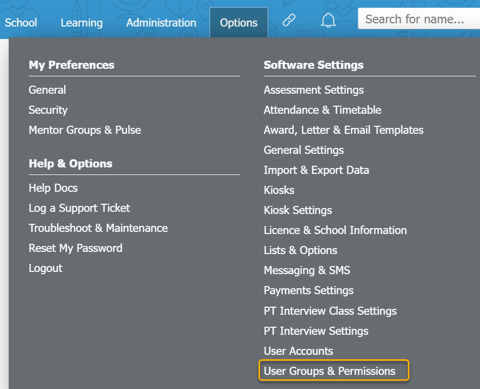
1. Buka Options > Software Settings > User Groups & Permissions.
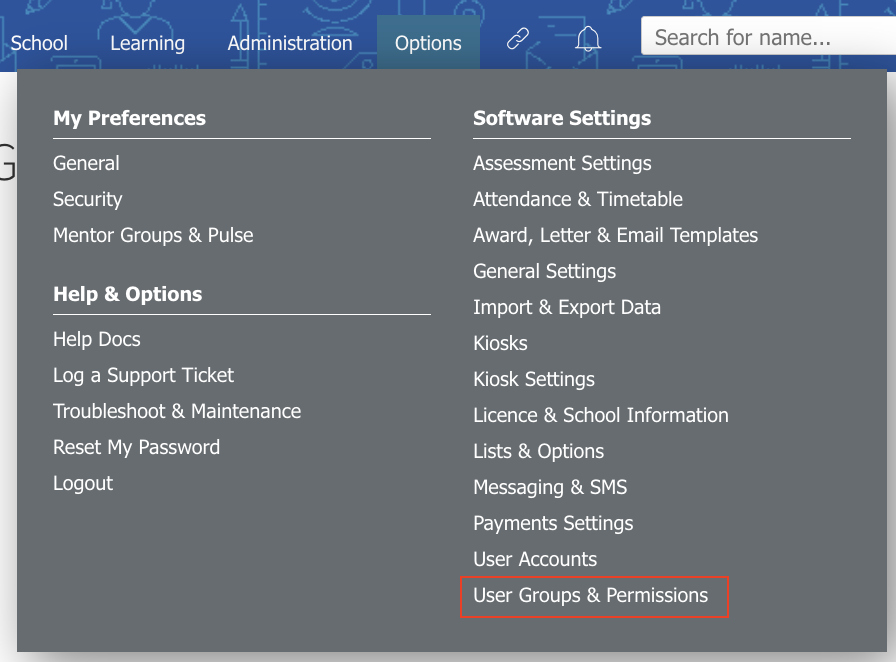
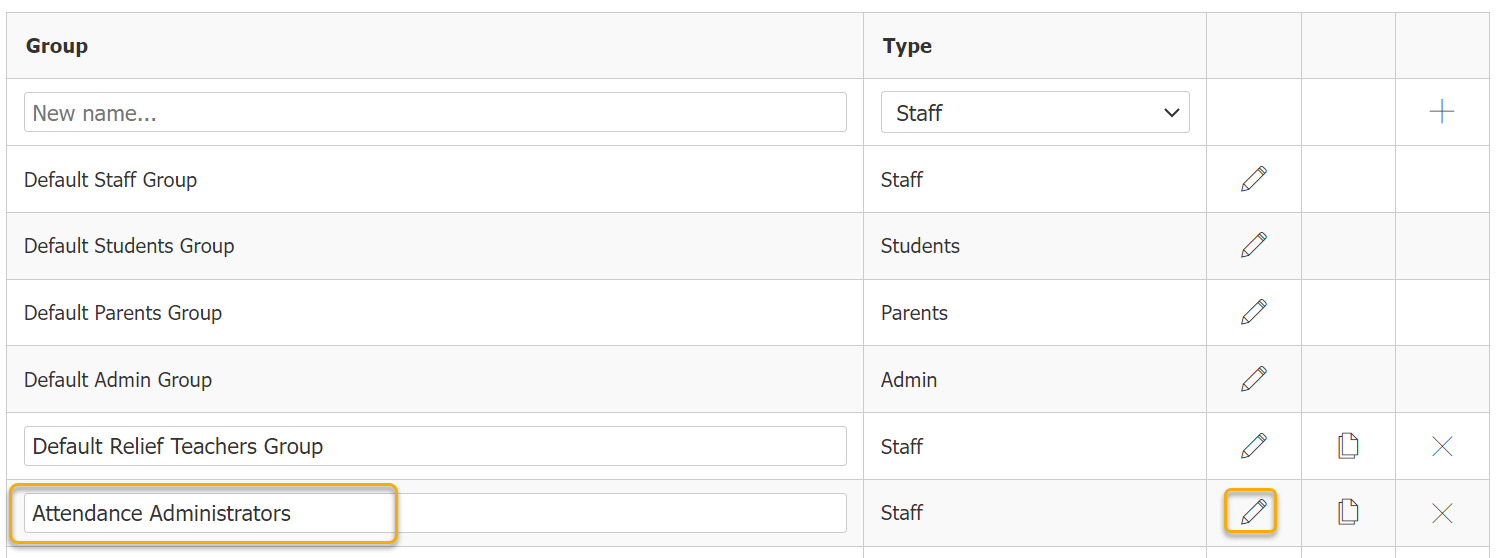
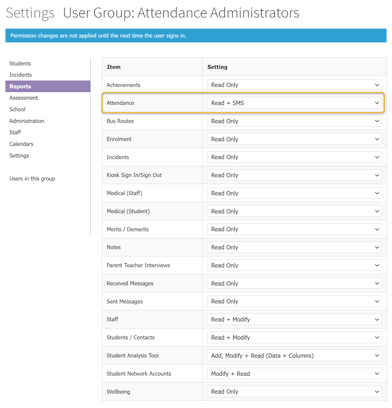
2. Edit attendance administrators user group dengan mengklik ikon Pencil. Lihat contoh gambar di bawah.

Catatan:
Anda dapat mengedit user group yang sudah ada atau membuat user group baru. Anda dapat merujuk ke artikel tentang cara membuat user group baru dan artikel tentang cara menugaskan pengguna ke user group yang baru.
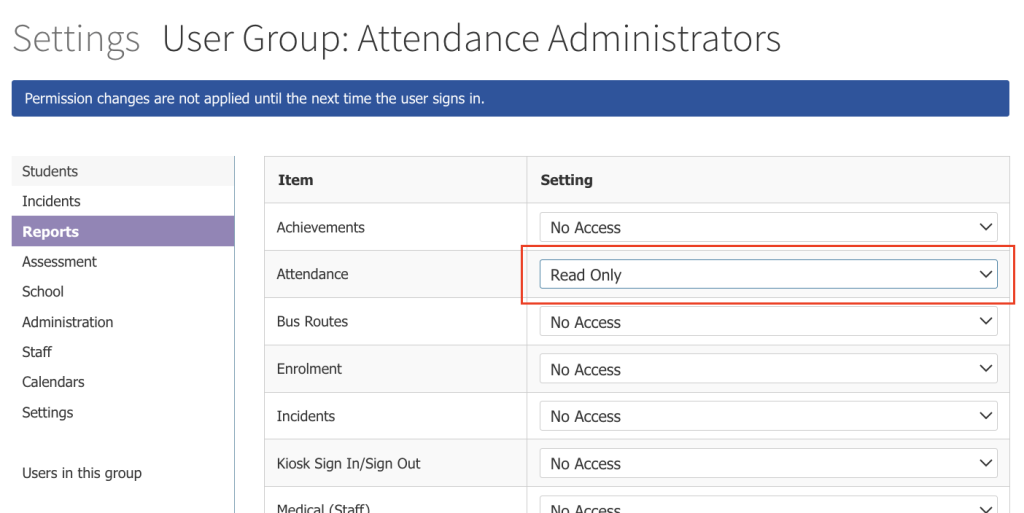
3. Pilih opsi Reports. Pastikan pengaturan izin Attendance diatur ke Read Only. Pengaturan izin ini diperlukan agar pengguna dapat melihat tautan [ Schedule Automated Absence Message ] pada halaman Student Absences Report.
Mengatur jadwal absence message
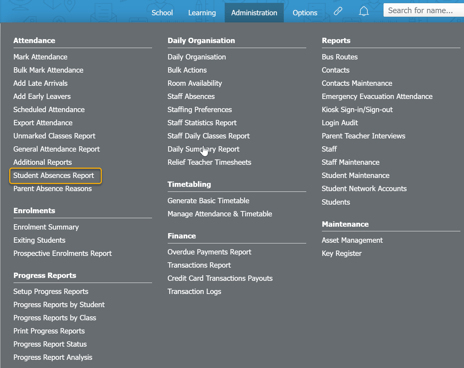
1. Buka Administration > Attendance > Student Absences Report.
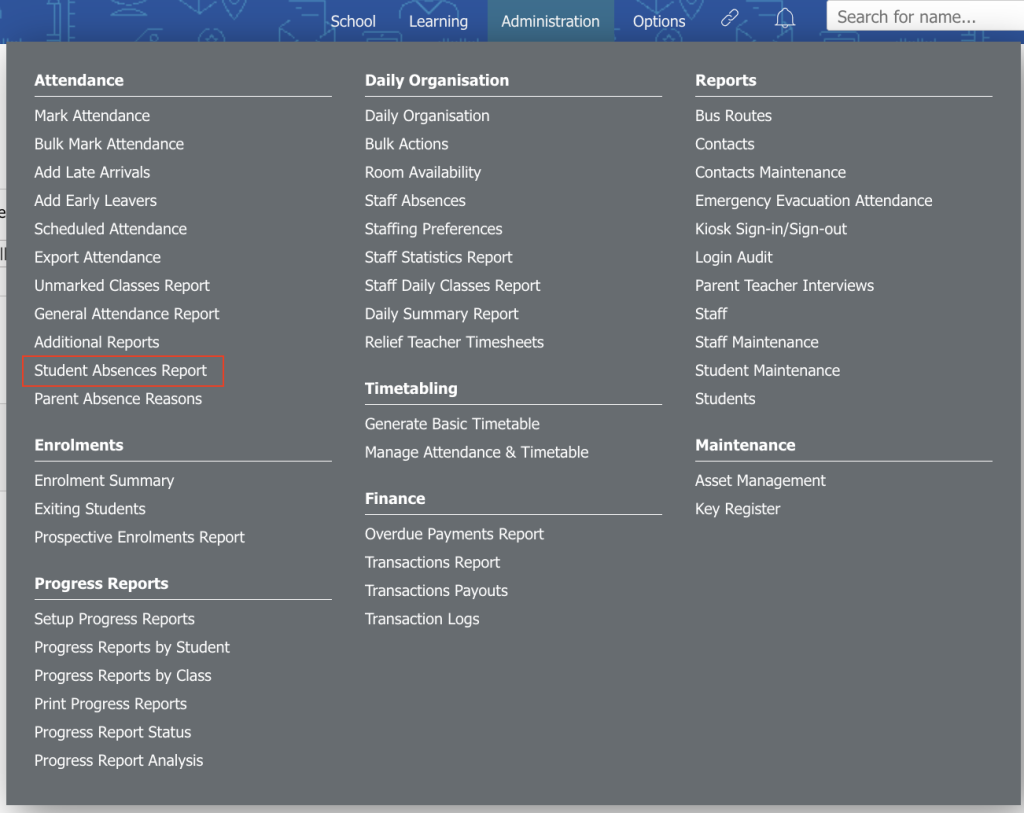
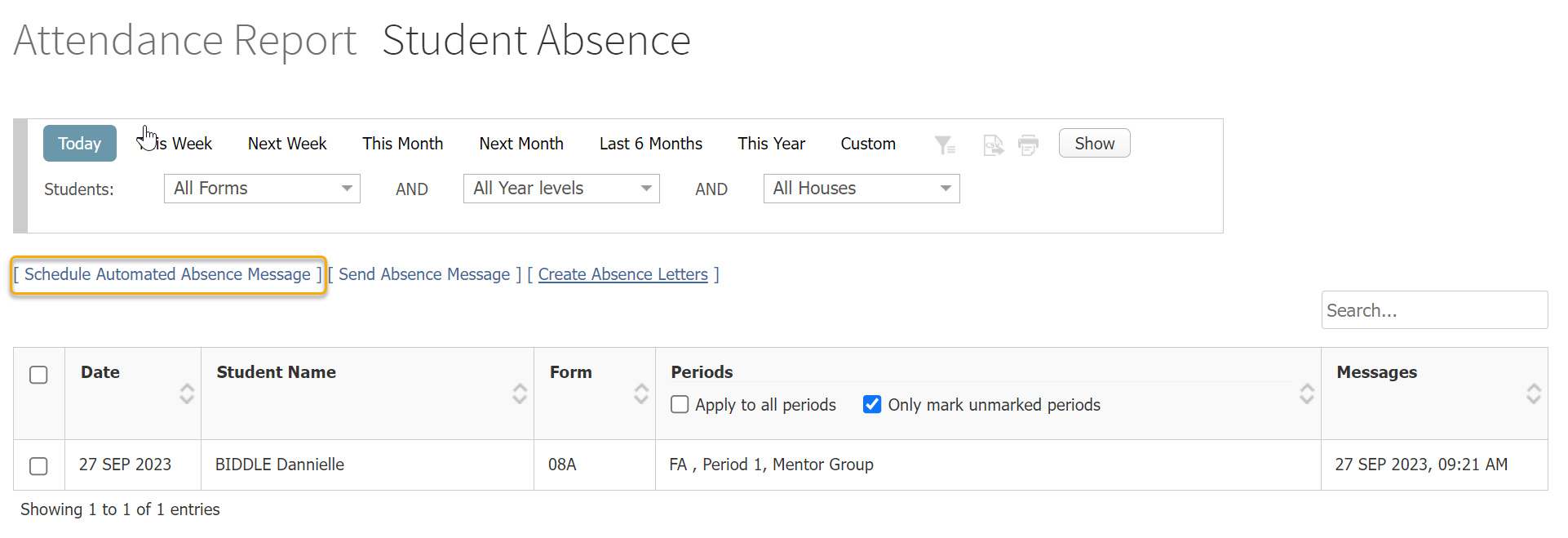
2. Klik tautan [ Schedule Automated Absence Message ] pada halaman tersebut. Opsi tautan ini hanya terlihat oleh pengguna yang memiliki izin Read Only. Hubungi administrator Prestia Anda jika Anda tidak dapat melihat opsi tautan ini.
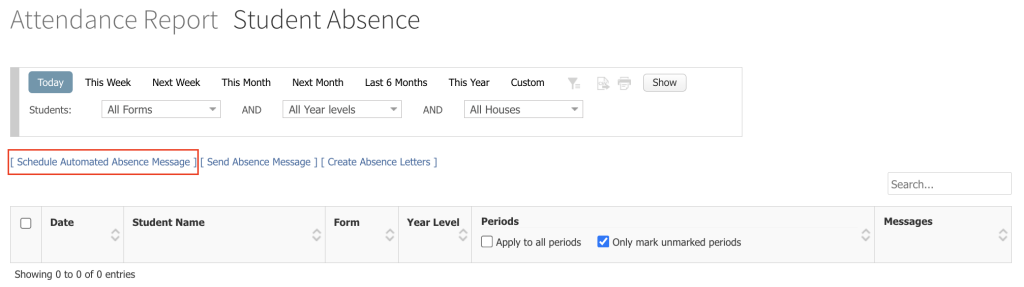
3. Atur jadwal pengiriman pesan menggunakan opsi-opsi yang tersedia.
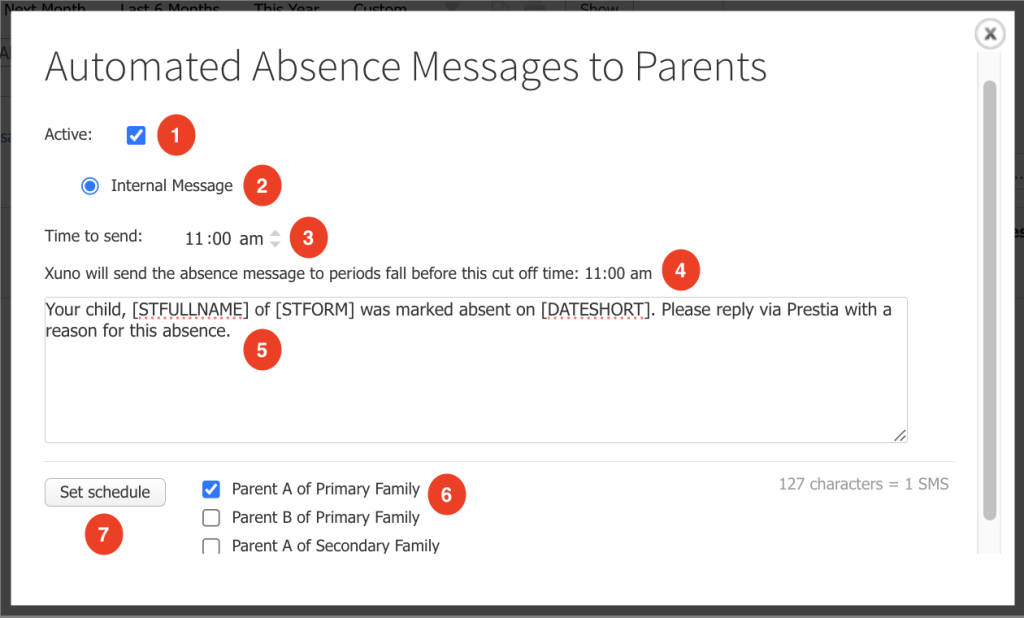
| No | Field/Button | Deskripsi |
| 1 | Active | Centang check box ini jika Anda ingin mengaktifkan jadwal pengiriman student absence messages pada waktu tertentu setiap hari. Anda dapat menghapus centang pada check box ini jika sekolah memutuskan untuk tidak lagi menggunakan fitur ini. |
| 2 | SMS / Internal Message | Pilih cara pengiriman absence message yang diinginkan, yaitu melalui Internal Message atau SMS. |
| 3 | Time to send | Tentukan waktu pengiriman absence message. Prestia akan mengirim absence messages pada waktu yang telah ditentukan ini. |
| 4 | Use Template | Pilih absence message template yang ingin digunakan saat mengirim absence messages. Anda juga dapat membuat absence message template baru jika diperlukan. Silakan lihat artikel mengenai cara membuat message template baru. |
| 5 | Message body | Kolom ini menampilkan isi pesan dari message template yang dipilih pada kolom Use Template. Anda dapat menyesuaikan isi pesan ini. Prestia akan mengirim absence messages berdasarkan isi yang ditentukan pada kolom ini. |
| 6 | Message Recipient | Tentukan kepada siapa absence messages akan dikirim |
| 7 | Set schedule | Klik tombol ini jika Anda telah selesai mengatur dan ingin menyimpan perubahan pada halaman ini. |
Tips:
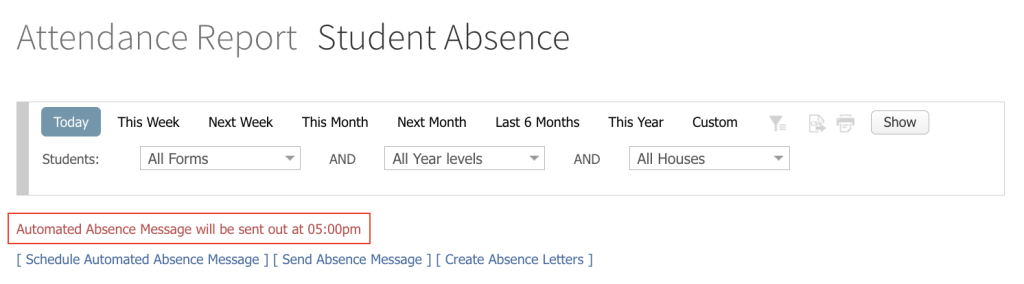
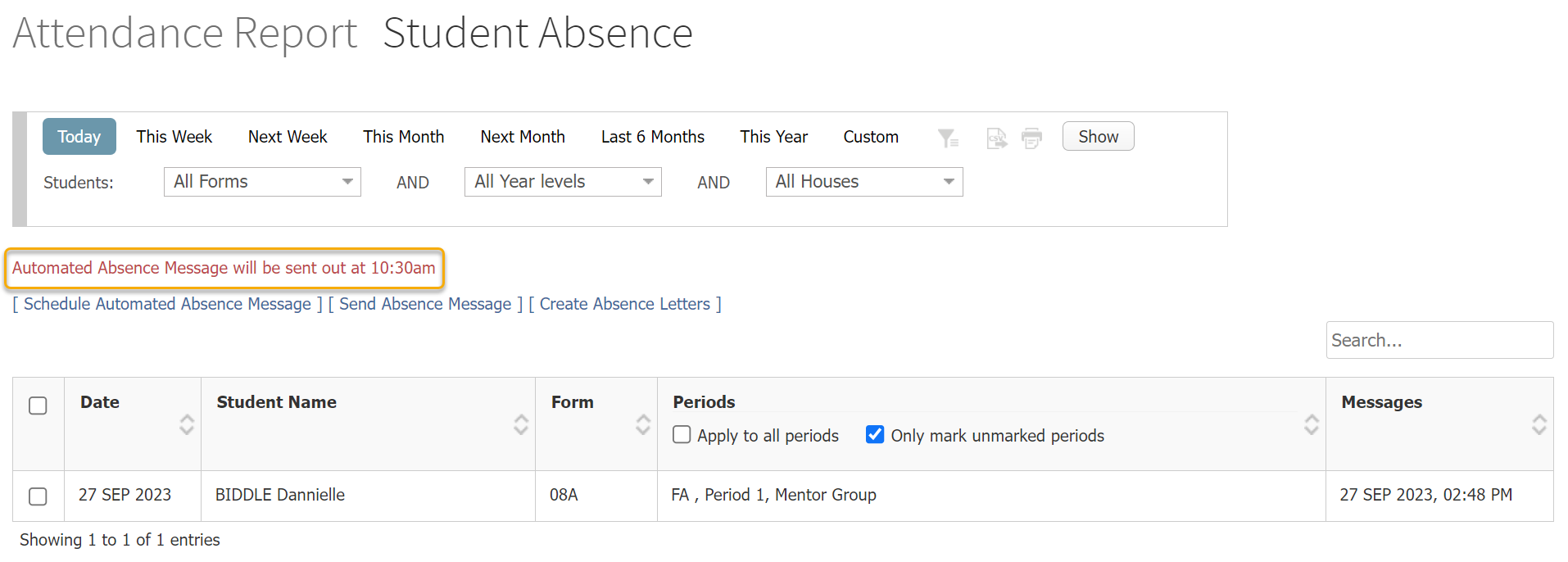
Anda akan melihat pesan peringatan berwarna merah pada halaman Student Absences Report jika jadwal absence message telah diatur.
Peringatan:
Attendance administrator masih dapat memilih untuk mengirim absence messages secara manual, yaitu mengikuti proses Student Absences yang sudah ada. Harap diperhatikan bahwa jika absence message telah dikirim secara manual sebelum scheduled task dijalankan, orang tua yang sama dapat menerima absence message lagi yang dikirim oleh scheduled task.
Pesan peringatan berwarna merah juga akan ditampilkan pada kotak dialog Send Absence Messages to Parents jika automated student absence message telah dijadwalkan.
Schools can now set up a schedule to send Student Absence messages at a fixed time each day. This function will send absence messages to all students who have been marked as unexplained absence (UA) or any other attendance reasons that have been marked as Explanation Required.
Please note that only administrators who have the appropriate user permission settings can set up the schedule to send absence messages.
Setting up user permissions
You must have Attendance – Read + SMS permission setting in order to set up a schedule to send automated absence messages.
Note:
If you are a Prestia administrator assigned to the Default Admin Group user group, you can set up the schedule to send absence messages without any additional permission settings.
- Go to Options > Software Settings > User Groups & Permissions .
- Edit the attendance administrators user group by clicking on the pencil icon. See sample image below.
- Select the Reports option. Make sure the Attendance permission setting is set to “Read + SMS”. This permission setting is required for user to see the “[ Schedule Automated Absence Message ]” link on the Student Absences Report page.
Setting up absence message schedule
- Go to Administration > Attendance > Student Absences Report .
- Click on the “[ Schedule Automated Absence Message ]” link on the page. This link option is visible only to users who have the “Read + SMS” permission. Please see your Prestia administrator if you cannot see this link option.
- Set up your messaging schedule with these available options.
Number Field/Button Description 1 Active Tick this check box if you want to enable the schedule to send student absence messages at a specified time each day. You can un-tick this check box if the school decides they no longer want to use this feature. 2 SMS/
Internal Message
Choose how you would like the absence message to be sent – via Internal Message or by SMS. 3 Time to send When do you want the absence message to be sent? Prestia will send absence messages at this specified time. 4 Use Template Which absence message template would you like to use when sending absence messages? You may create new absence message template if required. Please refer to this article on how to create a new message template. 5 Message body This field will show the message content of the message template selected in Use Template field above. You may adjust this message content. Prestia will send absence messages based on what you have specified in this field. 6 Message Recipient Whom would you like the absence messages to be sent to? 7 Set schedule Click on this button when you are ready to save your changes on this page.
Tip:
You will see the red warning message on the Student Absences Report page if an absence message schedule has been set up.
Warning:
Attendance administrators can still choose to send absence messages manually i.e. following the existing Student Absences process. Please be aware that if an absence message has been sent manually before the scheduled task, the same parent may receive another absence message sent by the scheduled task.
A red warning message will be visible on the “Send Absence Messages to Parents” dialog box if an automated student absence message has been scheduled.