
Curriculum Days and School Holidays: How to Manage Attendance and Timetable Data
You can use Prestia to manually remove or reset your timetable and attendance data. Deleting timetable and attendance data will permanently remove all Daily Org, Markbook and Attendance data for the specified date range.
When there is a public holiday, pupil free day or during school holidays, we recommend you delete the associated timetable data for these dates.
This will prevent you from getting unmarked classes alerts for these dates, as Prestia will no longer expect attendance to be marked. It will also ensure that students’ attendance statistics are accurate in Prestia.
How to reset attendance data
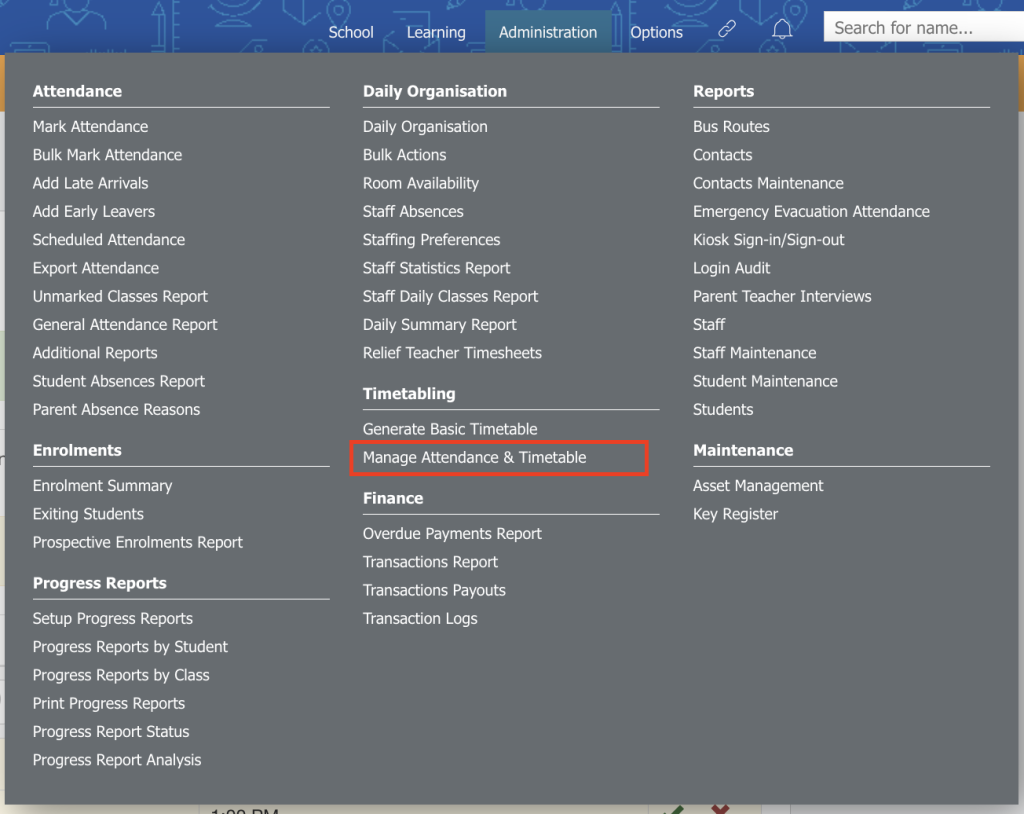
- Go to Administration > Timetabling > Manage Attendance & Timetable.
- Select Reset attendance data to ‘unmarked’.
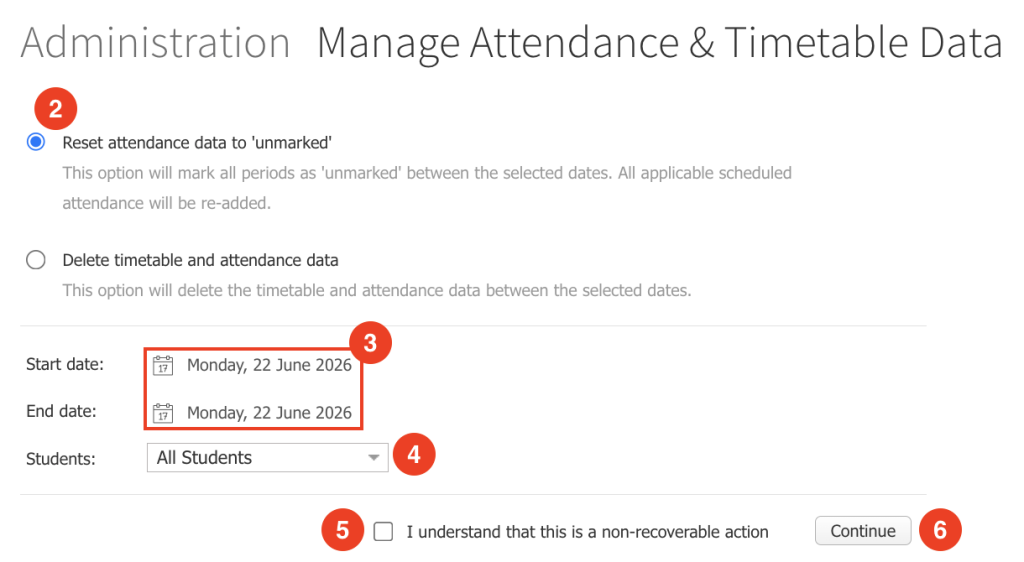
- Select the Start date and End date to specify the date range you would like the attendance to be reset to unmarked. You can edit the dates by clicking on them and selecting a new date from the calendar picker that appears.
- If you are resetting attendance data for individual students, select one or more students from the Students: dropdown list. Otherwise, leave the default option of All Students to reset attendance data for all students in the school.
- Tick the checkbox next to I understand that this is a non-recoverable action to confirm.
- Click the Continue button. An alert will pop up informing you that resetting attendance data cannot be undone.
- Click OK to proceed.
How to delete timetable and attendance data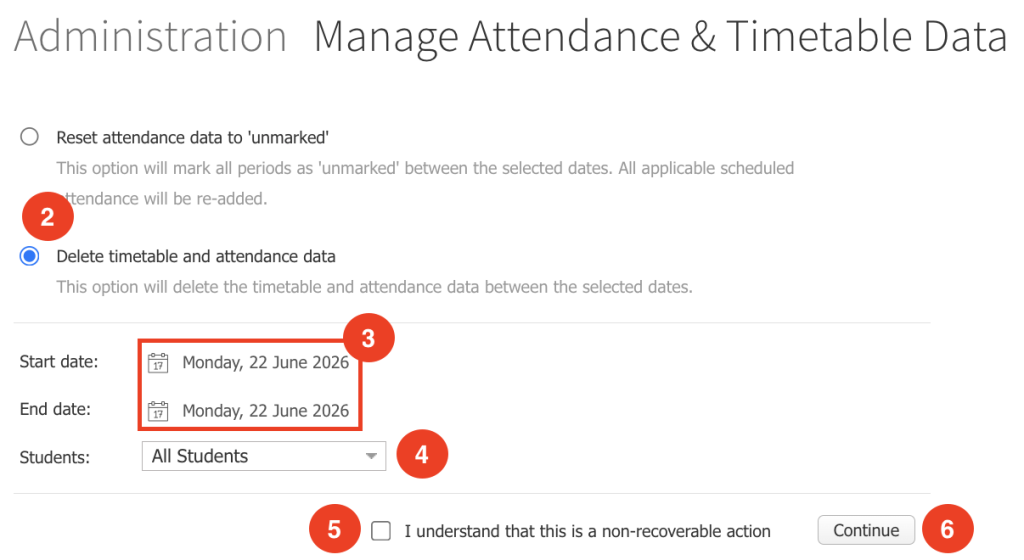
- Go to Administration > Timetabling > Manage Attendance & Timetable.
- Select Delete Timetable and Attendance Data.
- Select the Start date and End date to specify the date range you would like the attendance to be reset to unmarked. You can edit the dates by clicking on them and selecting a new date from the calendar picker that appears.
- If you are deleting attendance data for individual students, select one or more students from the Students: dropdown list. Otherwise, leave the default option of All Students to delete attendance data for all students in the school.
- Tick the checkbox next to I understand that this is a non-recoverable action’ to confirm.
- Click the Continue button. An alert will pop up informing you that resetting attendance data cannot be undone.
- Click OK to proceed.
Mengelola Data Kehadiran dan Jadwal
Artikel ini menjelaskan proses yang direkomendasikan untuk mengelola hari libur nasional, hari kurikulum (Curriculum Days), dan libur sekolah pada Basic Timetable di Prestia.
Prestia memungkinkan Anda untuk:
- Mengatur ulang (reset) data kehadiran menjadi Unmarked
- Menghapus data jadwal dan kehadiran dalam rentang tanggal tertentu
Catatan!
Menghapus data jadwal dan kehadiran akan secara permanen menghapus: Data Daily Org, Data Markbook, Data Attendance untuk rentang tanggal yang dipilih. Tindakan ini tidak dapat dibatalkan (non-recoverable).
Mengatur Ulang Data Kehadiran
Fitur ini digunakan untuk mengembalikan status kehadiran menjadi Unmarked tanpa menghapus data jadwal.
1.Buka menu Administration > Timetabling > Manage Attendance & Timetable.
2.Pilih Reset Attendance Data to Unmarked.
3.Pilih Start Date dan End Date untuk menentukan rentang tanggal yang ingin diubah menjadi Unmarked. Anda dapat mengubah tanggal dengan mengklik field tanggal dan memilih tanggal dari kalender yang tersedia.
4.Jika ingin melakukan reset untuk siswa tertentu, pilih satu atau beberapa siswa pada dropdown Students. Jika ingin melakukan reset untuk seluruh siswa, biarkan pilihan default All Students.
5.Centang kotak I understand that this is a non-recoverable action sebagai konfirmasi.
6.Klik tombol Continue. Sistem akan menampilkan peringatan bahwa proses reset tidak dapat dibatalkan.
7.Klik OK untuk melanjutkan proses.
Menghapus Data Jadwal dan Kehadiran
Fitur ini digunakan untuk menghapus data jadwal dan kehadiran secara permanen dalam rentang tanggal tertentu.
1.Buka menu Administration > Timetabling > Manage Attendance & Timetable.
2.Pilih Delete Timetable and Attendance Data.
3.Pilih Start Date dan End Date untuk menentukan rentang tanggal yang datanya akan dihapus. Anda dapat mengubah tanggal dengan mengklik field tanggal dan memilih tanggal dari kalender yang tersedia.
4.Jika ingin menghapus data untuk siswa tertentu, pilih satu atau beberapa siswa pada dropdown Students. Jika ingin menghapus data seluruh siswa, biarkan pilihan default All Students.
5.Centang kotak I understand that this is a non-recoverable action sebagai konfirmasi.
6.Klik tombol Continue. Sistem akan menampilkan peringatan bahwa proses penghapusan tidak dapat dibatalkan.
7.Klik OK untuk melanjutkan proses.
Catatan
- Reset Attendance Data hanya mengubah status kehadiran menjadi Unmarked.
- Delete Timetable and Attendance Data akan menghapus data secara permanen.
- Sebelum menjalankan proses penghapusan, pastikan rentang tanggal yang dipilih sudah benar.
- Disarankan untuk melakukan verifikasi terlebih dahulu karena data yang dihapus tidak dapat dipulihkan kembali.