
Skip to main content
What can we help you with?
How to Manually Update Circumstances Alerts for Students
- Pribumi Australia dan Kepulauan Selat Torres
- Pengungsi
- Disabilitas
- Integrasi
- Youth Allowance
- Pembatasan Akses
- Dukungan Kesejahteraan (siswa berisiko)
- Peringatan Medis
Peringatan lain dapat dibuat di Prestia, namun artikel ini berfokus pada cara memperbarui Peringatan Keadaan saja.
Langkah-langkah
- Buka Administration > Reports > Students .
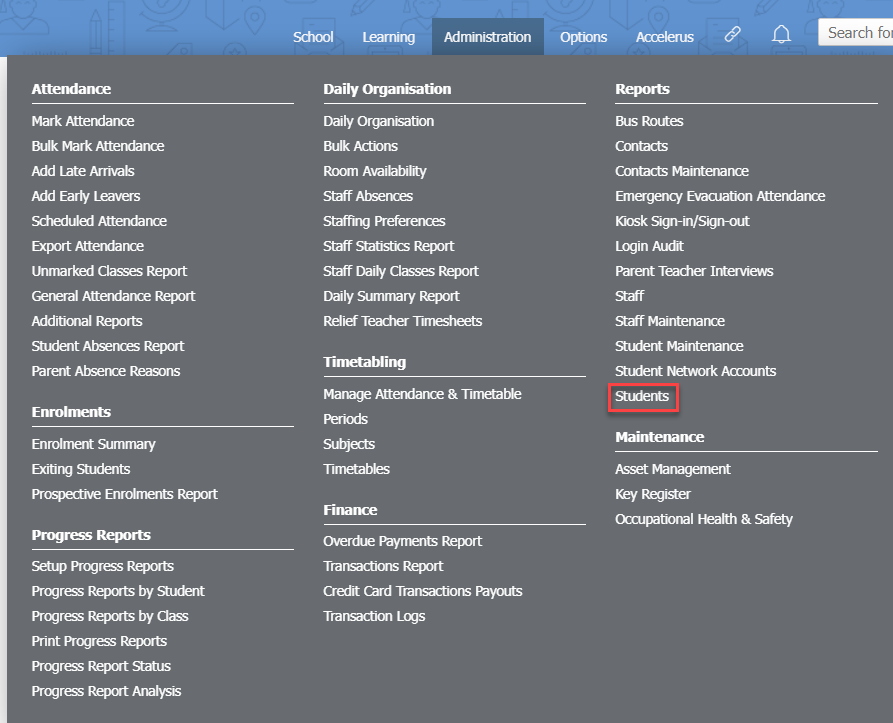
- Temukan siswa yang akan diubah.
- Klik ikon pensil di kolom terakhir di sebelah kanan pada baris siswa.

- Di tab Detail Pribadi, temukan bidang Circumstances:
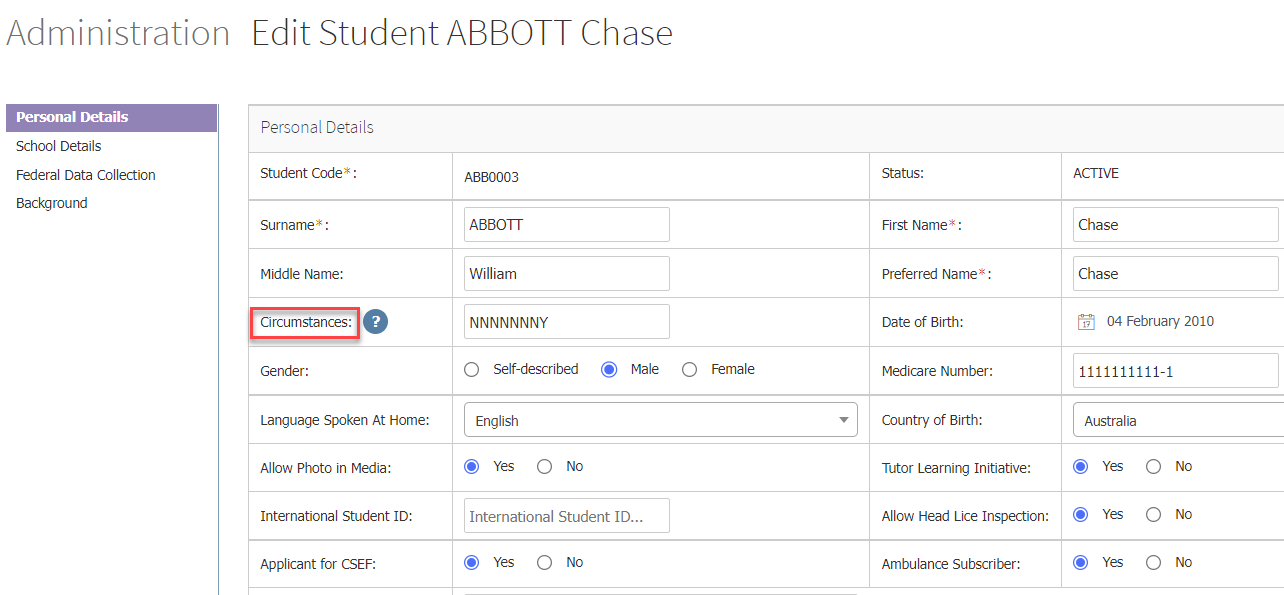
- Serangkaian karakter Y dan N menunjukkan apakah peringatan aktif atau tidak. Y berarti Peringatan aktif, dan N berarti Peringatan tidak aktif. Urutan peringatan dapat ditemukan dengan mengarahkan kursor ke tombol informasi, tetapi juga tercantum di sini.
- Pribumi Australia dan Kepulauan Selat Torres (catatan: peringatan ini dapat memiliki beberapa nilai: N=Tidak Ada, K=Pribumi Australia, T=Penduduk Kepulauan Selat Torres, B=Keduanya Pribumi Australia dan Penduduk Kepulauan Selat Torres, U=Tidak Diketahui/Tidak Disebutkan. Peringatan akan aktif untuk K, T, atau B, dan tidak aktif untuk N atau U).
- Pengungsi
- Disabilitas
- Integrasi
- Youth Allowance
- Pembatasan Akses
- Dukungan Kesejahteraan (siswa berisiko)
- Peringatan Medis
- Ubah bidang yang sesuai menjadi Y atau N. Misalnya, mengubah huruf ke-4 akan mengubah apakah siswa tersebut adalah siswa Integrasi.
- Klik di mana saja di layar di luar bidang untuk menyimpan perubahan – Anda akan melihat pesan ‘Changes have been saved’ muncul di kanan atas layar Anda.
- Ulangi untuk siswa lain sesuai kebutuhan.
- Peringatan ini akan tetap aktif sampai diubah secara manual, atau sampai file diimpor/disinkronkan dari sistem lain dengan informasi yang berbeda.
- Go to Administration > Reports > Students.
- Find the student to modify.
- Click on the pencil icon in the last column on the right in the student’s row.
- In the Personal Details tab, find the Circumstances: field.
- A series of Y and N characters indicate whether the alert is active or not. Y means the Alert is on, and N means the Alert is off. The order of the alerts can be found by hovering on the information button, but are also listed here.
- Aboriginal and Torres Strait Islander (note: this alert can have several values: N=None, K=Aboriginal, T=Torres Strait Islander, B=Both Aboriginal and TSI, U=Unknown/Not Stated. The alert will be on for K, T or B, and off for N or U).
- Refugee
- Disability
- Integration
- Youth Allowance
- Access Restrictions
- Wellbeing support (student at risk)
- Medical Alert
- Change the appropriate field to be a Y or N. For instance, changing the 4th letter changes whether the student is an Integration student.
- Click anywhere on the screen outside the field to save the changes – you will see the ‘Changes have been saved’ message appear in the top right of your screen.
- Repeat for any other students as required.
- This alert will remain on until manually changed, or until a file is imported/synced from another system with different information,