
Voluntary Payments
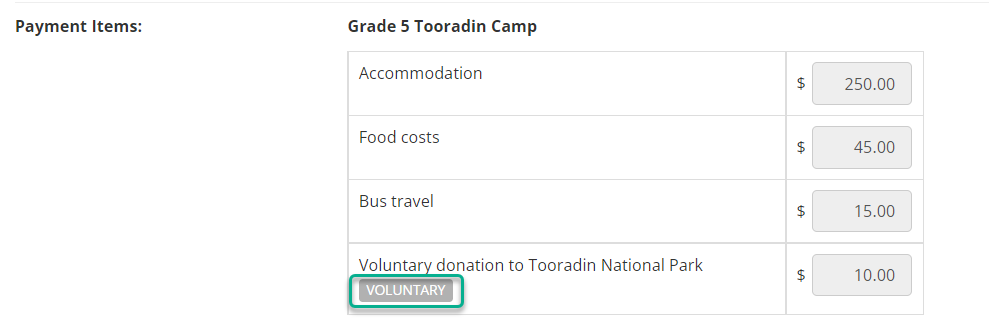
Saat melihat biaya atau acara di Prestia, Anda akan melihat tag Voluntary di samping jumlah apa pun yang bersifat sukarela.
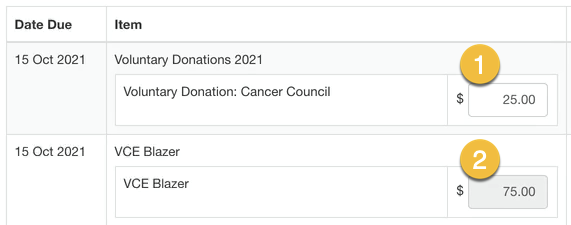
Setelah Anda berada di layar pembayaran, Anda tidak akan melihat tag ini, namun Anda akan menyadari bahwa kolom tempat jumlah ditampilkan berwarna putih (lihat 1 pada tangkapan layar di bawah) dan jika diklik, kolom tersebut dapat diedit. Jika kolom berwarna abu-abu (lihat 2 pada tangkapan layar di bawah), maka ini bukan jumlah sukarela.
Tentukan jumlah yang akan Anda bayarkan di kolom, dan setelah pembayaran diproses, item ini akan ditandai sebagai lunas. Prestia tidak mengizinkan Anda membayar sisa saldo nanti. Jika Anda ingin berkontribusi lebih banyak, Anda dapat menghubungi sekolah dan meminta pembayaran sukarela baru ditambahkan ke akun Anda, sehingga Anda dapat mengulangi prosesnya.
Ini berarti orang tua sekarang dapat mengelola kontribusi sukarela mereka sendiri tanpa perlu menghubungi sekolah. Anda dapat menentukan jumlah di bawah atau di atas jumlah yang disarankan.
Cara menentukan jumlah yang akan dibayarkan melalui Portal
Instruksi ini berlaku untuk orang tua/wali yang masuk ke portal. Anda dapat melihat animasi yang menunjukkan proses di bawah langkah-langkah tertulis.
- Masuk ke Prestia.
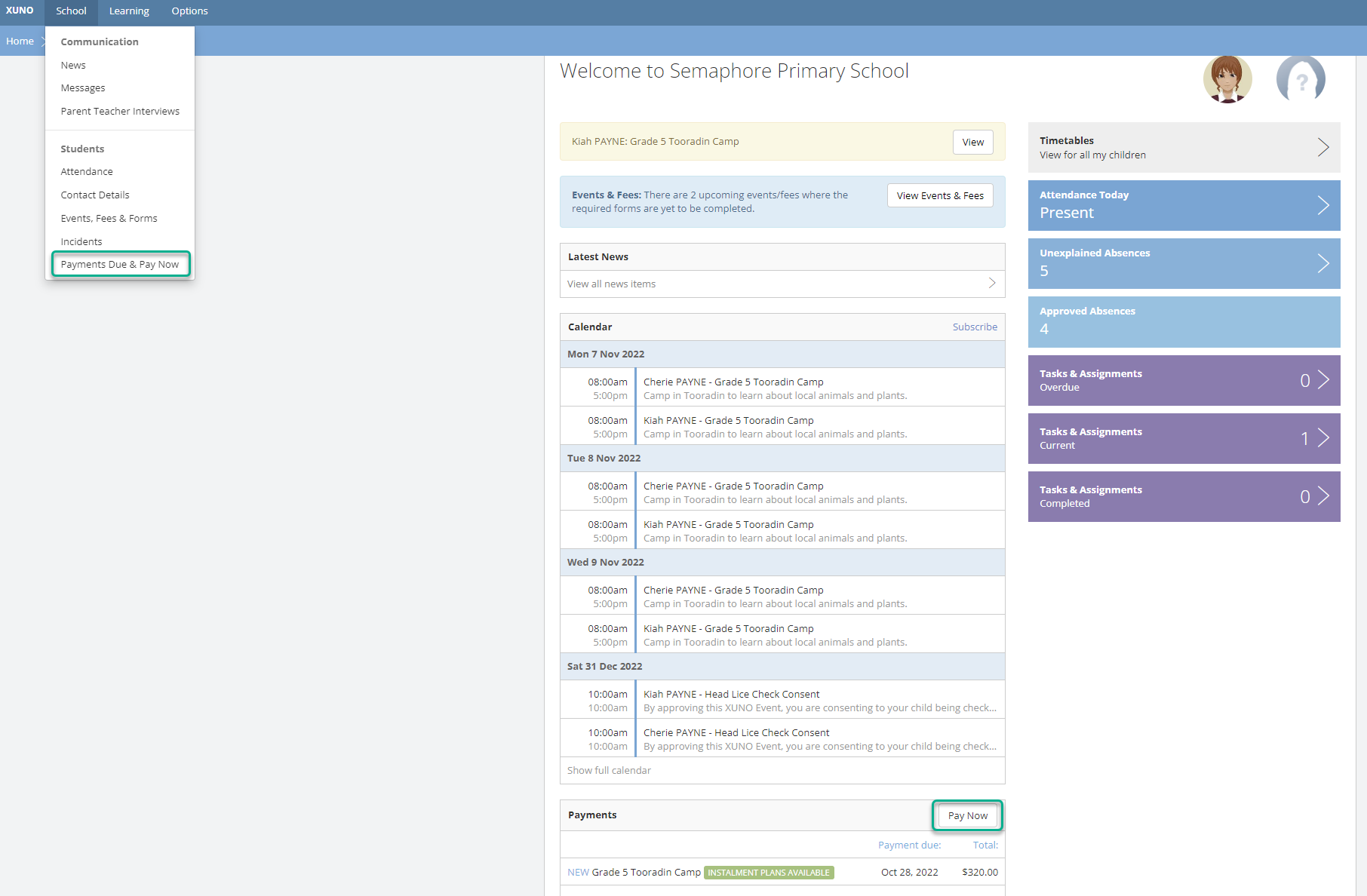
- Klik menu School lalu klik Payments Due & Pay Now , atau untuk cara yang lebih cepat untuk langsung menuju portal pembayaran, klik Pay Now pada widget pembayaran Anda di dashboard.
- Temukan item sukarela seperti yang dijelaskan di atas.
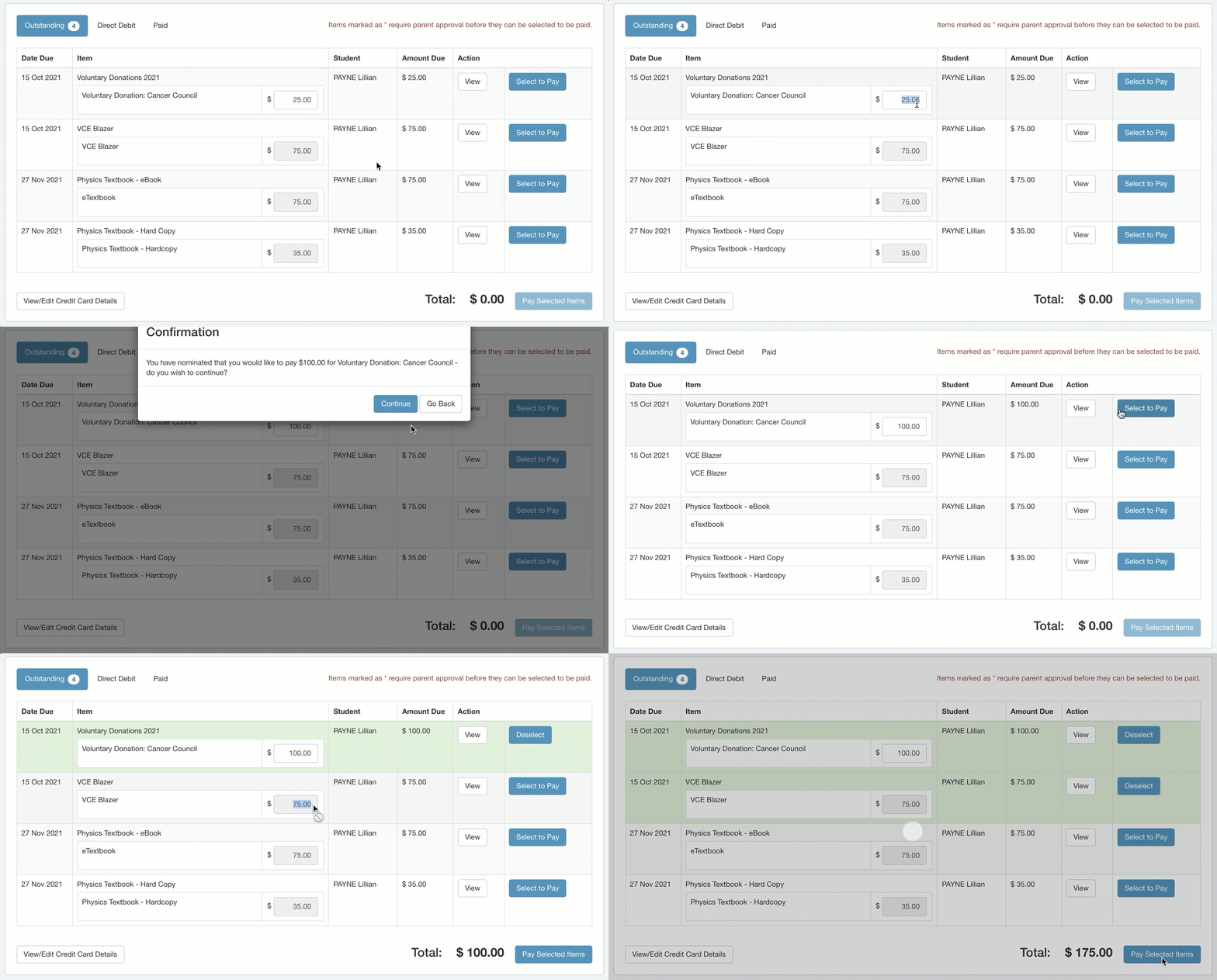
- Masukkan jumlah yang ditentukan di kolom biaya, pastikan jumlah tersebut berada di samping item yang ingin Anda bayarkan. Anda dapat melakukan ini untuk satu atau beberapa item jika Anda mau.
Anda dapat memasukkan jumlah berapa pun antara $0 hingga $6.000.
Jika $0 dimasukkan, item ini akan ditandai sebagai lunas, dan Anda tidak akan dikenakan biaya. - Klik Pay selected items , dan lanjutkan melalui proses pembayaran standar.
When viewing a fee or event in Prestia, you will see a Voluntary tag next to any amounts that are voluntary.
Once you are on the payment screen, you won’t see this tag, however you will notice that the field where the amount is displayed is white (see 1 in screenshot below) and if clicked, it is editable. If the field is grey (see 2 in screenshot below), then this is not a voluntary amount.
Nominate the amount you will pay in the field, and once payment has been processed, this item is marked as paid in full. Prestia does not allow you to pay the balance later. If you wish to contribute more, you may contact the school and request a new voluntary payment be added for your account, so that you can repeat the process.
This means that parents can now manage their own voluntary contributions without needing to call the school. You may nominate an amount below or above the suggested amount.
In the portal: How to nominate the amount to be paid
These instructions apply to parents/carers logging into the portal. You can see an animation showing the process below the written steps.
- Log in to Prestia.
- Click the School menu and then click Payments Due & Pay Now, or for a faster way to go straight to the payment portal, click Pay Now on your payments widget on the dashboard.
- Find the voluntary items as described above.
- Enter the nominated amount in the cost field, ensuring the amount is next to the item you wish the amount to be paid for. You may do this for one or multiple items if you wish.
You can enter any amount between $0 up to $6,000.
If $0 is entered, this item is marked as paid, and you will not be charged. - Click Pay selected items, and proceed through the standard checkout process.