
Skip to main content
What can we help you with?
How to set up and manage email alerts, app alerts and push notifications for parents, staff and students
- Masuk ke Prestia Suite sebagai Administrator.
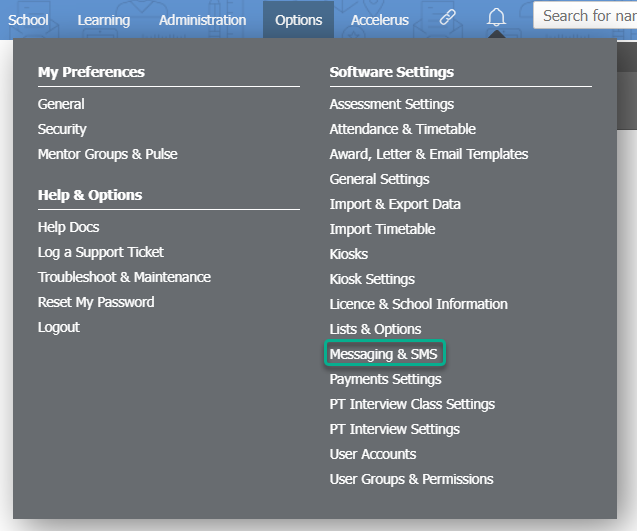
- Buka Opsi > Pengaturan Perangkat Lunak > Pesan & SMS .
- Temukan Pengaturan Notifikasi bagian. Anda akan melihat bahwa Anda dapat mengaktifkan atau menonaktifkan pengaturan secara terpisah untuk Staf , CRTs , Orang Tua dan Siswa . Pengaturan CRT akan mengikuti pengaturan staf, kecuali untuk peringatan email mingguan.
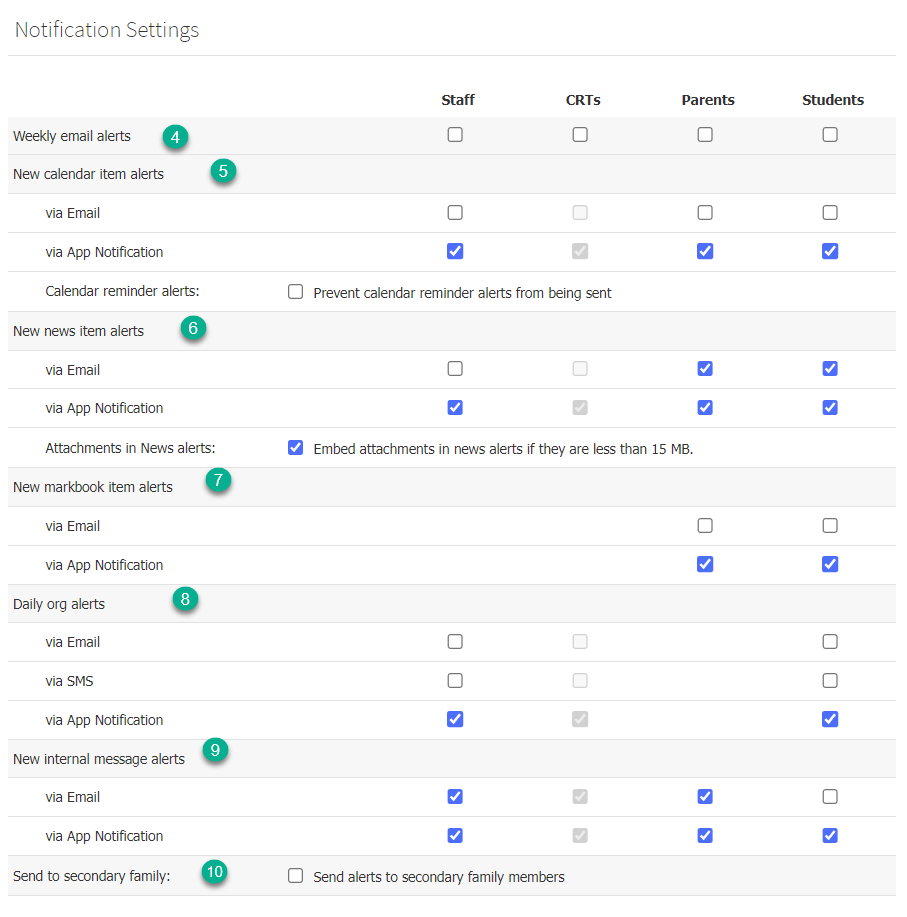
- Peringatan email mingguan – pilih grup atau grup yang harus menerima peringatan email mingguan. Email ini dikirim seminggu sekali, pada hari Jumat, dengan ringkasan untuk semua tugas dan tugas yang lewat batas, pesan, berita, item kalender, dan peringatan untuk minggu mendatang.
- Peringatan item kalender baru
- Jika Anda ingin mengirim peringatan email tentang item kalender baru, maka pilih grup atau grup yang harus menerima peringatan item ini dari baris via Email . Email ini dikirim segera setelah item kalender baru dibuat.
- Jika Anda ingin penerima diberitahu tentang item kalender baru melalui aplikasi Prestia Staff atau Family, maka pilih grup atau grup yang harus menerima peringatan item ini dari baris via Notifikasi Aplikasi . Aplikasi akan memberi tahu penerima saat item kalender baru telah disimpan.
- Anda dapat mencegah peringatan pengingat kalender dikirim dengan memilih kotak centang yang sesuai.
- Peringatan item berita baru
- Jika Anda ingin mengirim peringatan email tentang item berita baru, maka pilih grup atau grup yang harus menerima peringatan item ini dari baris via Email . Email ini dikirim segera setelah item berita baru dibuat.
- Jika Anda ingin penerima diberitahu tentang item berita baru melalui aplikasi Prestia Staff atau Family, maka pilih grup atau grup yang harus menerima peringatan item ini dari baris via Notifikasi Aplikasi . Aplikasi akan memberi tahu penerima saat item berita baru telah disimpan.
- Peringatan item Markbook baru
- Jika Anda ingin mengirim peringatan email tentang item Markbook baru, maka pilih grup atau grup yang harus menerima peringatan item ini dari baris via Email . Email ini dikirim segera setelah item Markbook baru dibuat.
- Jika Anda ingin penerima diberitahu tentang item Markbook baru melalui aplikasi Prestia Staff atau Family, maka pilih grup atau grup yang harus menerima peringatan item ini dari baris via Notifikasi Aplikasi . Aplikasi akan memberi tahu penerima saat item Markbook baru telah disimpan.
- Peringatan org harian
- Jika Anda ingin mengirim peringatan email tentang item org harian baru, maka pilih grup atau grup yang harus menerima peringatan item ini dari baris via Email . Email ini dikirim segera setelah item org harian baru dibuat.
- Jika Anda ingin mengirim peringatan SMS tentang item org harian baru, maka pilih grup atau grup yang harus menerima peringatan item ini dari baris via SMS . SMS ini dikirim segera setelah item org harian baru dibuat.
- Jika Anda ingin penerima diberitahu tentang item org harian baru melalui aplikasi Prestia Staff atau Family, maka pilih grup atau grup yang harus menerima peringatan item ini dari baris via Notifikasi Aplikasi . Aplikasi akan memberi tahu penerima saat item org harian baru telah disimpan.
- Peringatan pesan internal baru
- Jika Anda ingin mengirim peringatan email tentang pesan internal baru, maka pilih grup atau grup yang harus menerima peringatan ini dari baris via Email . Email ini dikirim segera setelah pesan internal baru dibuat.
- Jika Anda ingin penerima diberitahu tentang pesan internal baru melalui aplikasi Prestia Staff atau Family, maka pilih grup atau grup yang harus menerima peringatan ini dari baris via Notifikasi Aplikasi . Aplikasi akan memberi tahu penerima saat pesan internal baru telah disimpan.
- Pilih Kirim ke keluarga sekunder: kotak centang jika Anda ingin peringatan juga dikirim ke anggota keluarga sekunder. Jika kotak centang ini tidak dicentang, peringatan hanya dikirim ke anggota keluarga primer.
- Log in to the Prestia Suite as an Administrator.
- Go to Options > Software Settings > Messaging & SMS.
- Find the Notification Settings heading. You will see that you can enable or disable settings separately for Staff, CRTs, Parents and Students. CRT settings will follow staff settings, except for the weekly email alerts.
- Weekly email alerts – select the group or groups that should receive weekly email alerts. This email is sent once per week, on Friday, with a summary for all work and overdue work, messages, news, calendar items and alerts for the upcoming week.
- New calendar item alerts
- If you want to send email alerts about new calendar items, then select the group or groups that should receive these item alerts from the via Email row. This email is sent as soon as a new calendar item is created.
- If you want your recipients to be informed about new calendar items through the Prestia Staff or Family app, then select the group or groups that should receive these item alerts from the via App Notification row. The App will inform the recipient when a new calendar item has been saved.
- You can prevent calendar reminder alerts from being sent by selecting the corresponding checkbox.
- New news item alerts
- If you want to send email alerts about new news items, then select the group or groups that should receive these item alerts from the via Email row. This email is sent as soon as a new news item is created.
- If you want your recipients to be informed about new news items through the Prestia Staff or Family app, then select the group or groups that should receive these item alerts from the via App Notification row. The App will inform the recipient when a new news item has been saved.
- New markbook item alerts
- If you want to send email alerts about new Markbook items, then select the group or groups that should receive these item alerts from the via Email row. This email is sent as soon as a new Markbook item is created.
- If you want your recipients to be informed about new Markbook items through the Prestia Staff or Family app, then select the group or groups that should receive these item alerts from the via App Notification row. The App will inform the recipient when a new Markbook item has been saved.
- Daily org alerts
- If you want to send email alerts about new daily org items, then select the group or groups that should receive these item alerts from the via Email row. This email is sent as soon as a new daily org item is created.
- If you want to send SMS alerts about new daily org items, then select the group or groups that should receive these item alerts from the via SMS row. This SMS is sent as soon as a new daily org item is created.
- If you want your recipients to be informed about new daily org items through the Prestia Staff or Family app, then select the group or groups that should receive these item alerts from the via App Notification row. The App will inform the recipient when a new daily org item has been saved.
- New internal message alerts
- If you want to send email alerts about new internal messages, then select the group or groups that should receive these alerts from the via Email row. This email is sent as soon as a new internal message is created.
- If you want your recipients to be informed about new internal messages through the Prestia Staff or Family app, then select the group or groups that should receive these alerts from the via App Notification row. The App will inform the recipient when a new internal message has been saved.
- Select the Send to secondary family: checkbox if you want alerts to also be sent to secondary family members. If this checkbox is not ticked, alerts are only sent to primary family members.