
Customising your Prestia login page
Unggah gambar wallpaper kustom
Anda dapat mengunggah gambar apa pun yang Anda inginkan untuk digunakan sebagai wallpaper di layar login.
- Login ke Prestia sebagai Administrator.
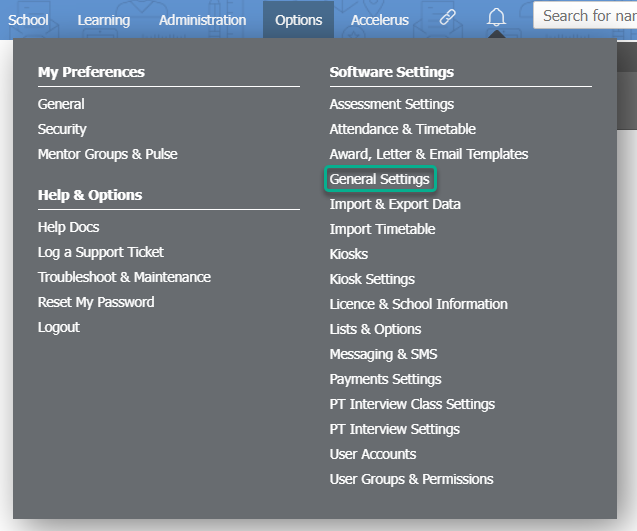
- Untuk mengaktifkan wallpaper kustom, buka Options > Software Settings > General Settings .
- Temukan Login settings .
- Centang kotak Enable Wallpaper .
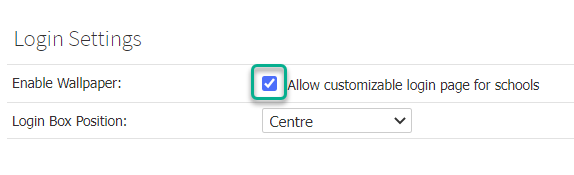
- Gulir ke bawah layar dan klik tombol Save .
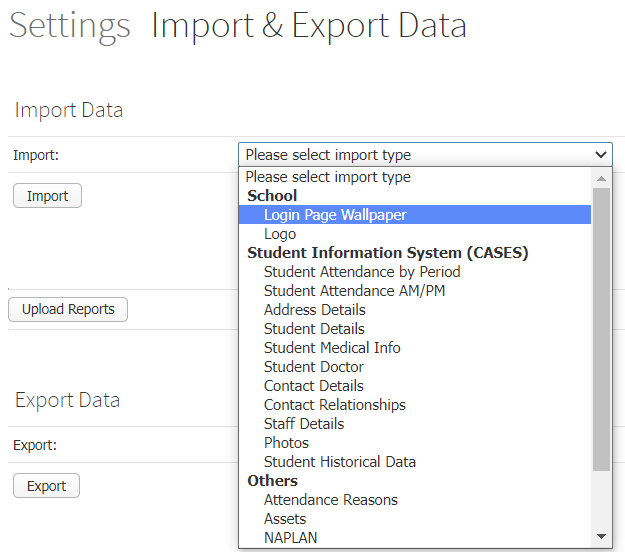
- Kemudian, buka Options > Software Settings> Import & Export Data .
- Dalam daftar dropdown Import: , temukan subjudul School dan pilih Login Page Wallpaper sebagai jenis impor.
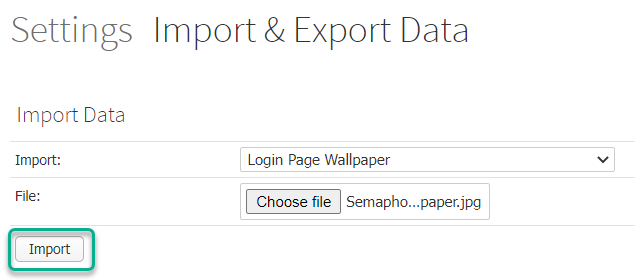
- Klik tombol Choose file dan pilih gambar – sebaiknya gambar yang jelas, baik .png atau .jpg dan berukuran 1MB atau kurang, agar halaman tidak membutuhkan waktu terlalu lama untuk dimuat di area dengan jangkauan internet terbatas.
- Klik tombol Import .
TIPS:
- Unggah foto sekolah Anda, atau fitur penting dari lingkungan sekolah agar halaman login terasa seperti di rumah!
Unggah logo sekolah Anda
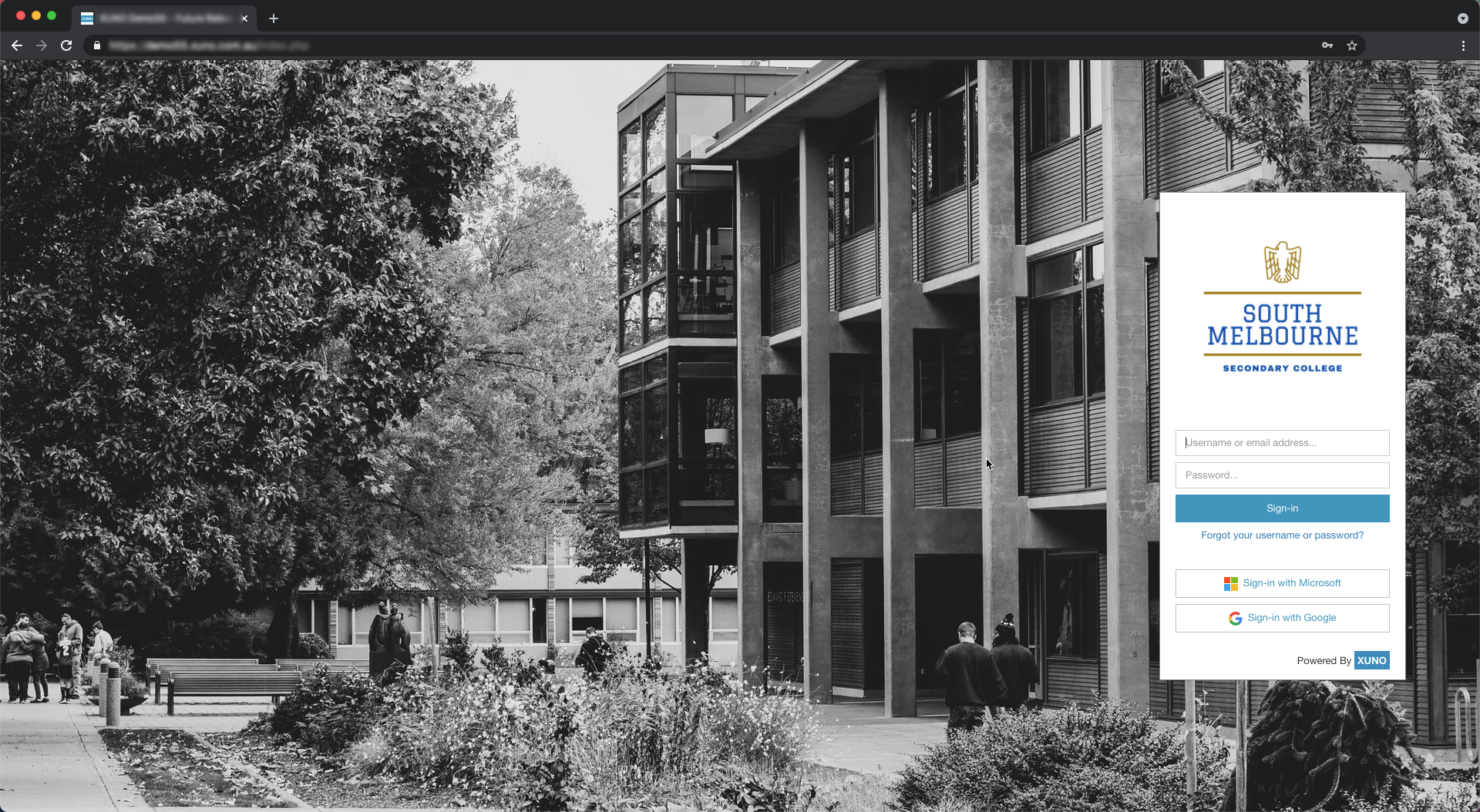
Kotak login tidak lagi menyertakan teks biasa yang menampilkan nama sekolah Anda – harap unggah file logo yang mencakup logo Anda serta nama sekolah. Contoh ada di bawah!
- Login ke Prestia sebagai Administrator.
- Buka Options > Software Settings > Import & Export Data .
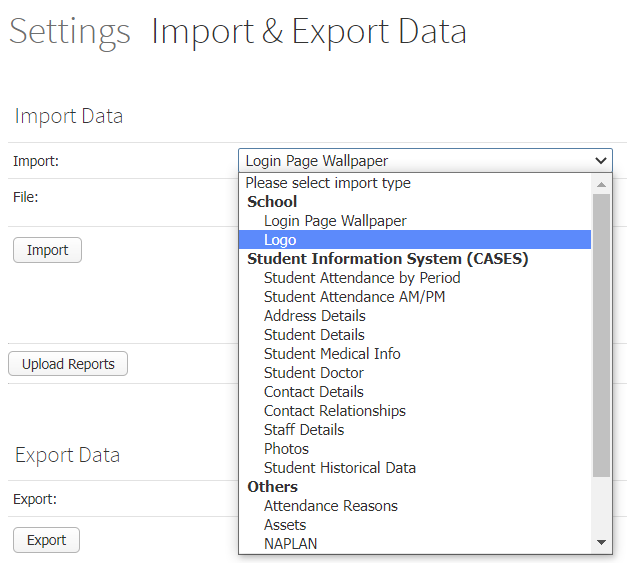
- Dalam daftar dropdown Import: , temukan subjudul School dan pilih Logo sebagai jenis impor.
- Klik tombol Choose file dan pilih gambar – sebaiknya gambar yang jelas, baik .png atau .jpg dan idealnya tidak lebih dari 300KB ukurannya, untuk memastikan pemuatan yang sangat cepat.
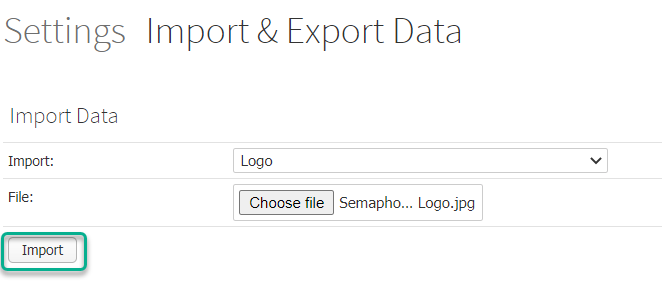
- Klik tombol Import .
TIPS:
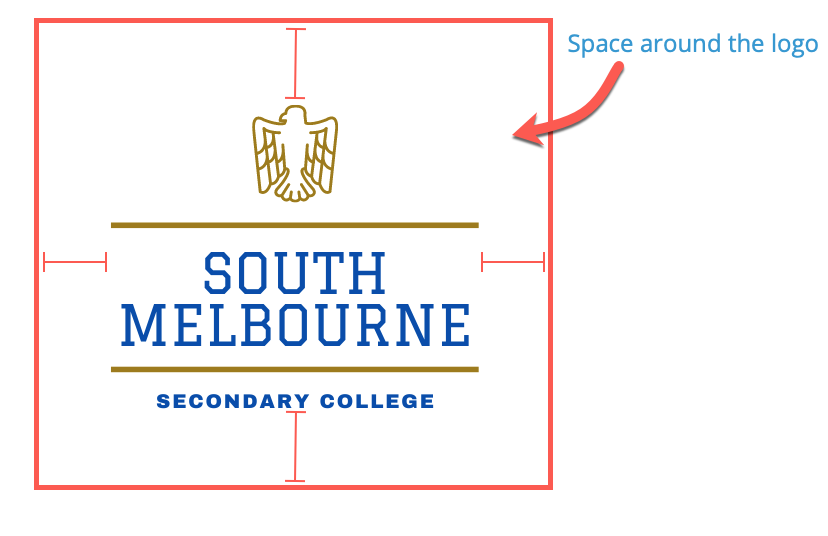
- Sertakan sedikit ruang di sekitar gambar untuk memastikan gambar berada di tengah dan tidak terlalu dekat dengan tepi.
- Logo sekolah di halaman ini akan terlihat terbaik jika cocok dengan rapi dalam bentuk persegi, daripada persegi panjang horizontal yang panjang. Lihat contoh di bawah.
Tentukan posisi kotak login di layar
Anda mungkin ingin menempatkan kotak login Anda ke satu sisi untuk memberi ruang bagi gambar yang digunakan sebagai wallpaper. Berikut langkah-langkahnya, dengan contoh di bawah.
- Login ke Prestia sebagai Administrator.
- Buka Options > Software Settings > General Settings .
- Temukan Login Settings.
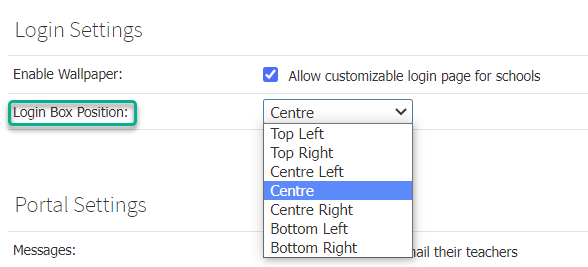
- Pilih Login Box Position dari daftar dropdown.
- Gulir ke bawah layar dan klik tombol Save .
TIPS:
- Anda mungkin perlu menyimpan pengaturan dan kemudian melihat halaman login beberapa kali sebelum Anda memutuskan posisinya.
- Buka halaman login di jendela browser incognito atau pribadi, dan terus refresh setelah melakukan perubahan, untuk menghindari keharusan login dan logout berulang kali saat Anda menyiapkan halaman ini!
Tambahkan pesan sanggahan login
- Login ke Prestia sebagai Administrator.
- Buka Options > Software Settings > General Settings .
- Temukan Program Settings .
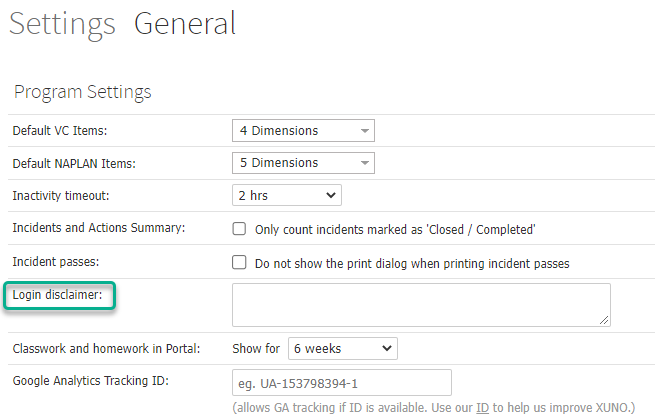
- Ketik pesan sanggahan ke dalam area teks.
- Gulir ke bagian bawah halaman dan klik tombol Save .
Upload a custom wallpaper image
You can upload any image you like to use as wallpaper on the login screen.
- Login to Prestia as an Administrator.
- To enable custom wallpaper, go to Options > Software Settings > General Settings .
- Find the Login settings .
- Tick the Enable Wallpaper checkbox.
- Scroll to the bottom of the screen and click the Save button.
- Then, go to Options > Software Settings> Import & Export Data .
- In the Import: dropdown list, fins the School subheading and select Login Page Wallpaper as the import type.
- Click the Choose file button and select an image – it should be a clear image, either .png or .jpg and 1MB or less in size, so that the page doesn’t take too long to load in areas where there is limited internet coverage.
- Click the Import button.
TIP:
- Upload a photo of your school, or a notable feature of the school grounds so that the login page feels like home!
Upload your school logo
The login box no longer includes plain text that displays your school name – please upload a logo file that includes your logo as well as the school name. Examples are below!
- Login to Prestia as an Administrator.
- Go to Options > Software Settings > Import & Export Data .
- In the Import: dropdown list, fins the School subheading and select Logo as the import type.
- Click the Choose file button and select an image – it should be a clear image, either .png or .jpg and ideally no more than 300KB in size, to ensure it is very quick to load.
- Click the Import button.
TIPS:
- Include some space around the image to make sure it is centred and not too close to the edges.
- The school logo on this page looks best if it fits nicely into a square, rather than a long horizontal rectangle. See example below.
Specify the position of the login box on the screen
You may wish to put your login box off to one side to make room for the image used for the wallpaper. Here are the steps, with an example below.
- Login to Prestia as an Administrator.
- Go to Options > Software Settings > General Settings .
- Find Login Settings.
- Select a Login Box Position from the dropdown list.
- Scroll to the bottom of the screen and click the Save button.
TIPS:
- You may need to save the setting and then view the login page a few times before you decide where it goes.
- Open the login page in an incognito or private browser window, and keep refreshing after making changes, to save you from having to log in and out repeatedly while you set this page up!
Add a login disclaimer message
- Login to Prestia as an Administrator.
- Go to Options > Software Settings > General Settings .
- Find Program Settings .
- Type a disclaimer message into the text area.
- Scroll to the bottom of the page and click the Save button.